

Overview
TurboCAD Workspaces provide a structured way to organize commands, toolbars, menus, palettes, and other interface elements based on the type of design work being performed. Selecting an appropriate workspace helps users access relevant tools more efficiently while reducing unnecessary interface clutter.
Available Workspaces
TurboCAD provides seven main workspace categories:
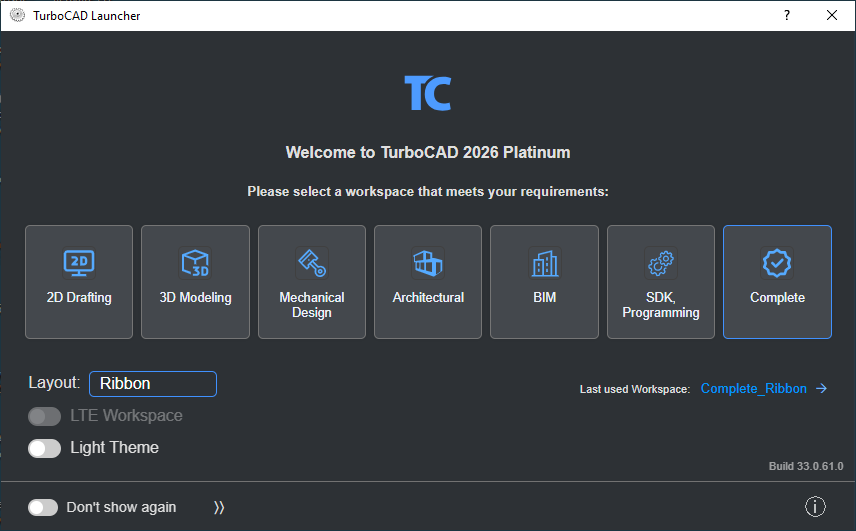
- 2D Drafting – Tools for creating and editing 2D drawings and technical documentation.
- 3D Modeling – Tools for creating and modifying 3D models.
- Mechanical Design – Features intended for mechanical design and engineering workflows.
- Architectural – Tools for architectural drafting and design.
- BIM – Commands and functionality related to Building Information Modeling.
- SDK/Programming – Tools intended for development and programming workflows.
- Complete – The Complete workspace is the full, unrestricted configuration that exposes all available palettes, toolbars, menus, and commands. It is intended for users who want maximum access without workflow‑specific filtering.
Note: The availability of workspaces depends on the TurboCAD variant being used. Some editions include the full set of workspace configurations, while others provide only a subset.
TurboCAD Launcher Workspaces
TurboCAD Launcher Workspaces are default, pre‑configured layouts. When you select one from the Launcher, TurboCAD always opens with that default configuration — your customized workspaces are not loaded automatically.
To reopen your previous environment, select Last used Workspace in the Launcher.
To open or save personalized workspace configurations, use the customization options inside TurboCAD.
Benefits of Using Workspaces
Choosing a workspace that matches your current design requirements can provide:
- Faster access to commonly used tools
- A more organized interface
- Reduced menu and toolbar clutter
- Easier command discovery
- A workflow tailored to your design requirements
For example, architectural designers can use the Architectural workspace, while mechanical designers can select the Mechanical Design workspace.
Workspace Selection: Ribbon or Toolbars
In the TurboCAD Launcher, the Workspace section allows users to choose both their preferred workspace and the interface layout used to display its tools. The layout is selected under Layout and determines whether TurboCAD loads the Ribbon interface or the traditional Toolbars.
The workspace defines which tools and commands are available, while the layout determines how those commands are organized and accessed.
Examples:
- Mechanical Design + Ribbon – Loads the Mechanical Design workspace using the Ribbon interface.
- Mechanical Design + Toolbars – Loads the Mechanical Design workspace using the classic Toolbar interface.
This separation gives users flexibility to combine the toolset they need with the interface style they prefer, creating an environment that fits both their workflow and personal working habits.
Default and LTE Workspace
Default Workspace
The Default Workspace uses TurboCAD’s standard interface and layout, including the familiar arrangement of menus, toolbars, palettes, and other interface elements.
LTE Workspace (AutoCAD‑style)
The LTE Workspace provides an AutoCAD‑style drafting environment. It includes features such as:
- Dynamic Input
- Command Line
This workspace is designed for users who prefer a command‑driven workflow similar to AutoCAD’s LTE mode, offering a more keyboard‑focused drafting experience.
Access the Workspace Customization Options
TurboCAD allows users to load, save, browse, and manage workspace configurations.
To open the Customize dialog:
- Click Workspace on the Ribbon, or Tools → Workspace when using the Toolbar interface.

- Select Customize.
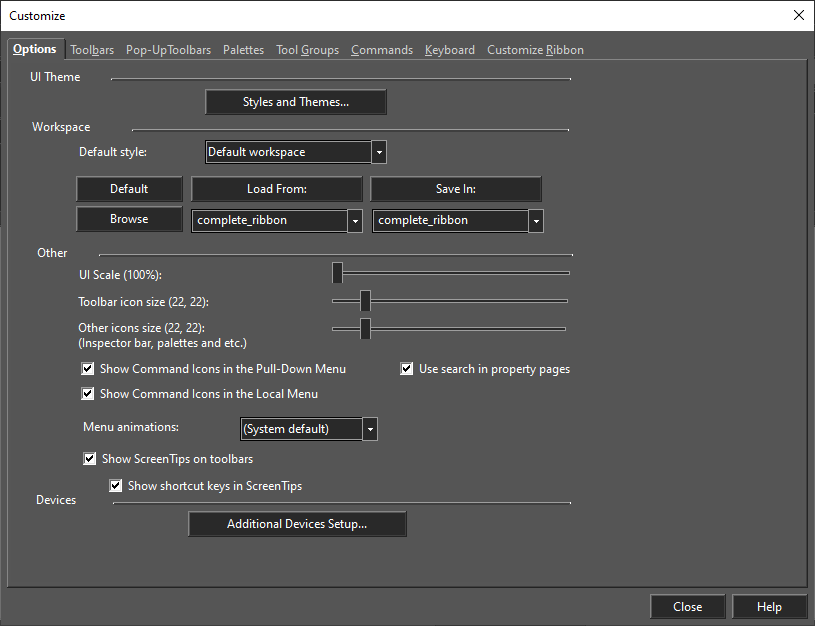
Alternatively, right-click any blank area of a toolbar to open the Customize dialog.
Create or Save a Workspace Configuration
You can save your customized workspace configuration for future use.
- Open the Customize dialog.
- Enter or select a configuration name in the Save In drop-down list.
- Click Save In.
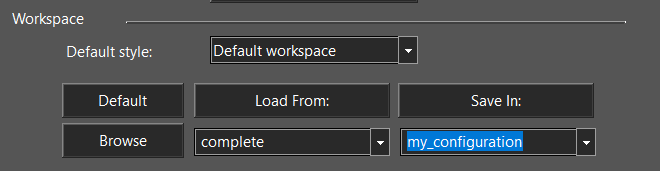
- TurboCAD saves the current configuration using the selected name.
To open your saved custom workspace, do not use the TurboCAD Launcher. Instead, open TurboCAD first, then load your saved configuration from the Customize dialog.
Load a Workspace Configuration
If you have an existing workspace configuration saved, you can load it into TurboCAD.
- Open the Customize dialog.
- Select the required configuration from the Load From drop-down list.
- Click Load From.
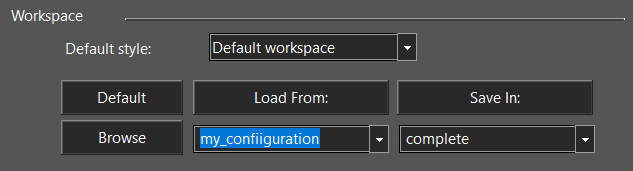
- TurboCAD loads the selected configuration.
Loading a saved configuration is useful when switching between different working environments or restoring a previously saved interface setup.
Locate Workspace Configuration Files
TurboCAD provides an option to locate the configuration files stored on your system.
- Open the Customize dialog.
- Click Browse.
- TurboCAD opens the location containing the configuration files.
This option is helpful for locating, managing, or backing up configuration files.
Restore the Default Configuration
If a customized workspace is no longer suitable or a workspace configuration issue occurs, you can restore the standard TurboCAD configuration.
- Open the Customize dialog.
- Click Default.
- TurboCAD restores the standard configuration.
This provides a quick way to return to the default interface without manually resetting individual settings.
Summary
Workspaces selected from the TurboCAD Launcher always load the default configuration for that workspace. To save and reopen your own customized workspace layouts, use the options described in the Access the Workspace Customization Options section.
TurboCAD provides comprehensive tools to load, save, browse, and restore workspace configurations, allowing users to personalize their interface and switch easily between different working environments.