

TurboCAD
Introducing Copilot Rendering
Copilot Render creates conceptual renderings of your CAD drawings using natural language prompts. Specify style, lighting, materials, or environment to generate enhanced visuals over your existing drawing, then explore alternatives by adding, removing, or modifying design elements.
Why it matters
Copilot Render helps teams move from technical geometry to persuasive visual storytelling earlier in the design cycle. It is ideal for design reviews, concept exploration, stakeholder communication, and faster presentation prep without rebuilding assets in a separate rendering tool.
Explore alternatives faster
Test variations in mood, finish, setting, and supporting geometry by changing the prompt instead of rebuilding the model from scratch.
Communicate intent clearly
Overlay enhanced visuals on the source drawing so reviewers can read the original design while seeing a richer concept direction.
Present earlier with confidence
Generate polished concept imagery for internal reviews, client feedback, and pitch materials long before final production rendering.
Before and after showcase
Drag each slider to compare the original CAD output with the Copilot Render result. The gallery opens with 2D drawing examples, led by the four-view drawing conversion, then continues into 3D model concept renders.
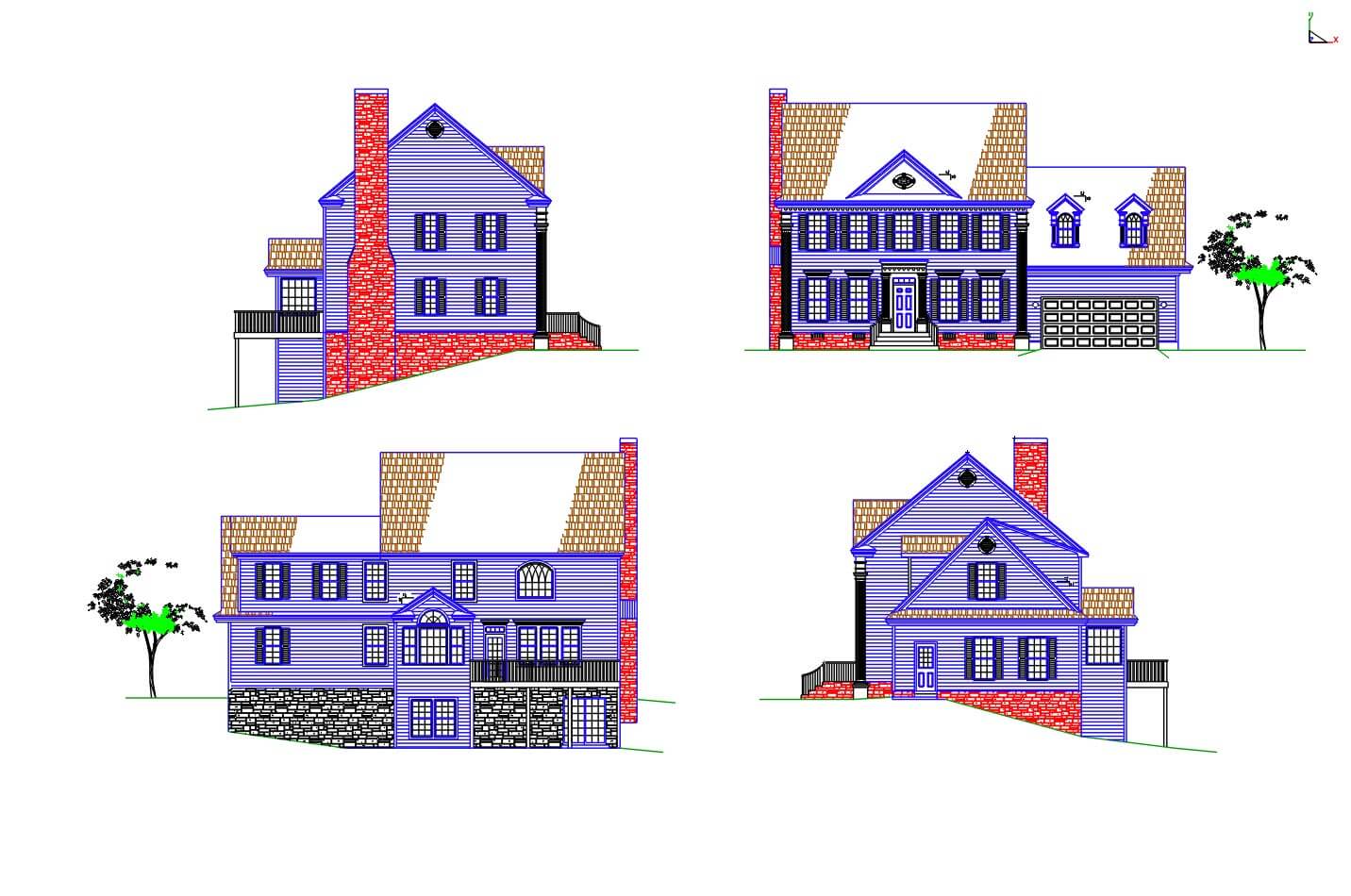
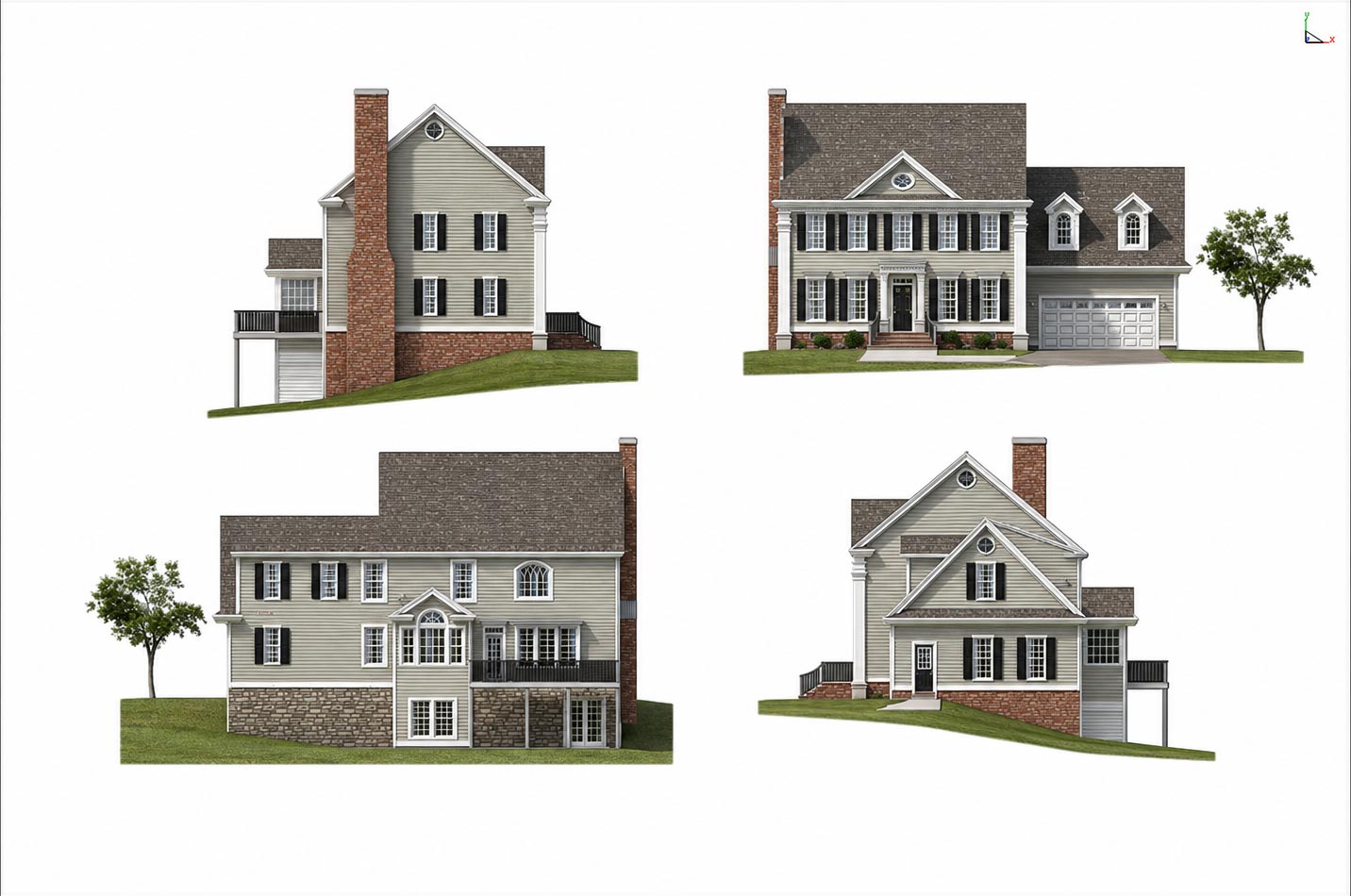
2D Four View
Converts a technical four-view drawing into a polished concept visualization while keeping the original 2D presentation readable.
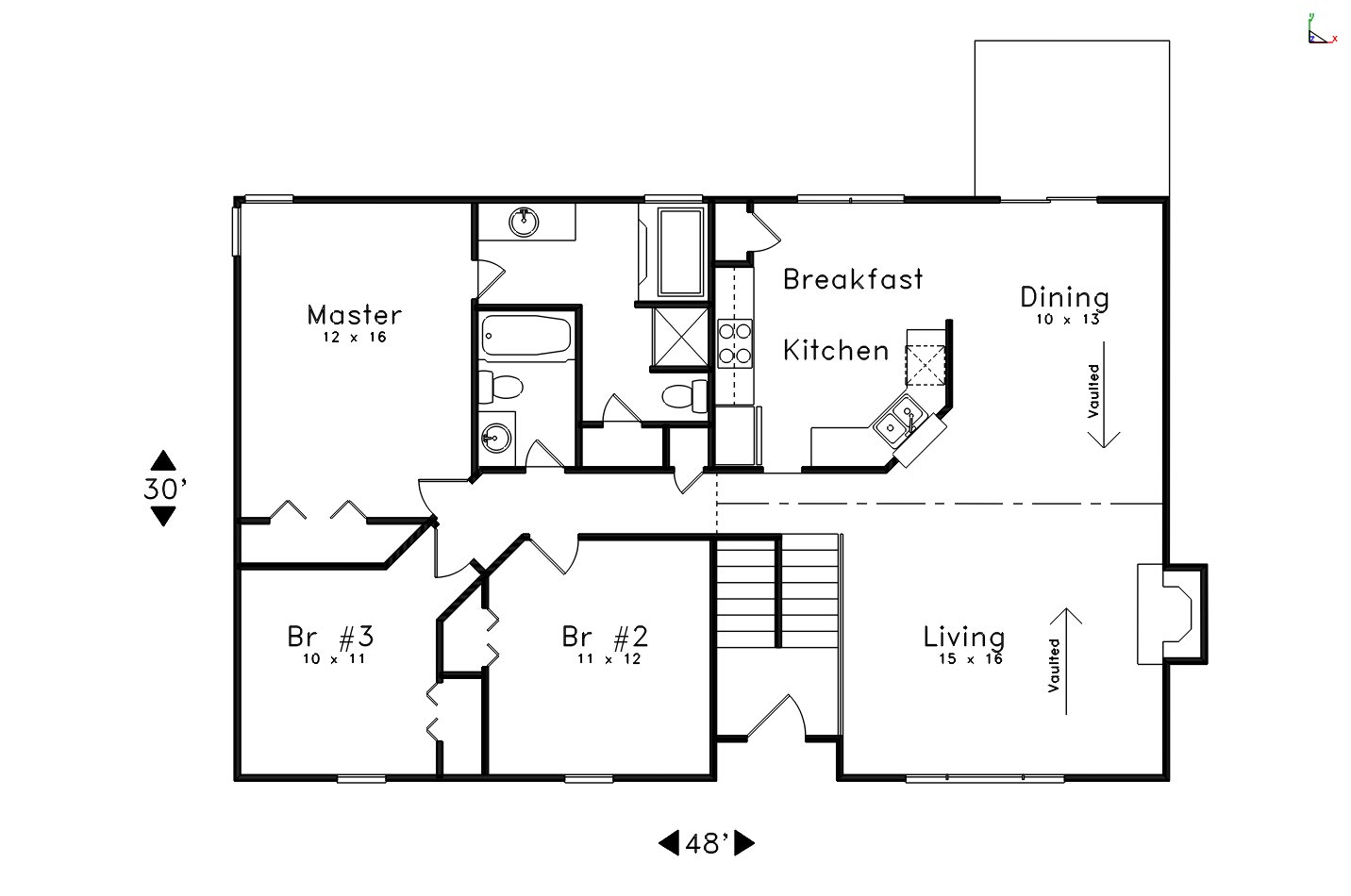
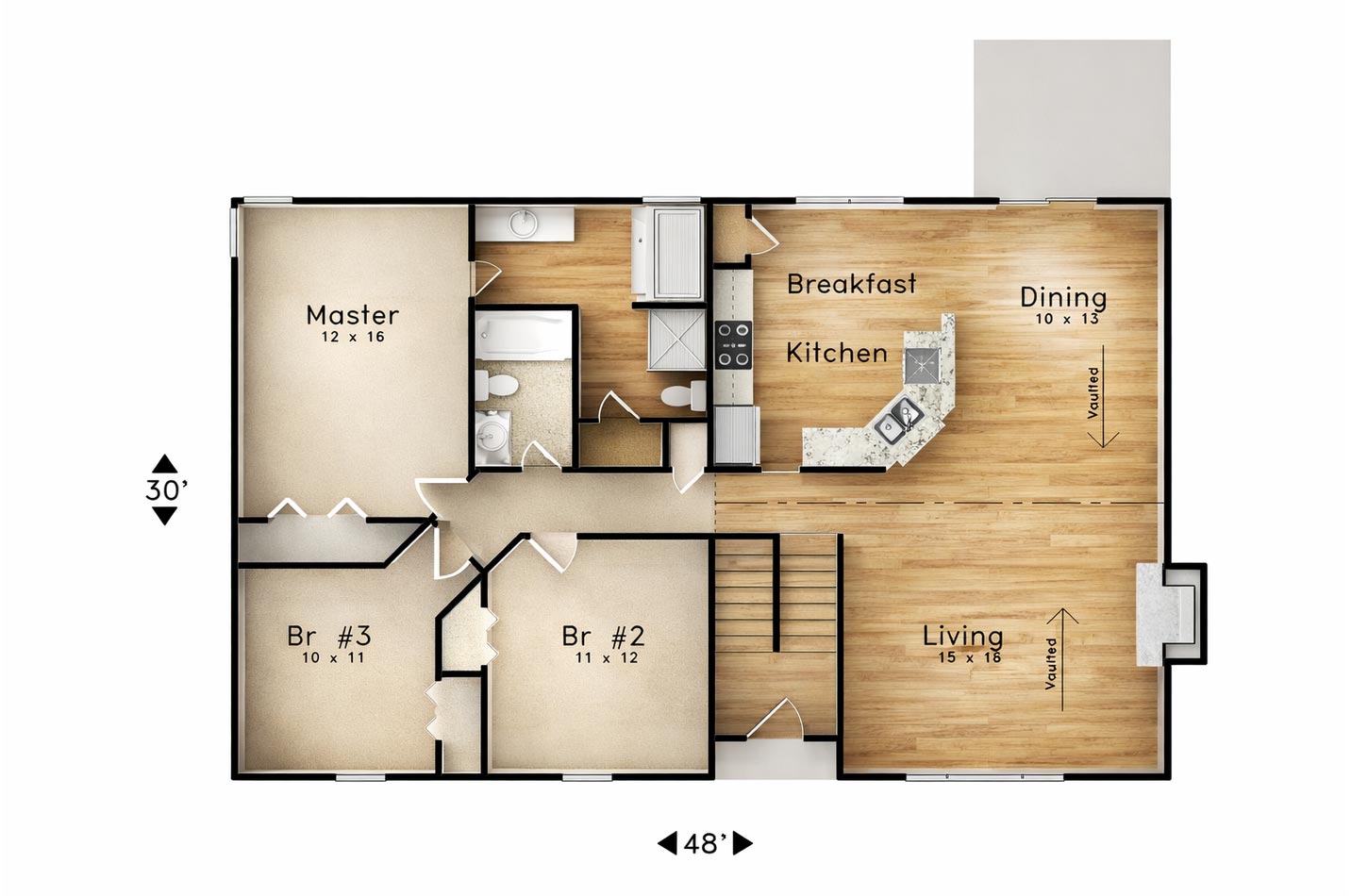
2D Floor Plan Update
Adds finish, lighting, and presentation depth to a flat plan while preserving the plan-first structure of the drawing.
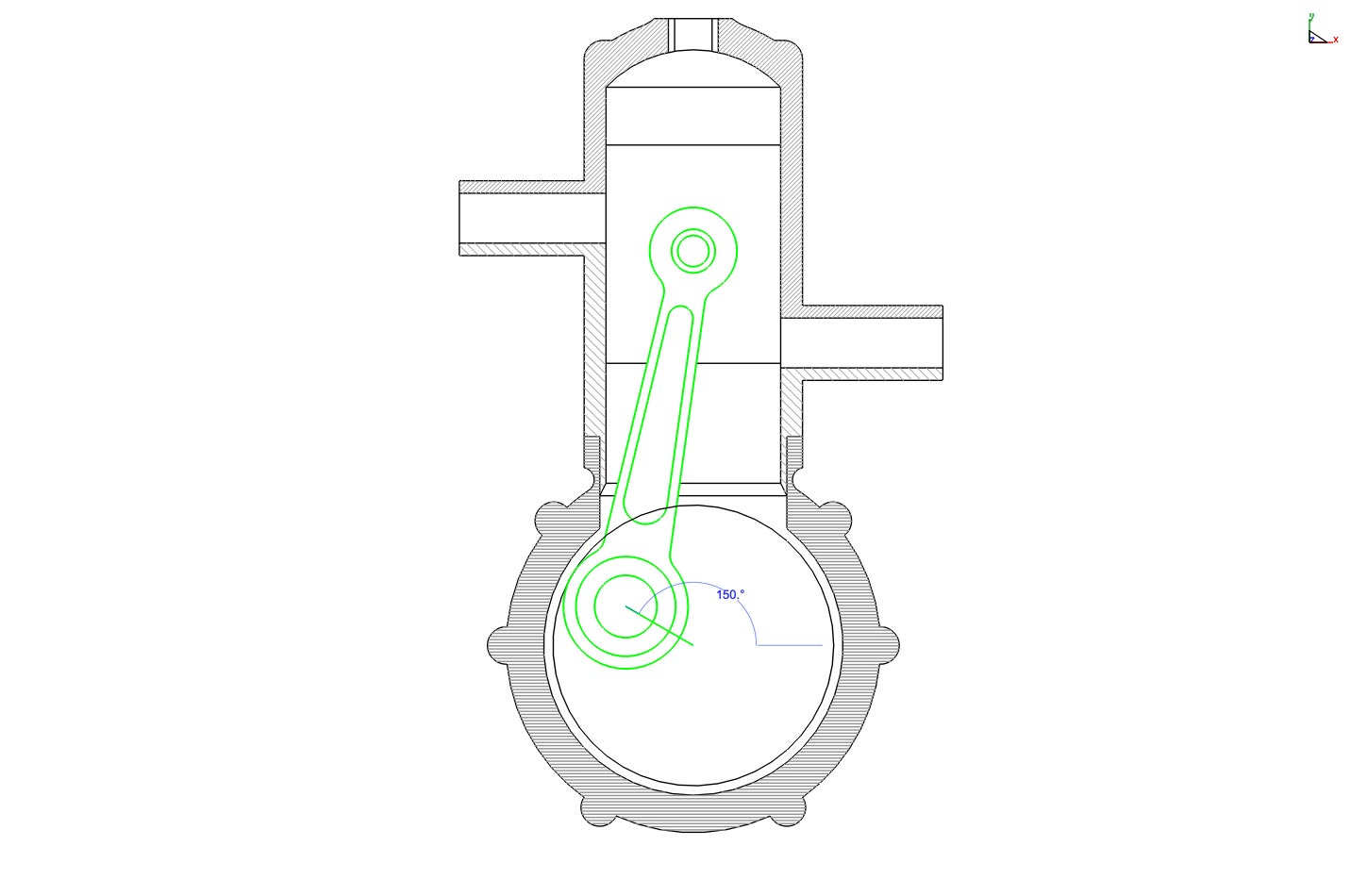
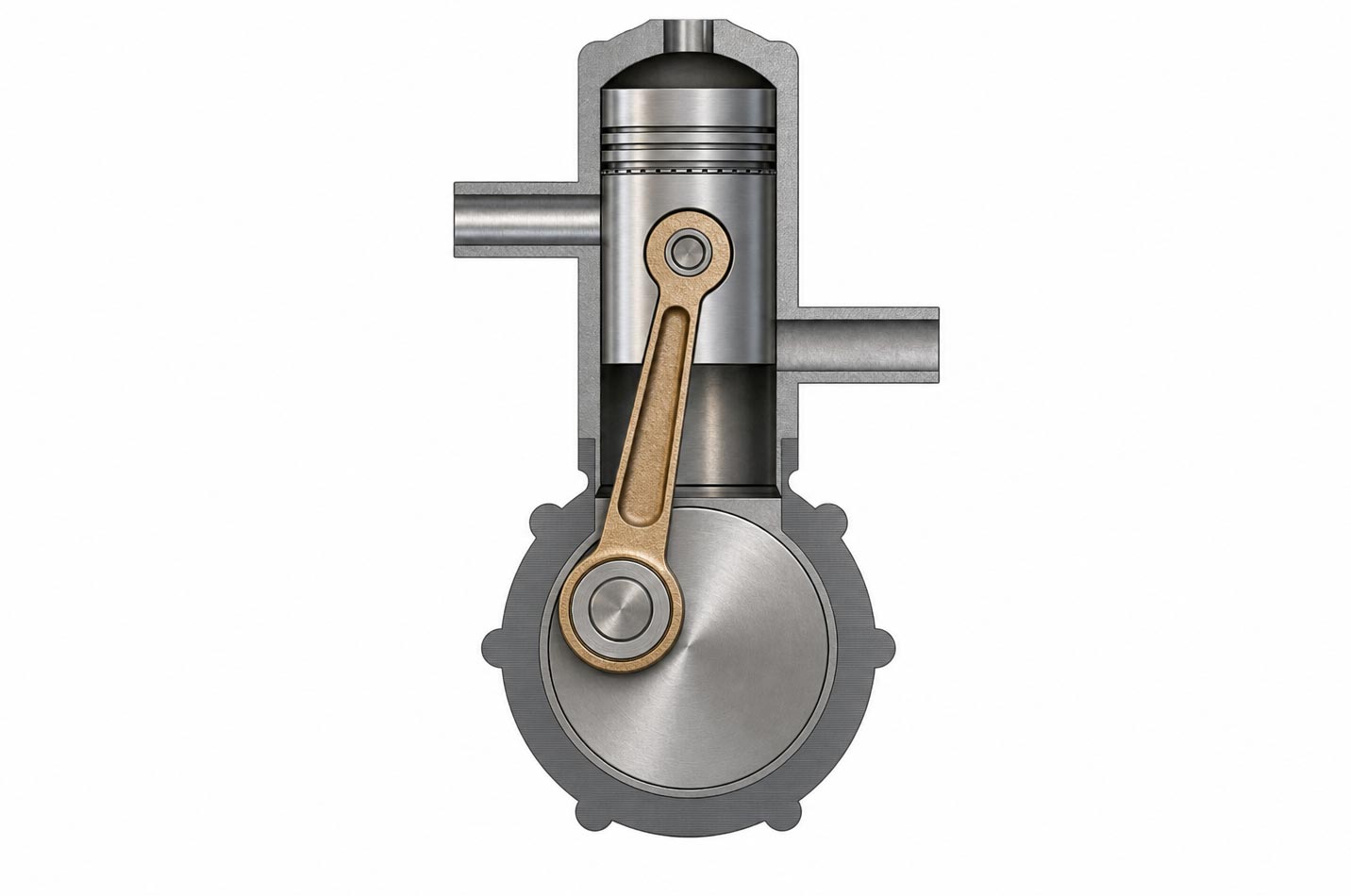
2D Engine Cutaway
Enhances a technical section drawing with realistic material cues while explicitly keeping the result as a 2D cross section.
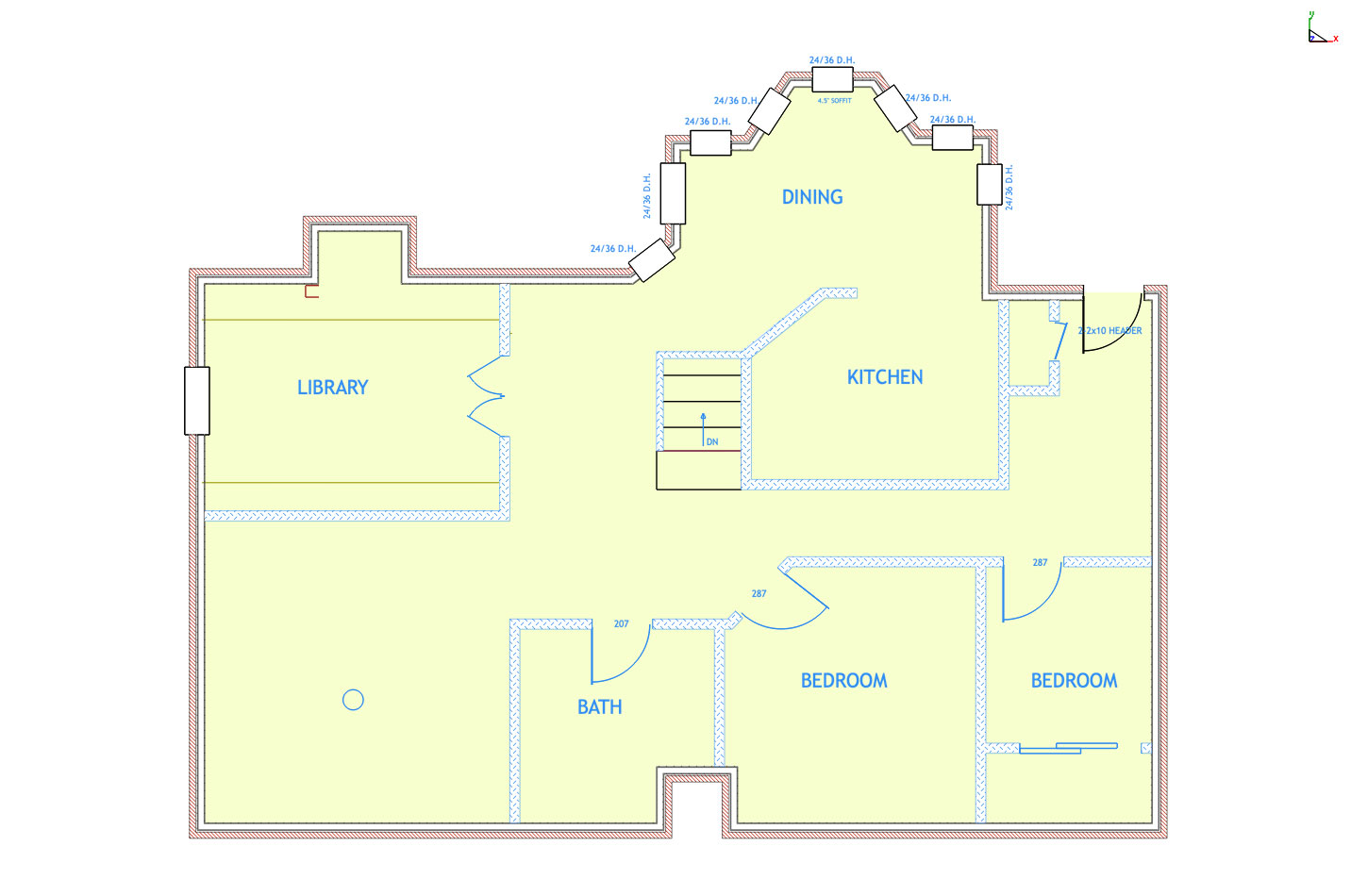
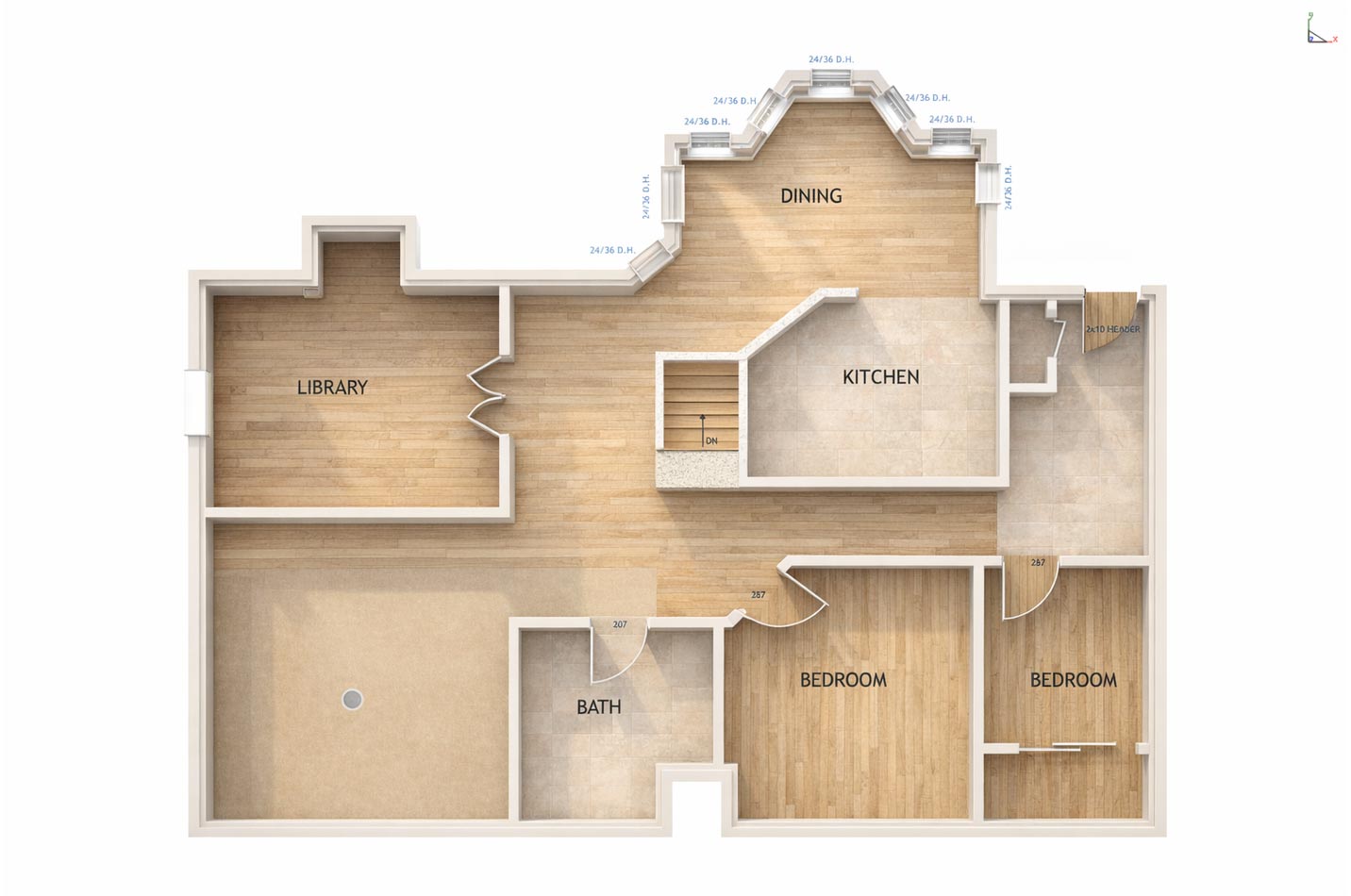
2D Floor Plan
Transforms a flat architectural drawing into a more tangible space planning concept while preserving the underlying layout.
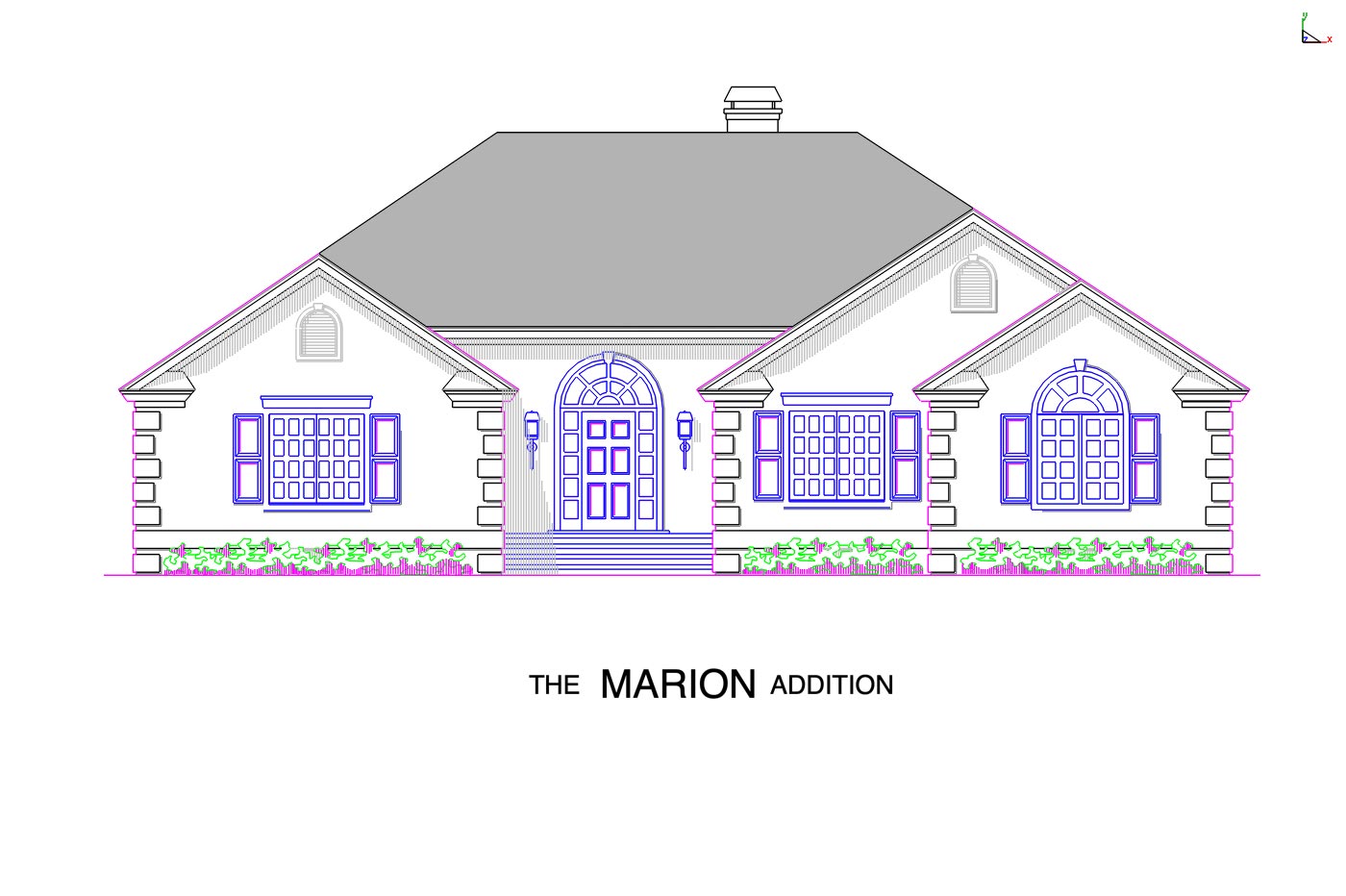
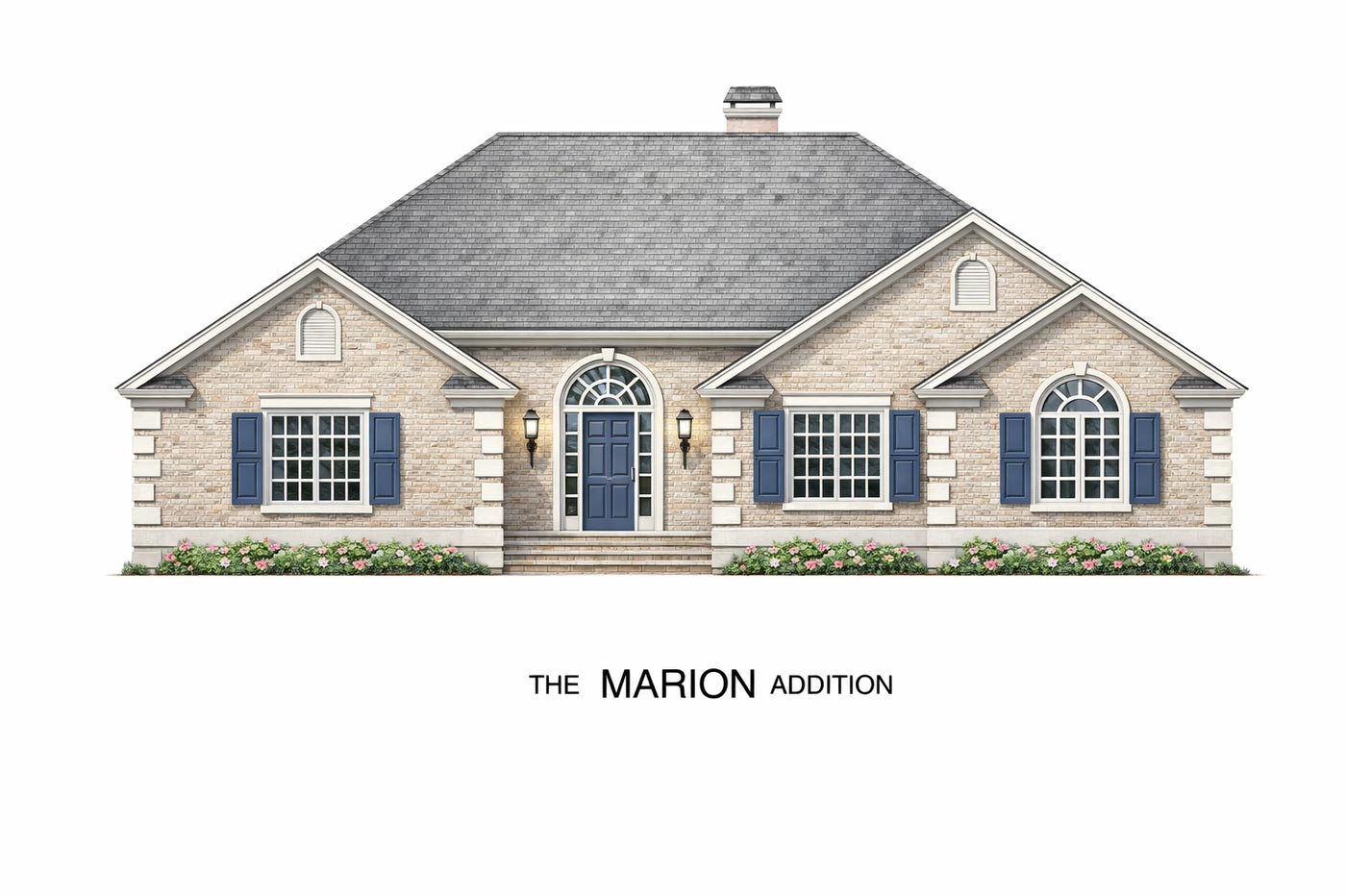
Home Addition
Provides a more approachable architectural concept view for homeowner discussions and rapid design iteration.
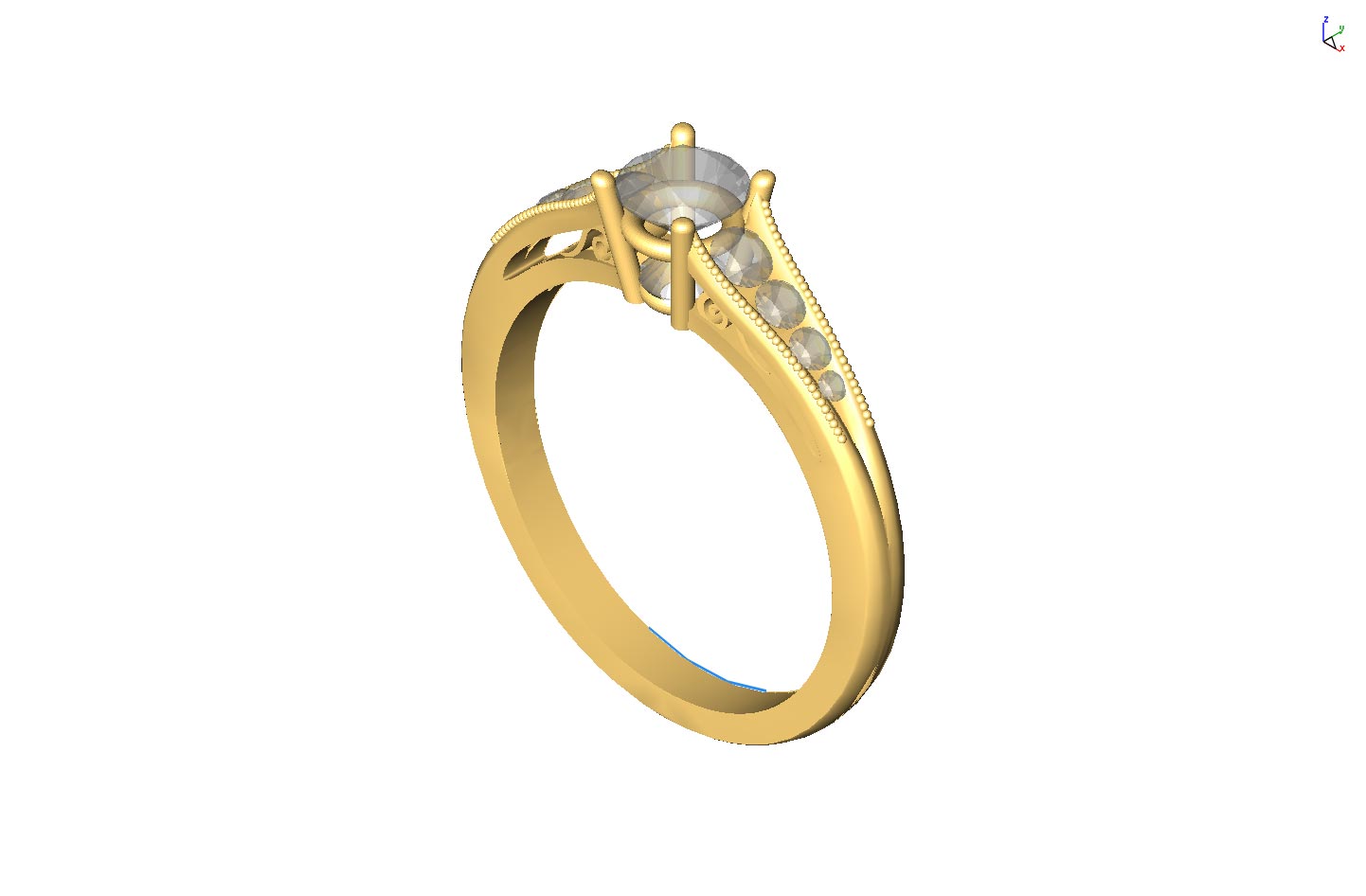
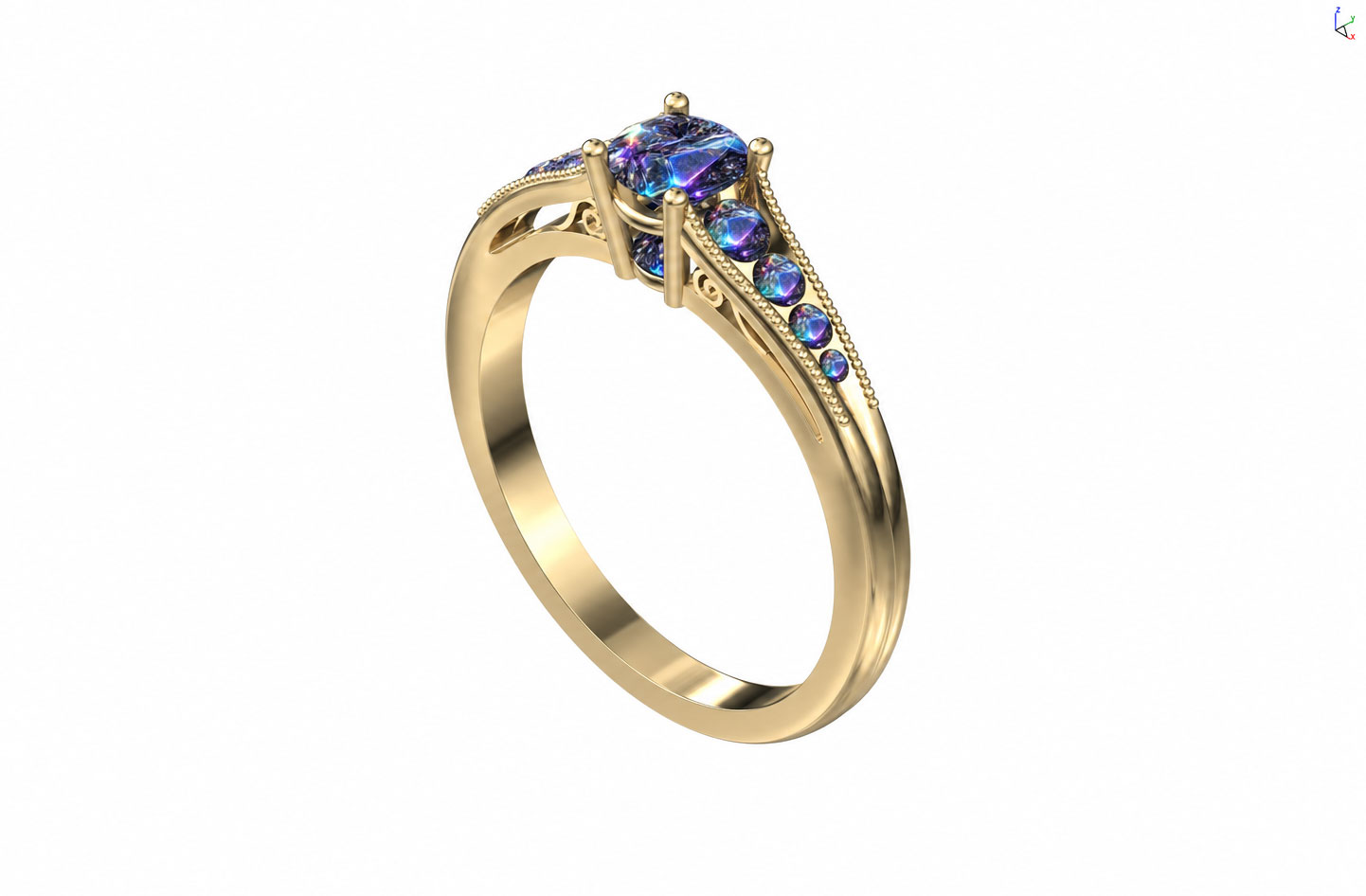
Futuristic Gem Concept
Uses reference-driven styling to push a jewelry concept toward a more polished and directional visual narrative.
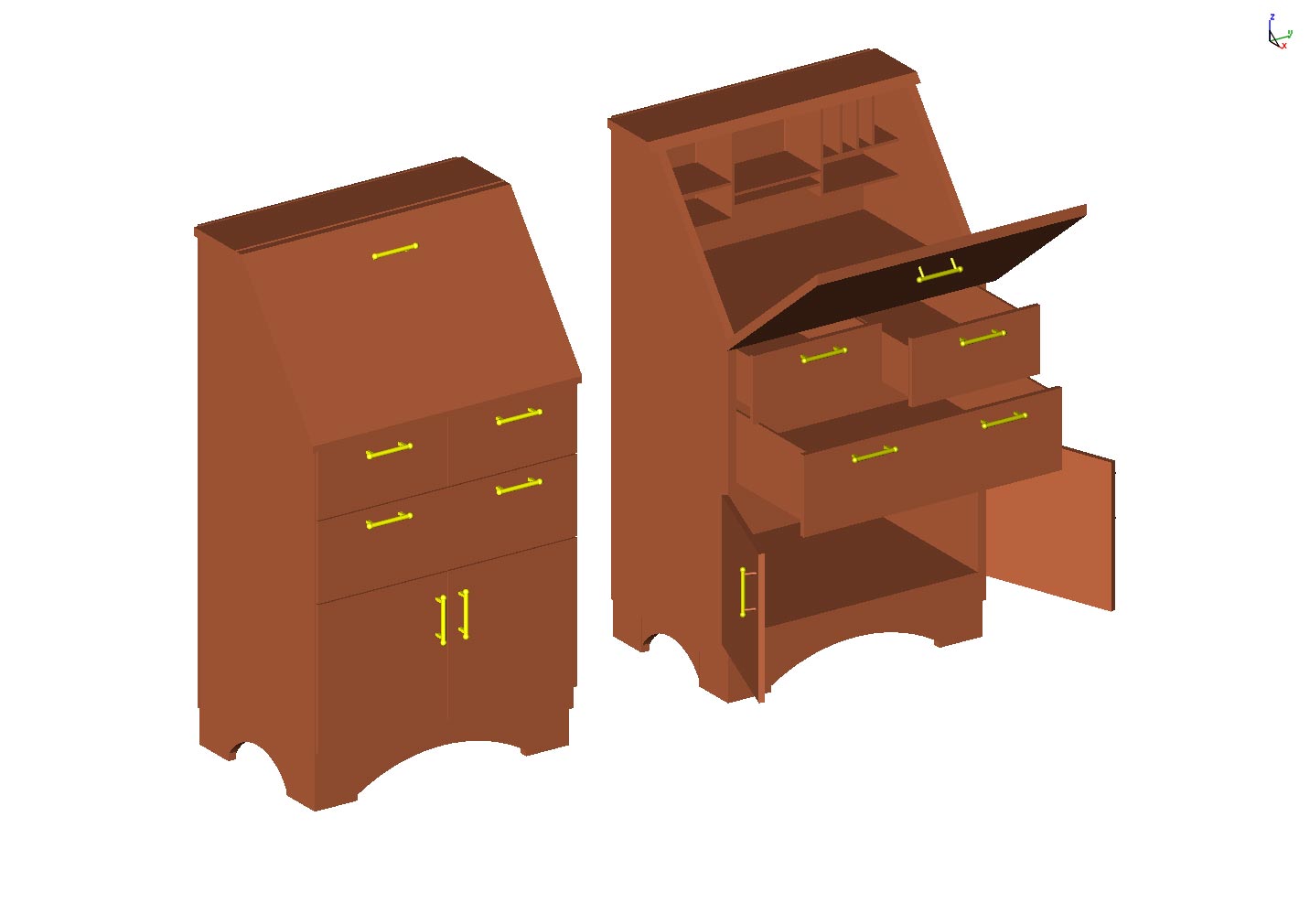
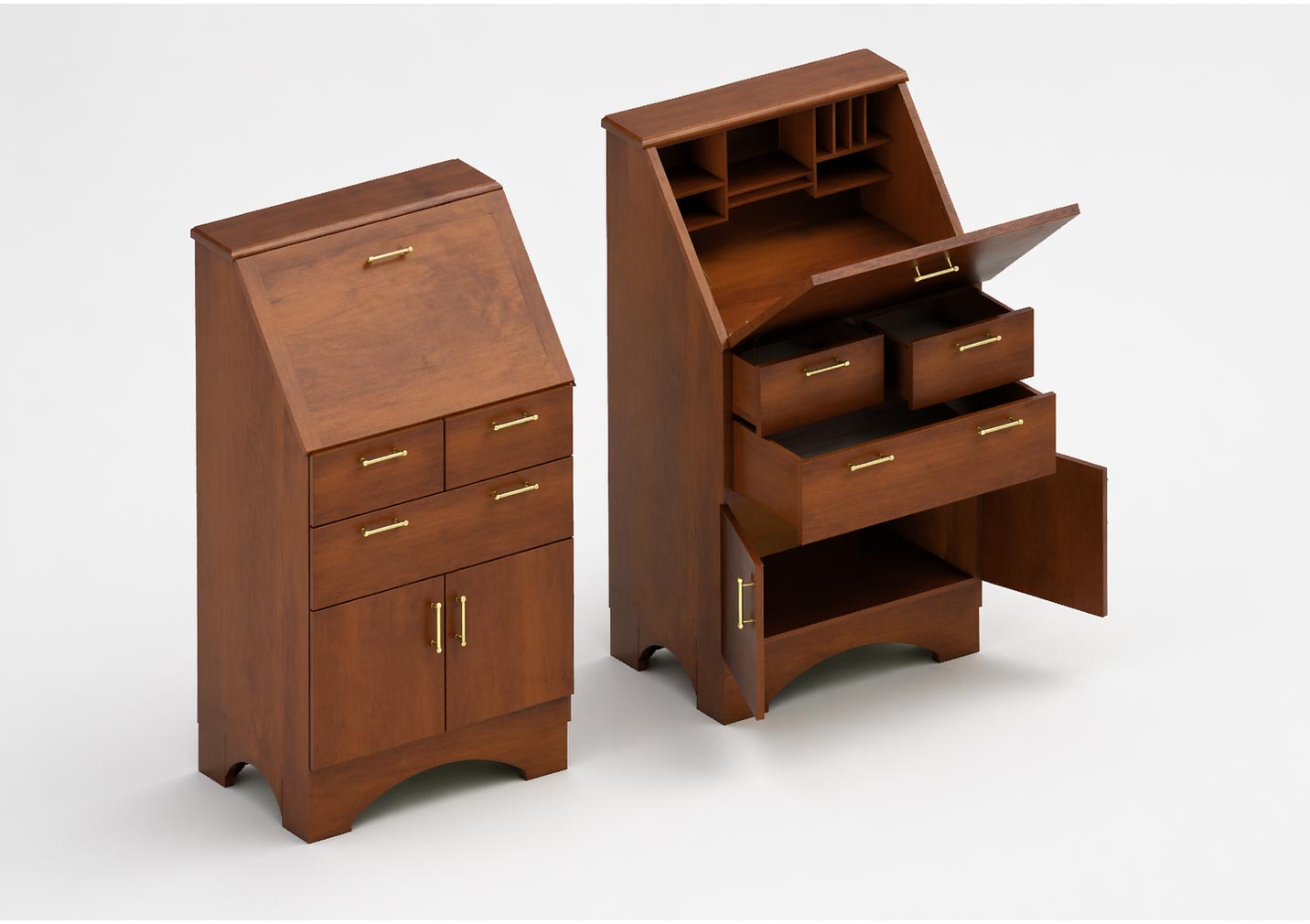
Secretary Desk
Turns a furniture drawing into a warmer, more marketable product visualization that better communicates craftsmanship and finish.
Vehicle Sketch
Quickly upgrades a line-based vehicle concept into a more cinematic visual for early design discussion and buy-in.
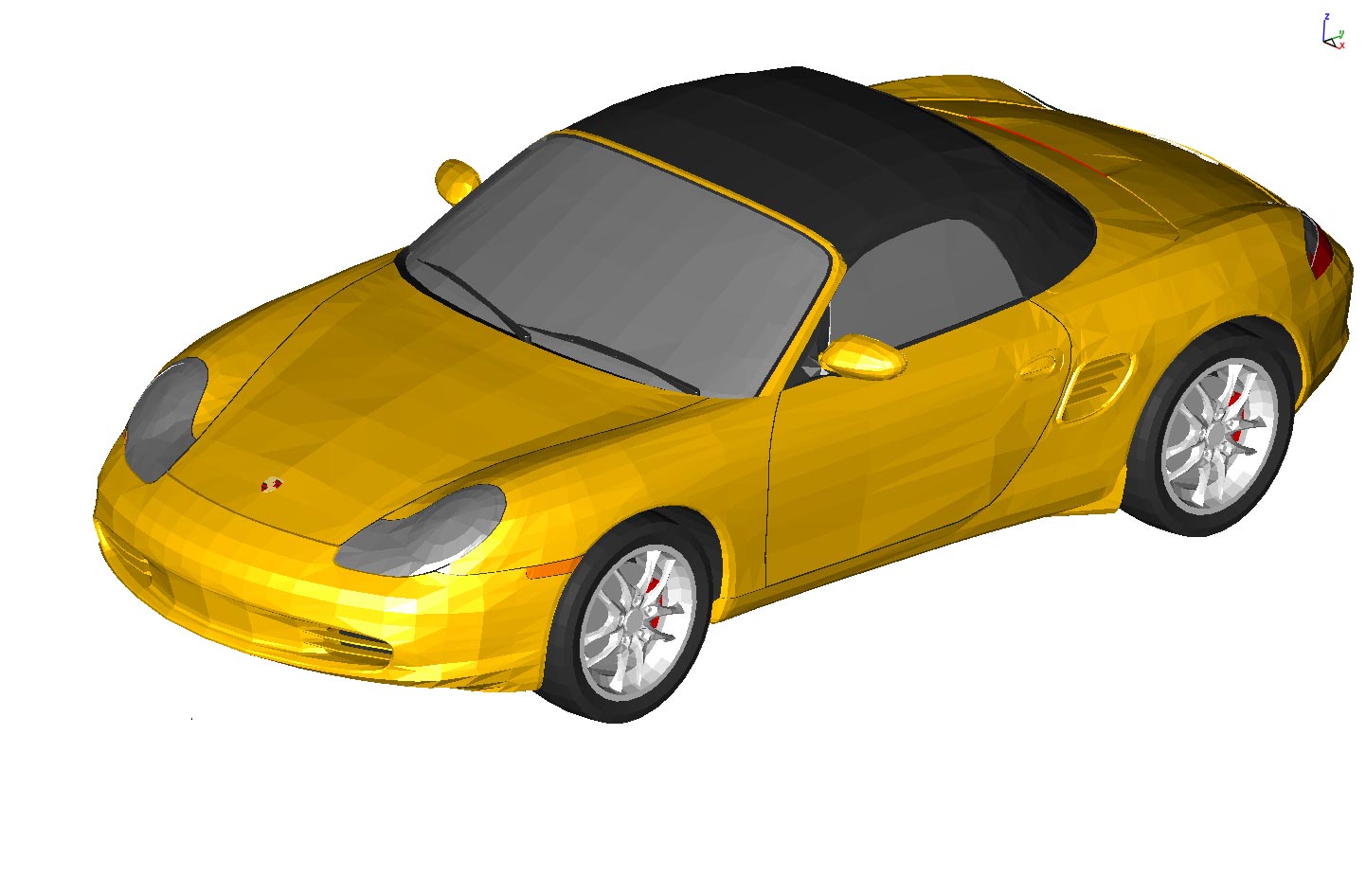
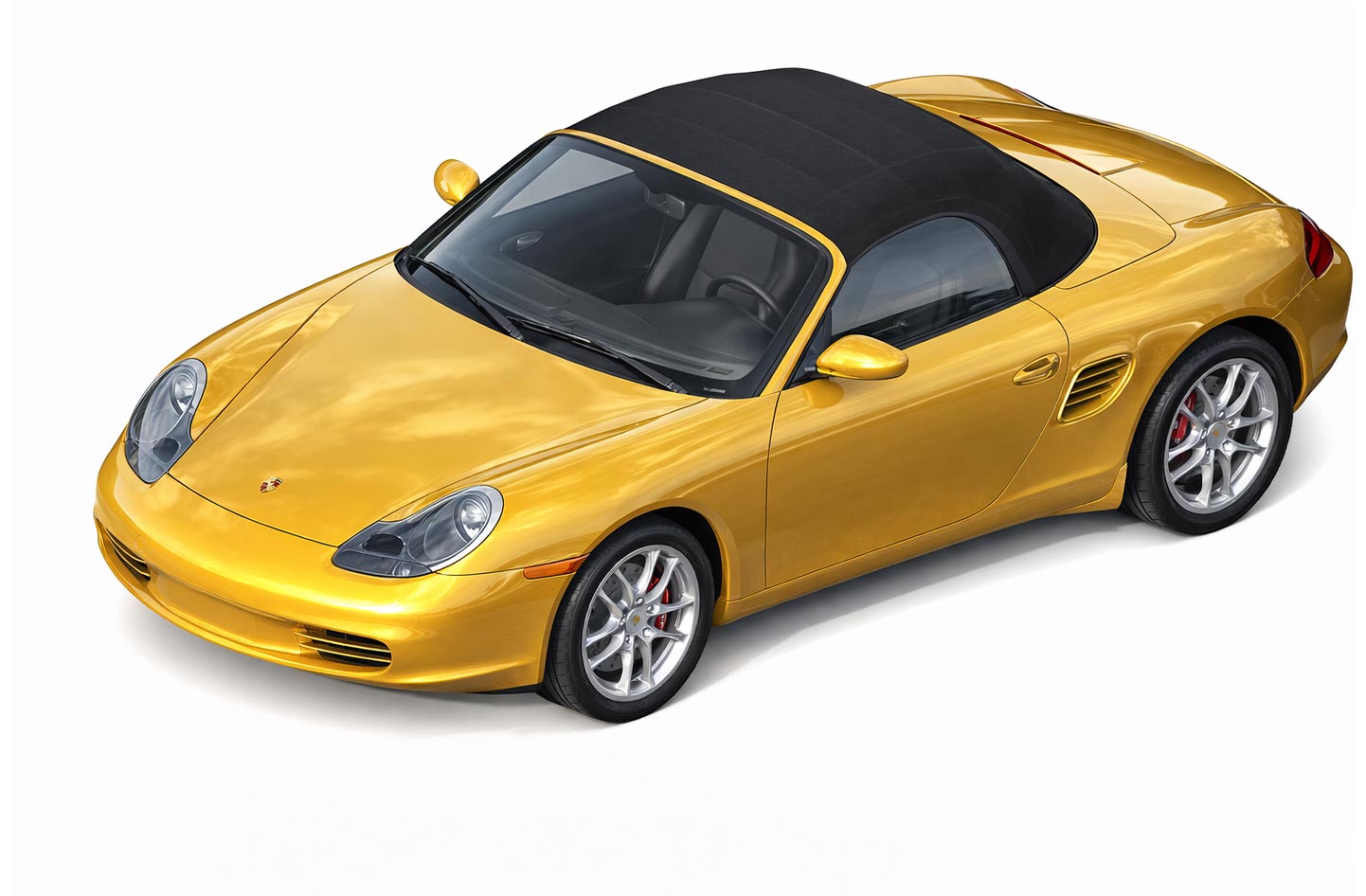
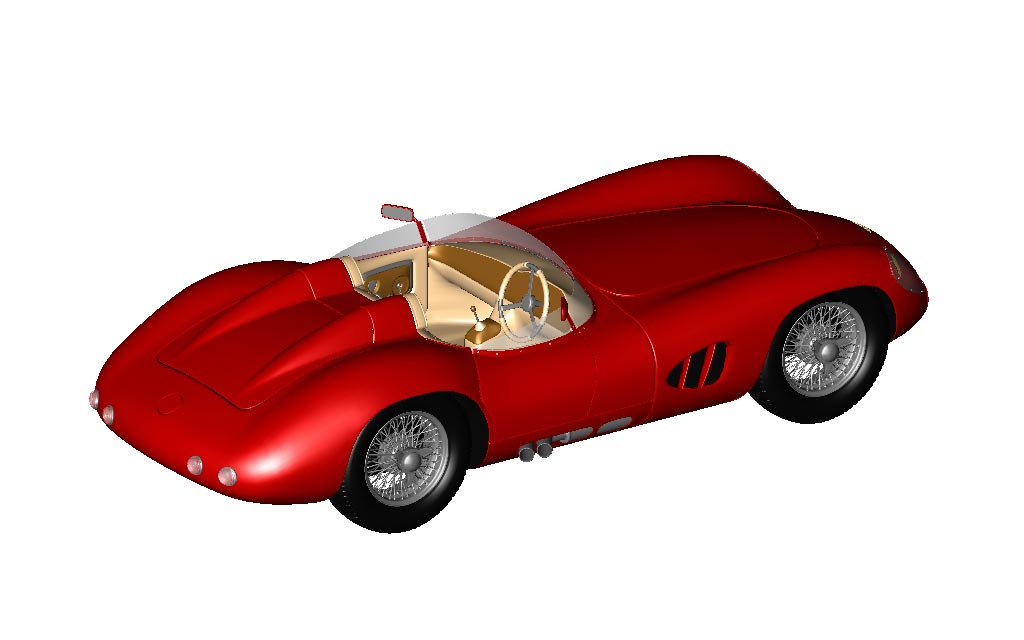
Red Car Rendering
Illustrates how style and lighting cues can elevate a model into a more compelling automotive presentation image.

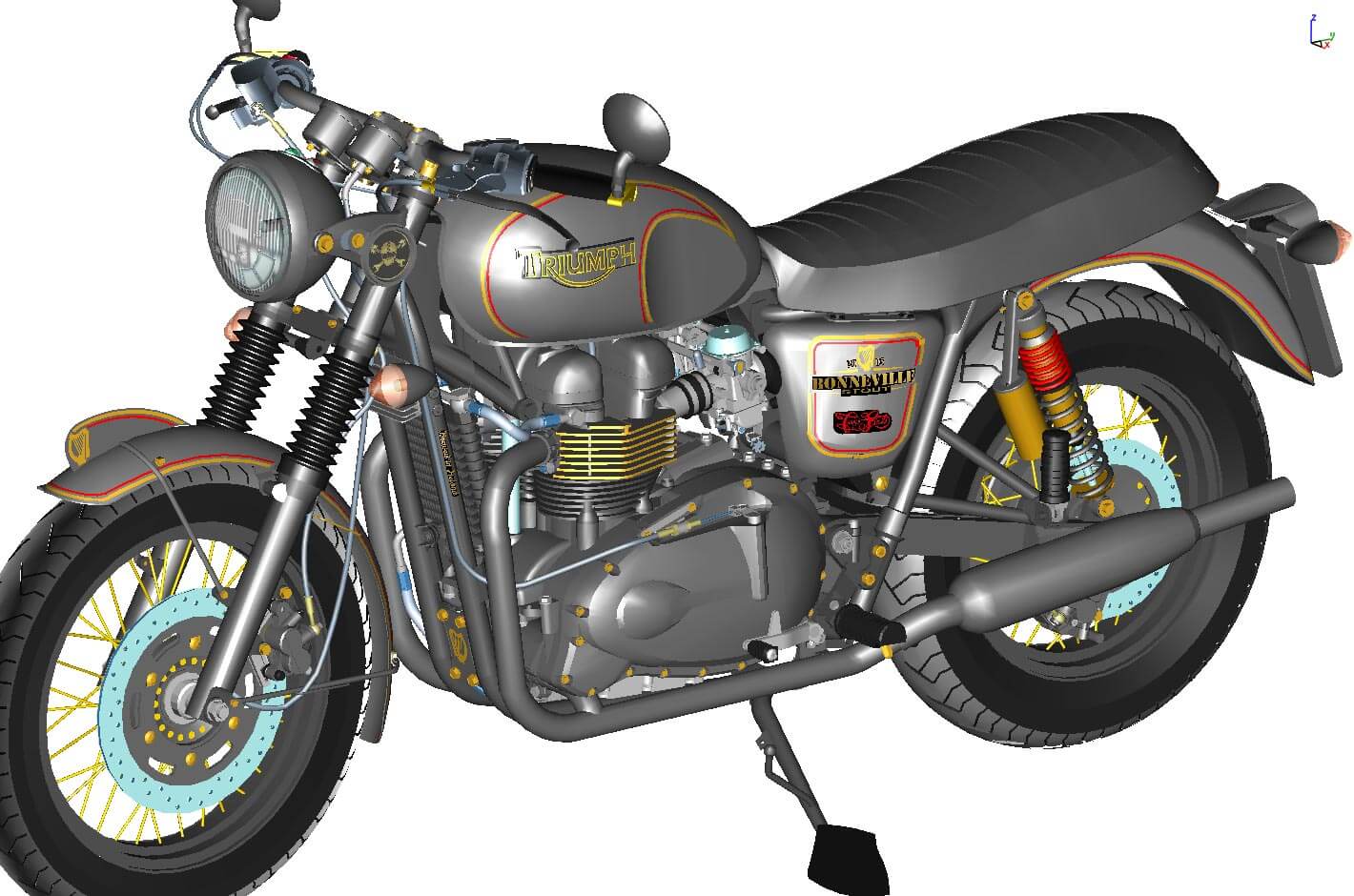
Motorcycle Study
Enhances an industrial form study with richer lighting and atmosphere to better surface proportion and intent.

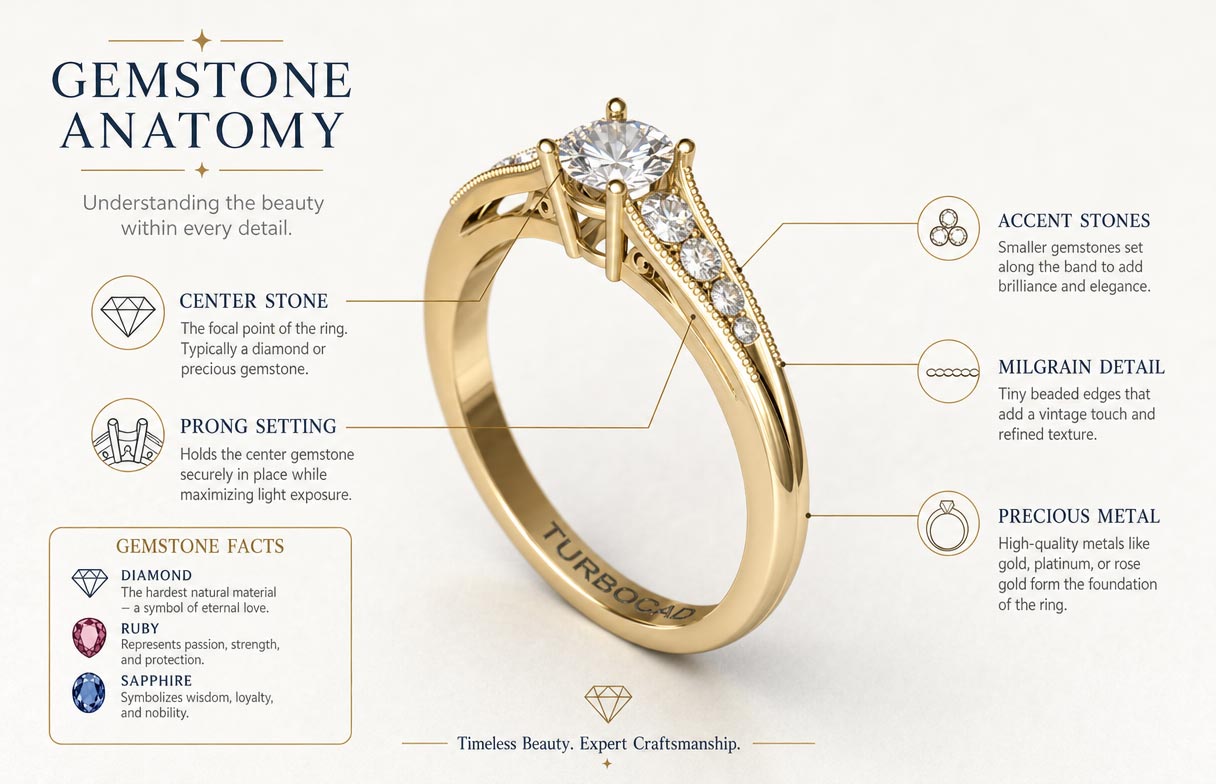
Jewelry Infogram
Shows how Copilot Render can move beyond realism into stylized communication graphics for sales and education.
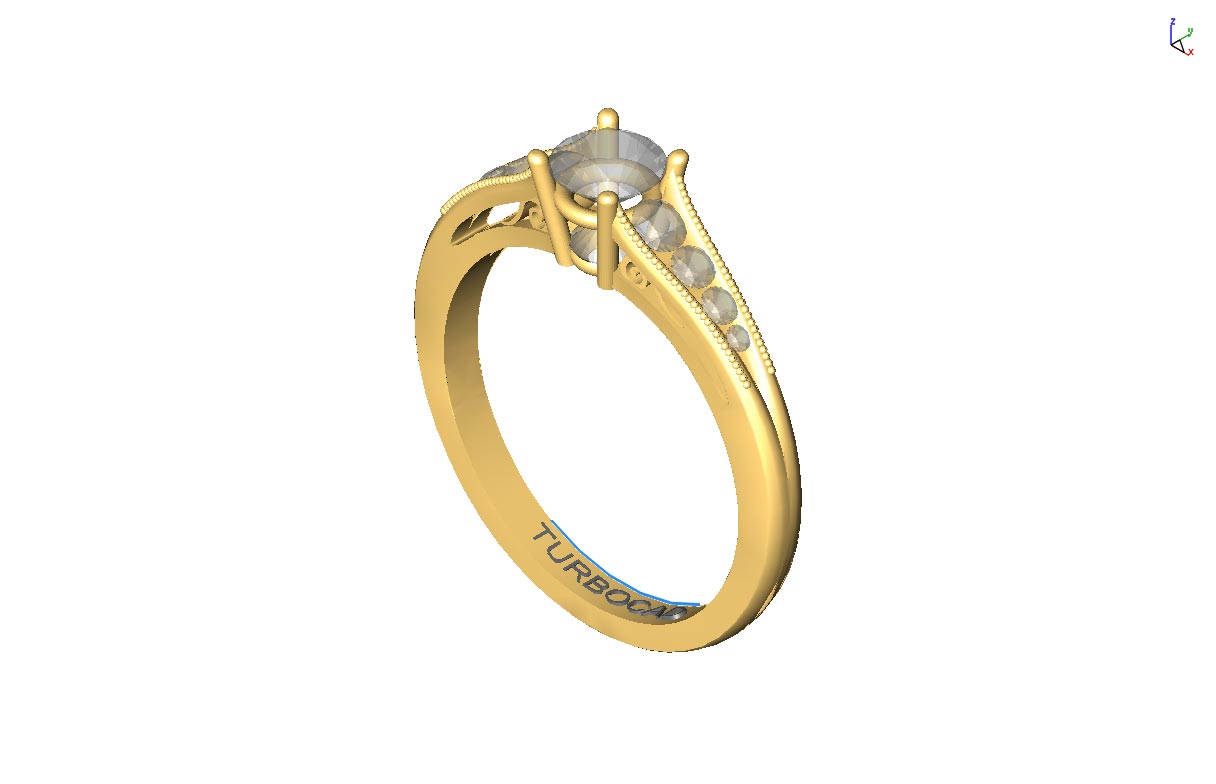
Ring Packaging Mockup
Demonstrates how prompt-based scene building can place a design inside a broader product story for marketing exploration.
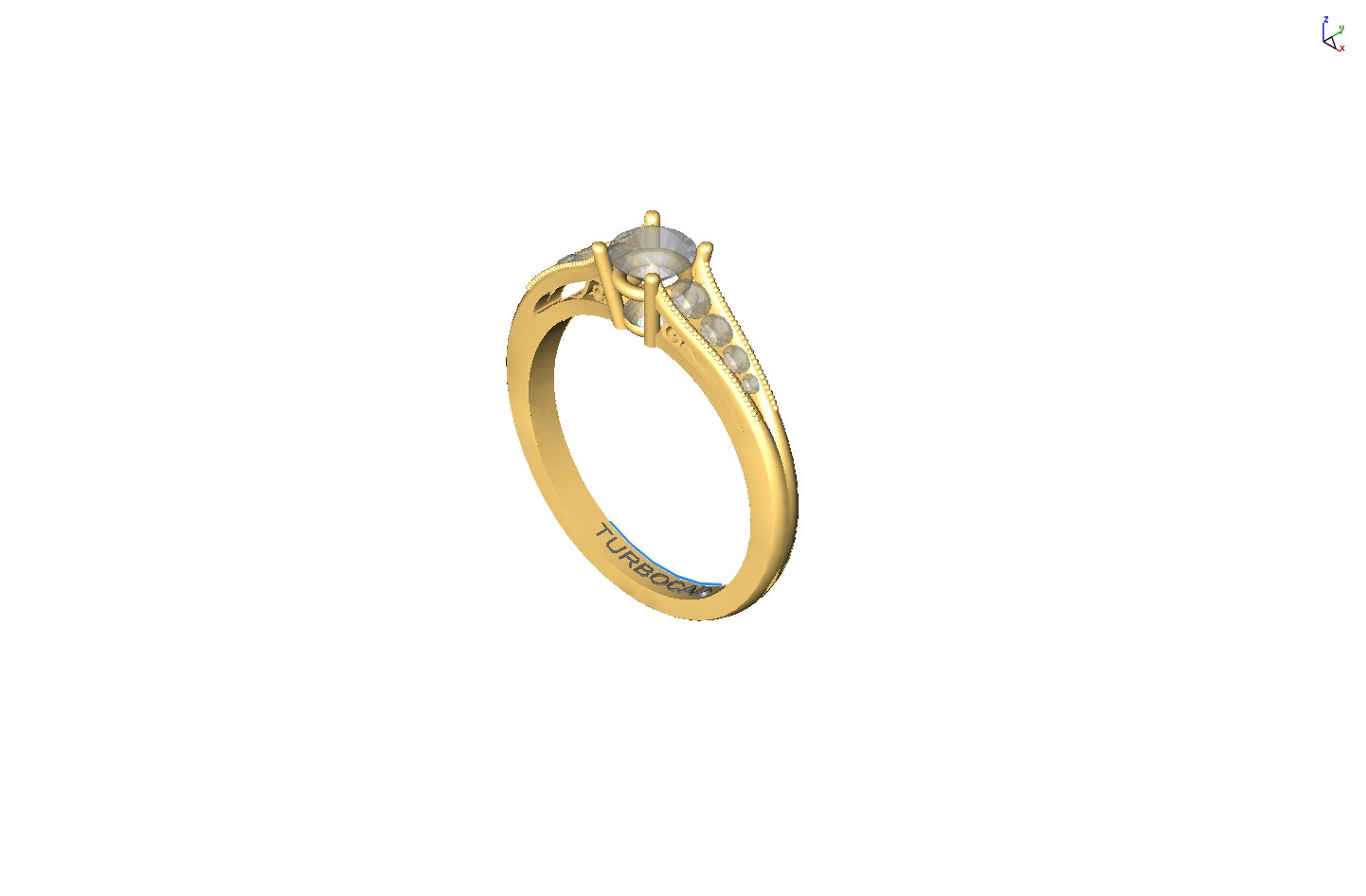

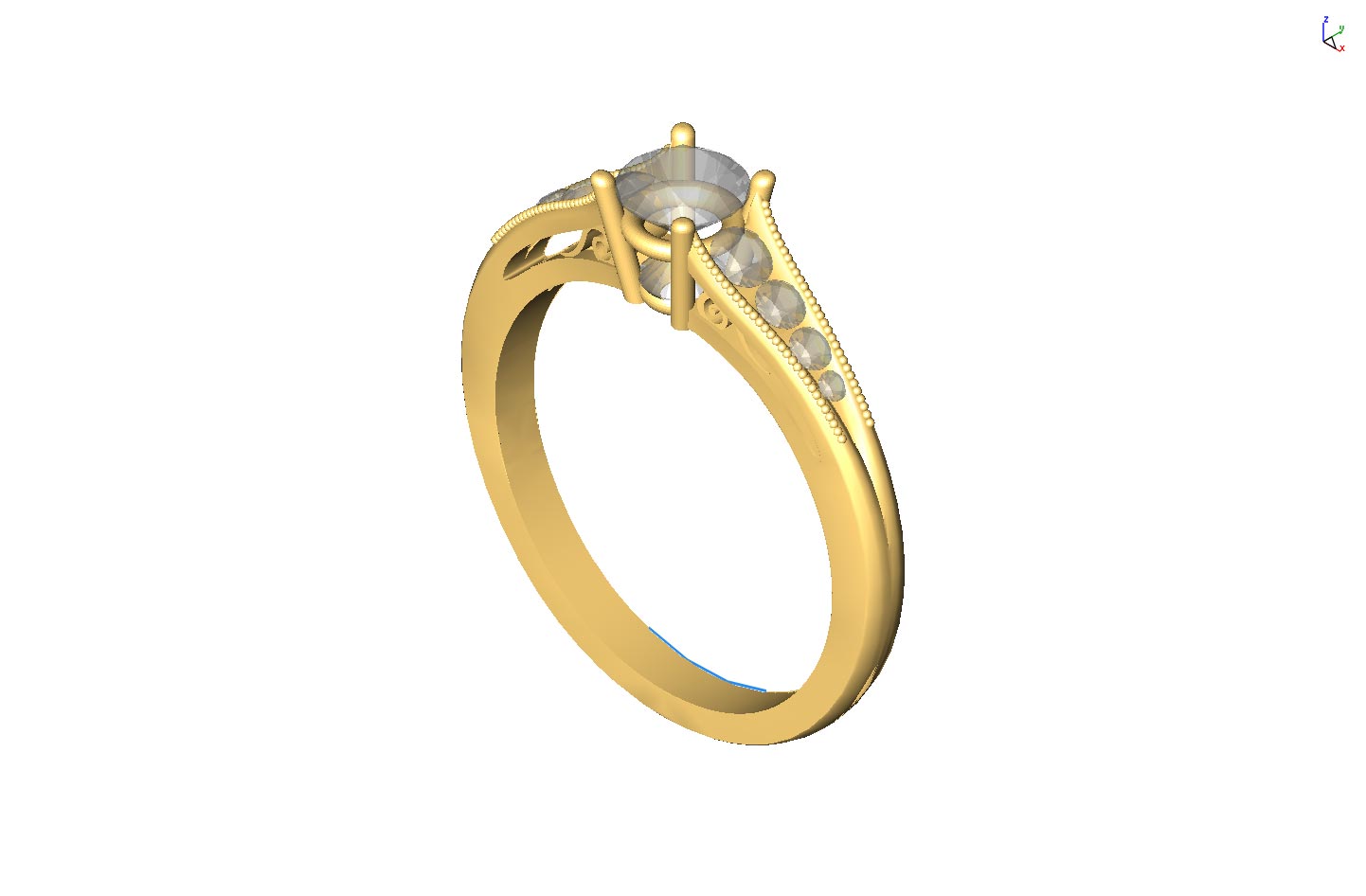
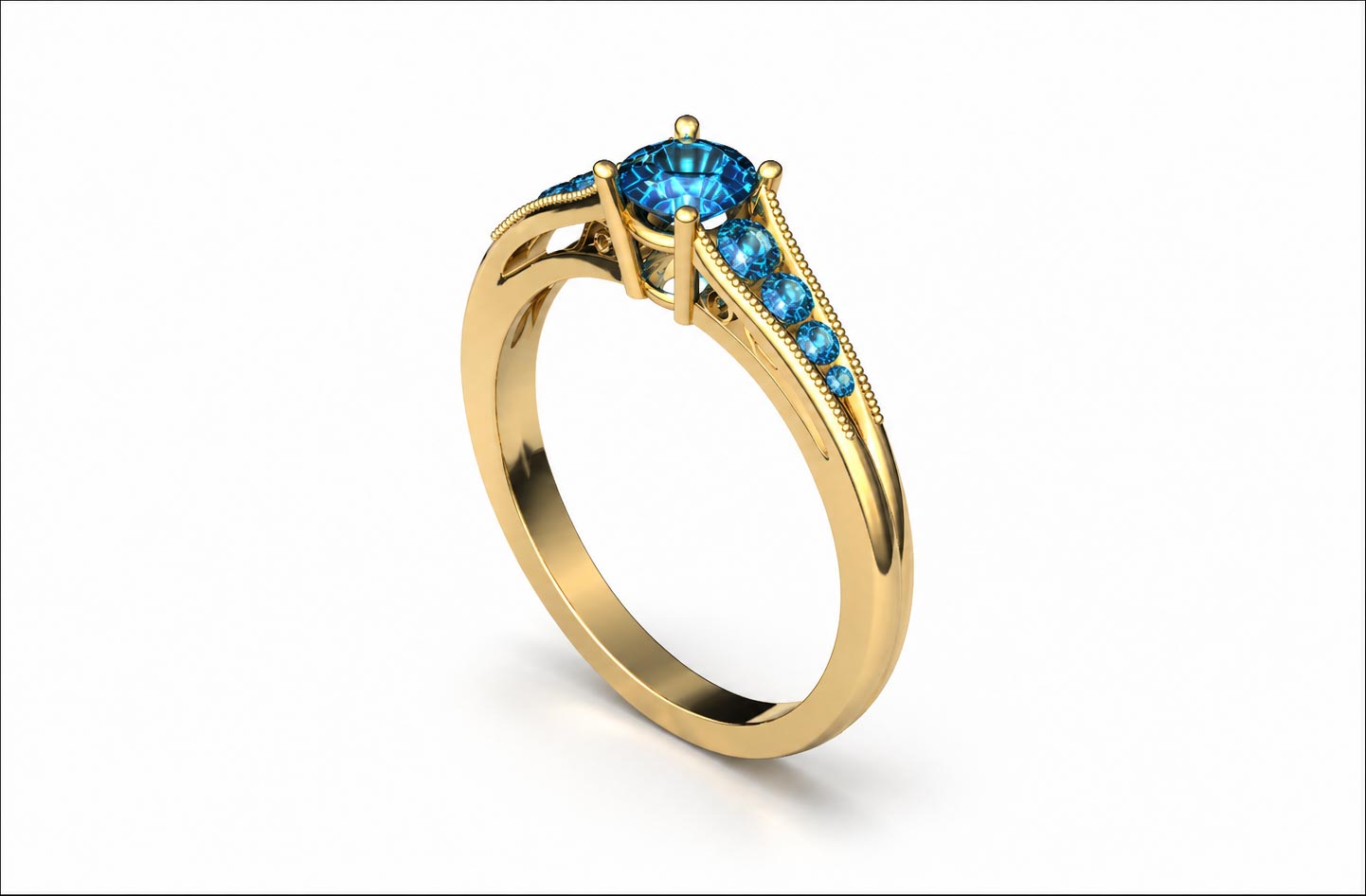
Alternate Gem Direction
Shows a second jewelry pass to highlight how quickly teams can compare prompt and quality choices against the same base concept.
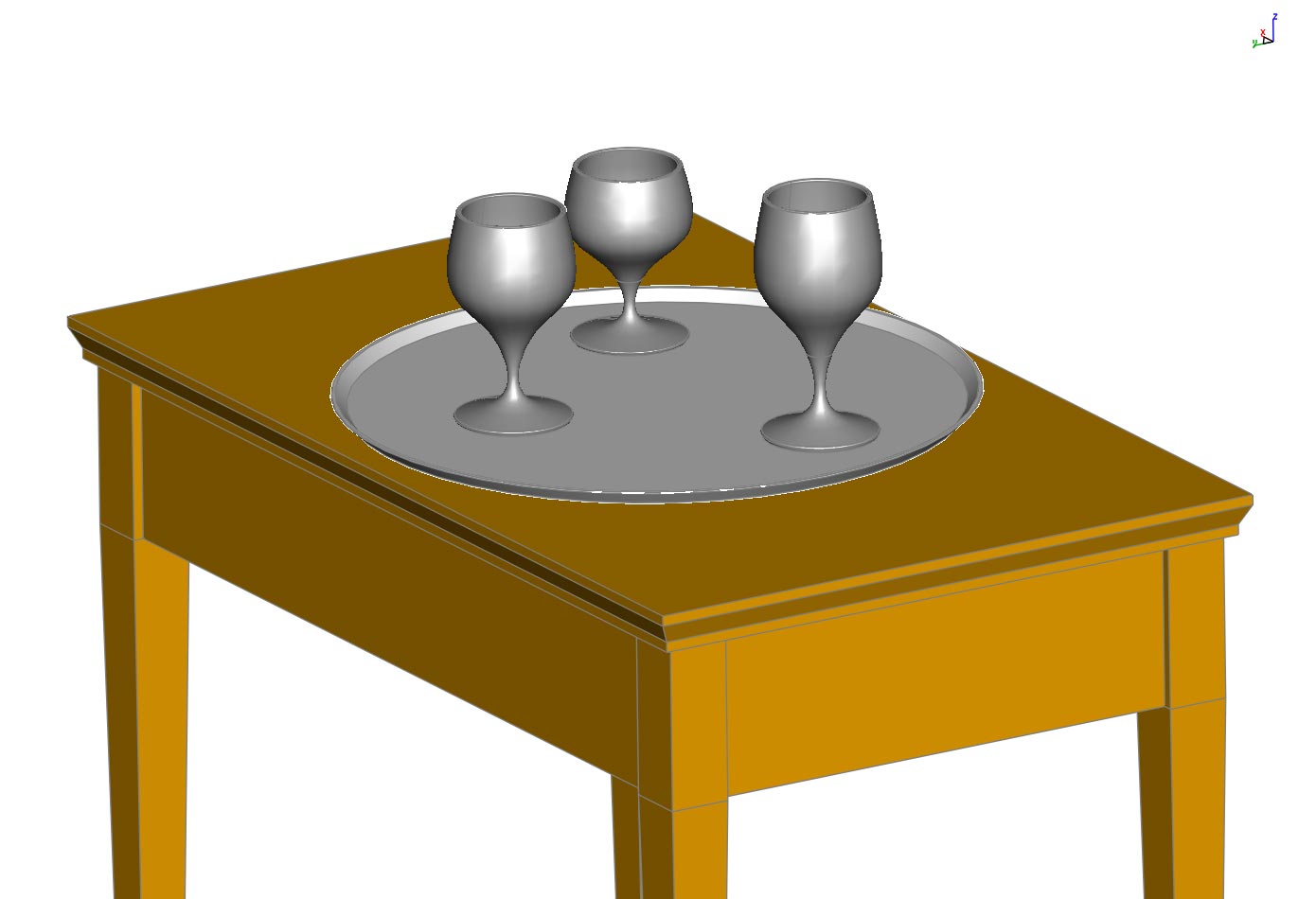
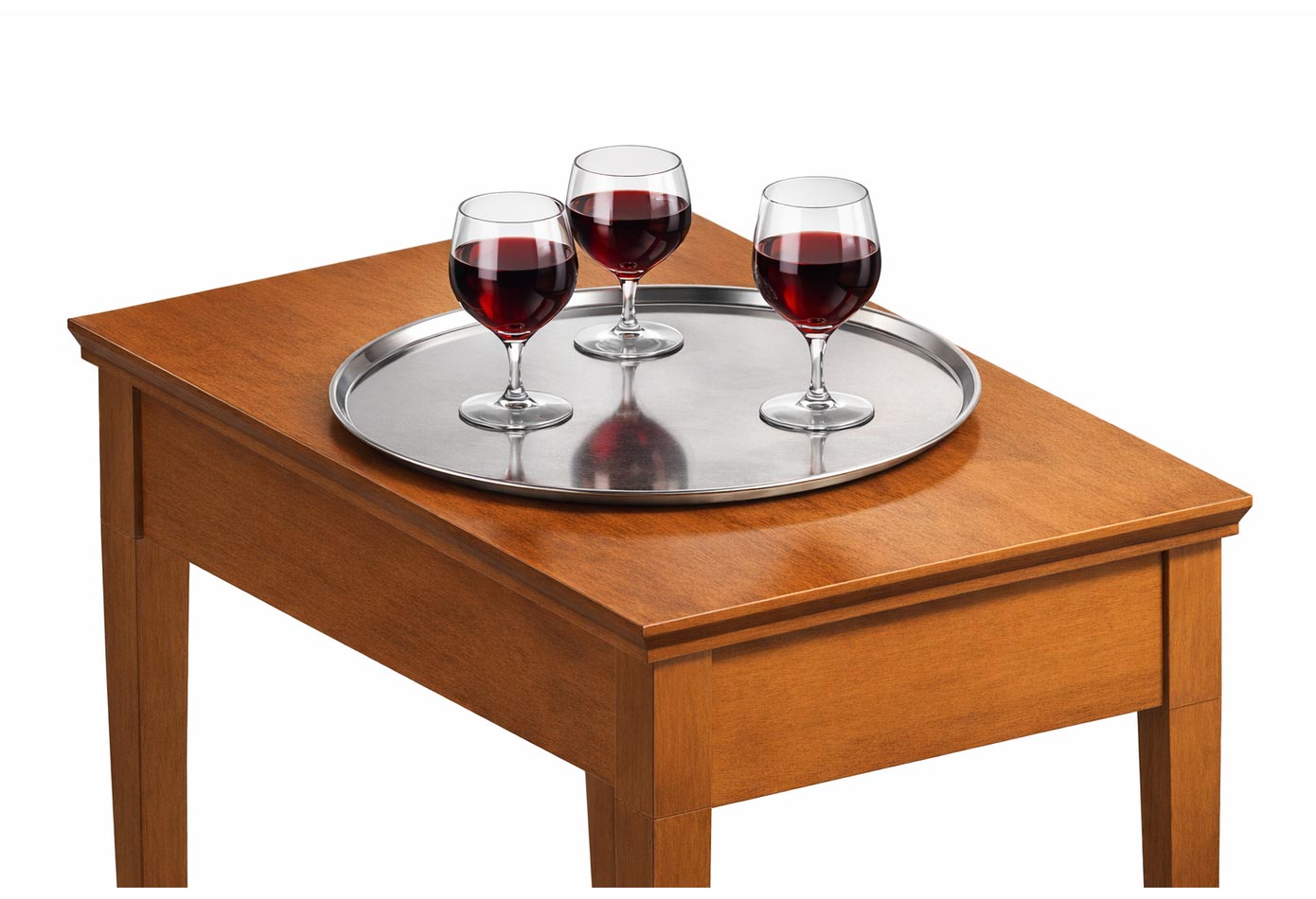
Glass on Platter
Shows how Copilot Render can turn a simple product setup into a polished tabletop scene with more refined materials, lighting, and presentation.
Render Styles
The same PunchCAD wrench model can be rendered in multiple visual styles, helping teams move between realistic presentation, concept exploration, technical documentation, and design communication without changing the underlying CAD model.

Photo Rendered
Realistic product lighting and materials for sales images, review decks, and finished concept presentations.
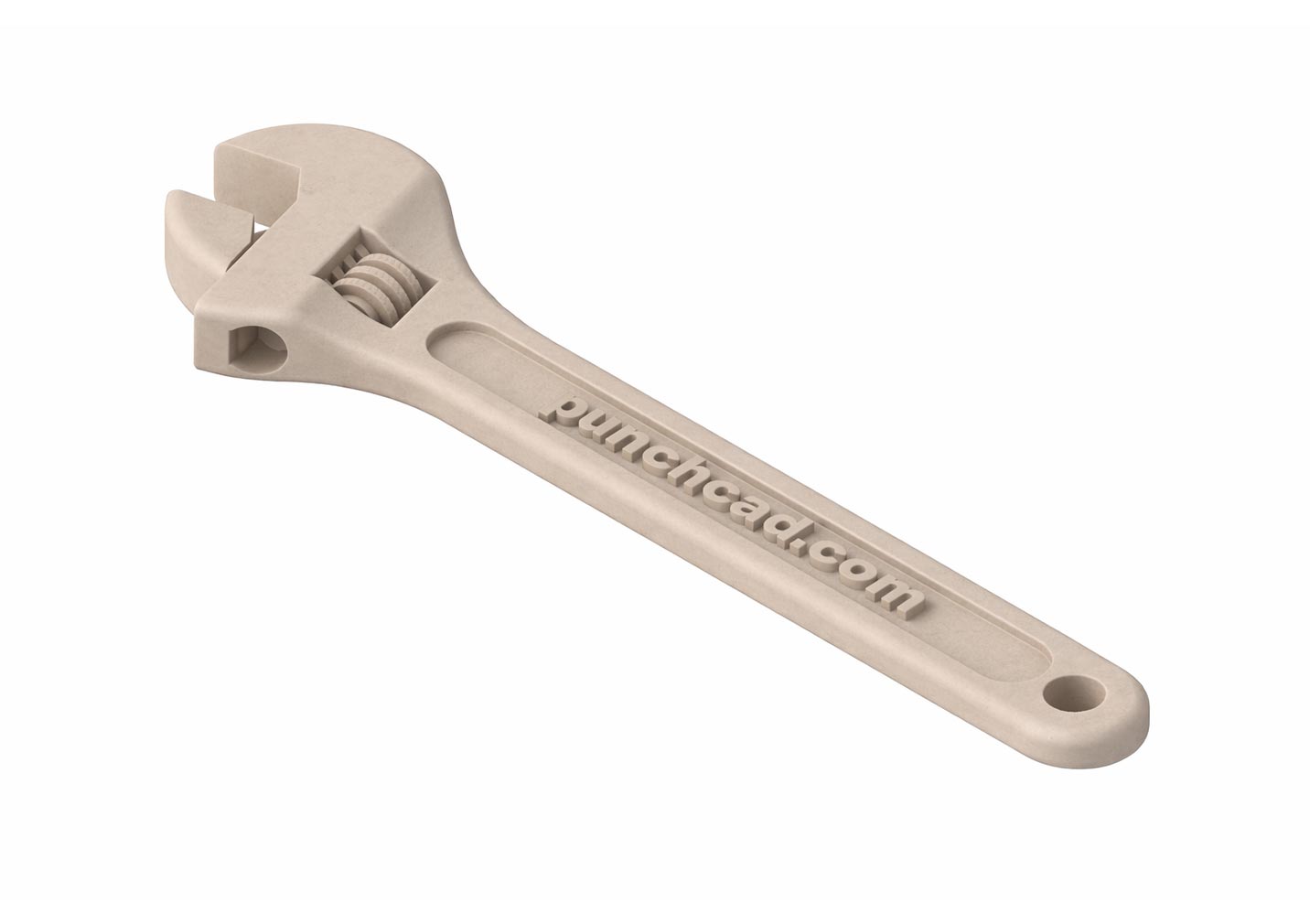
Polymer
Shows the model as a 3D printed part, useful for prototype reviews and additive manufacturing discussions.
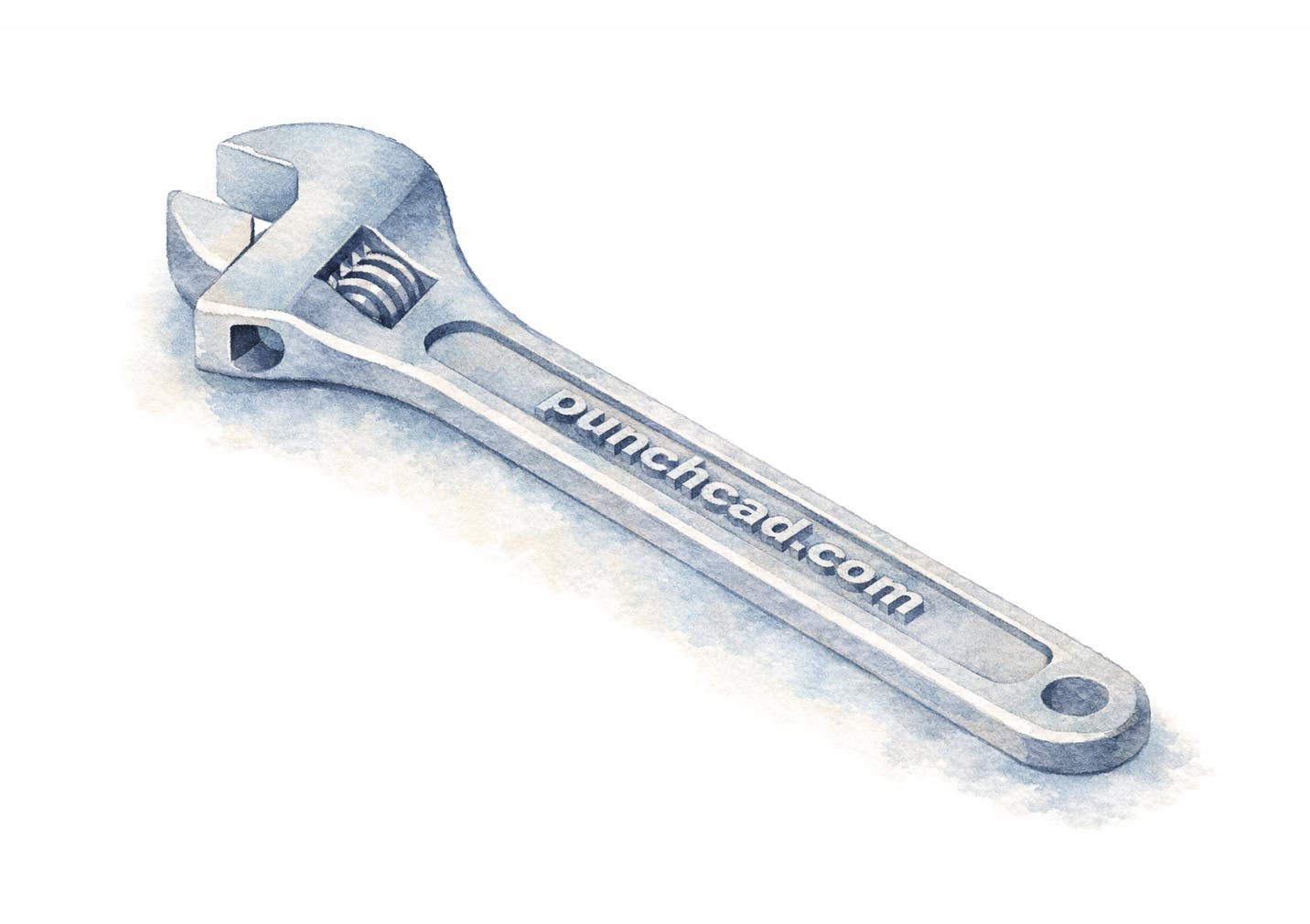
Water Color
A softer concept style for early ideation, design storytelling, and presentation boards.
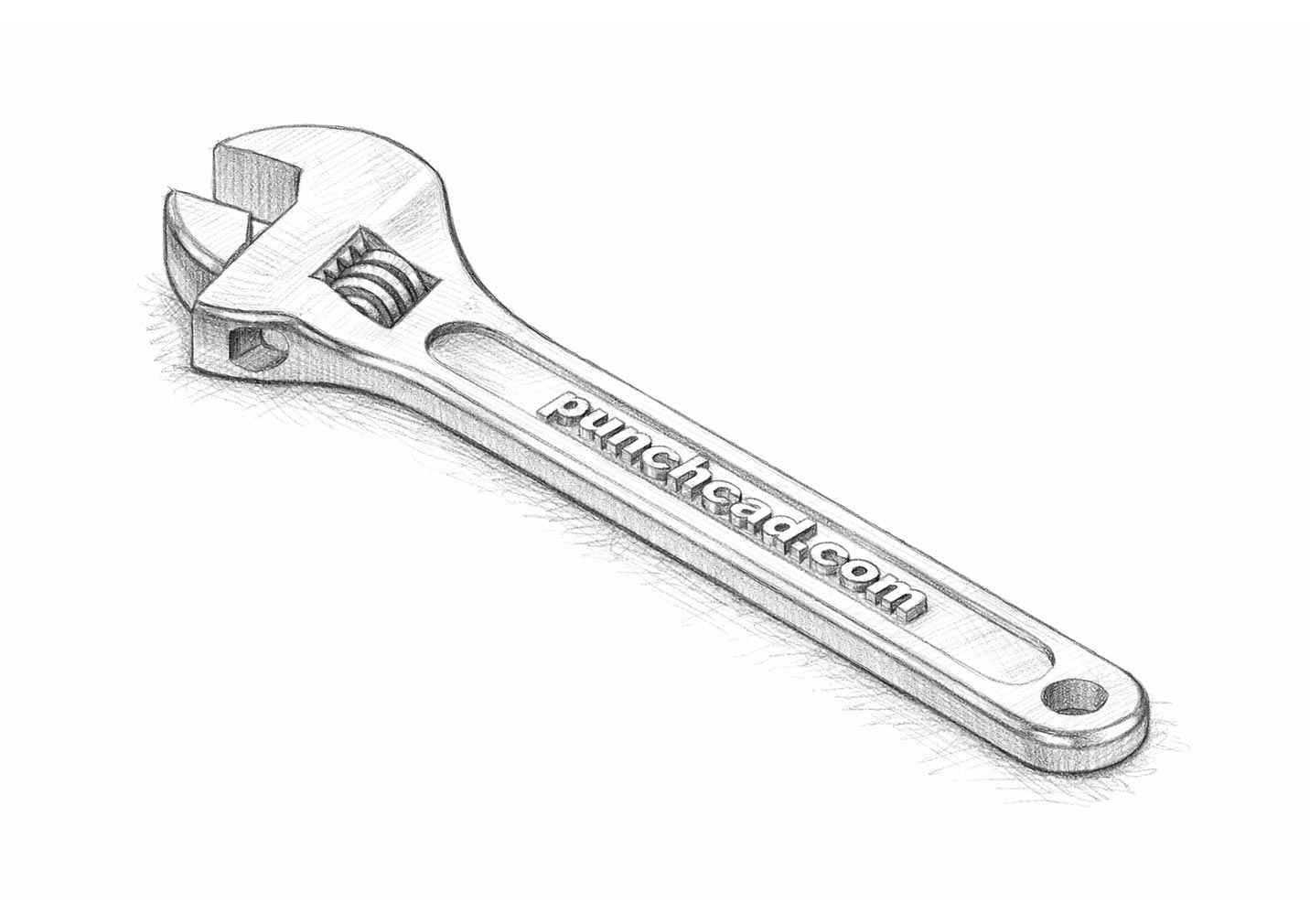
Pencil Sketch
Communicates work-in-progress ideas with a familiar hand-drawn review look.
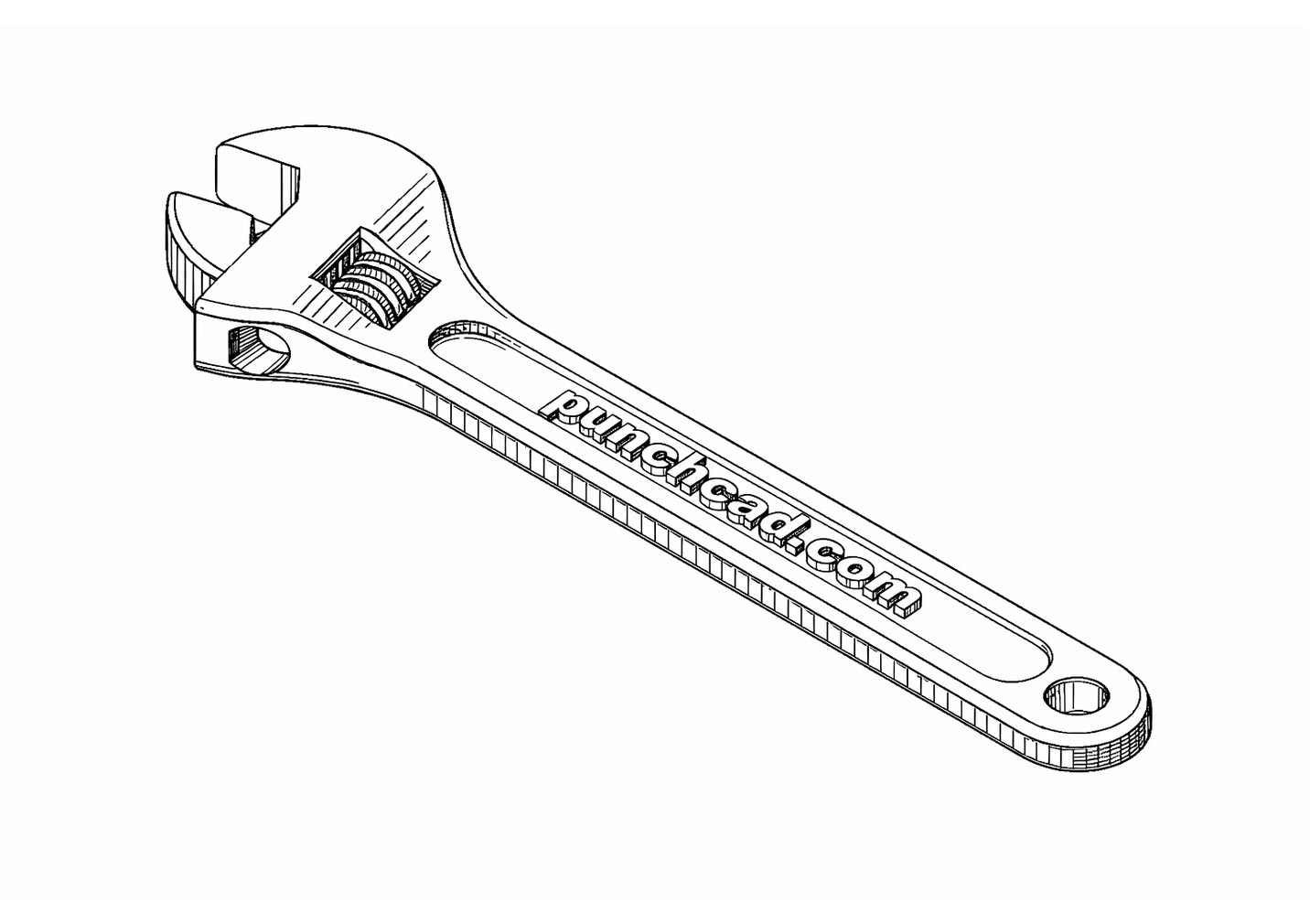
Patent
Creates an invention-style technical visual suited for documentation and explanatory material.
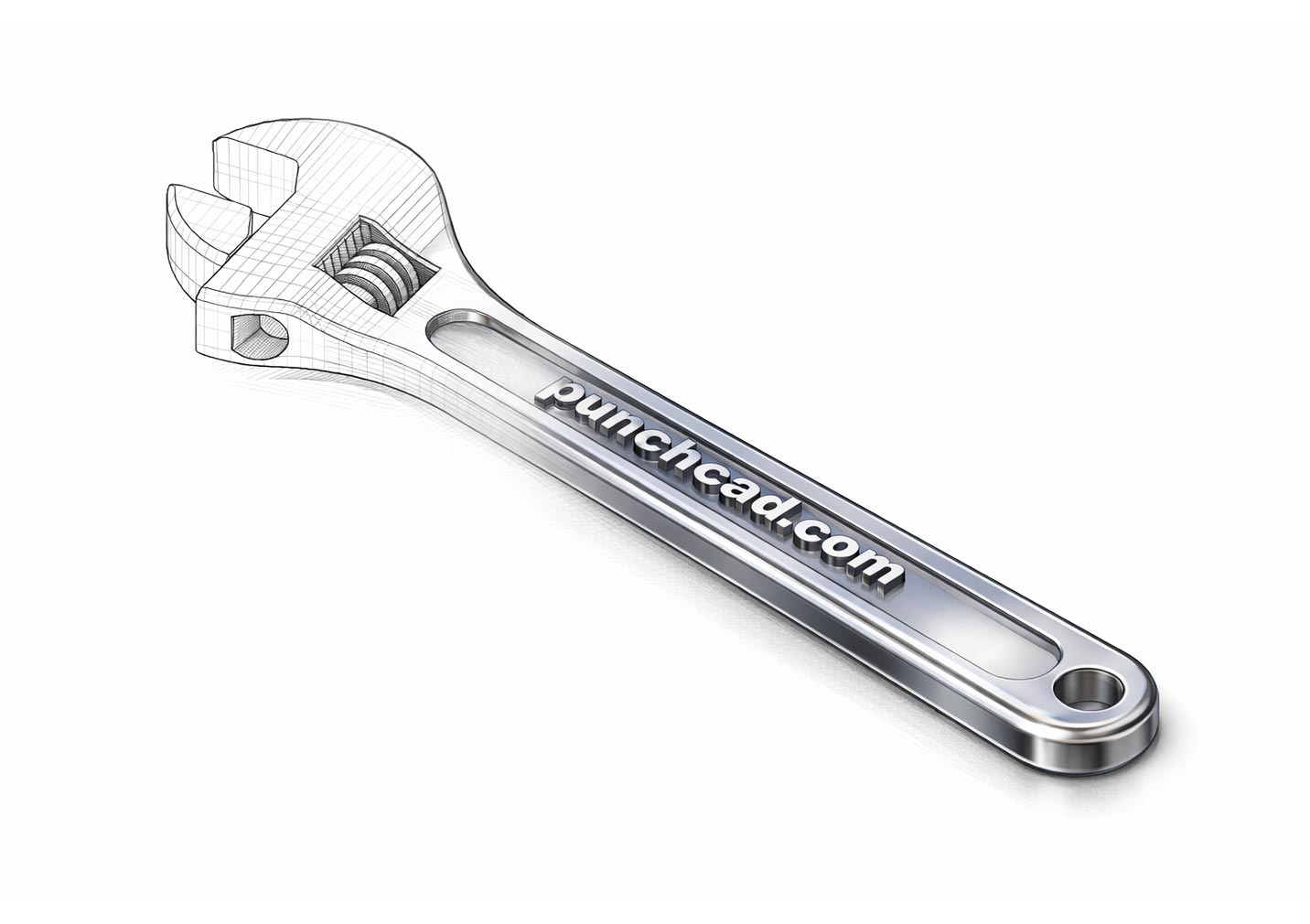
Mesh to Photo Rendered
Shows a transition from visible model structure into a polished render for process-oriented presentations.
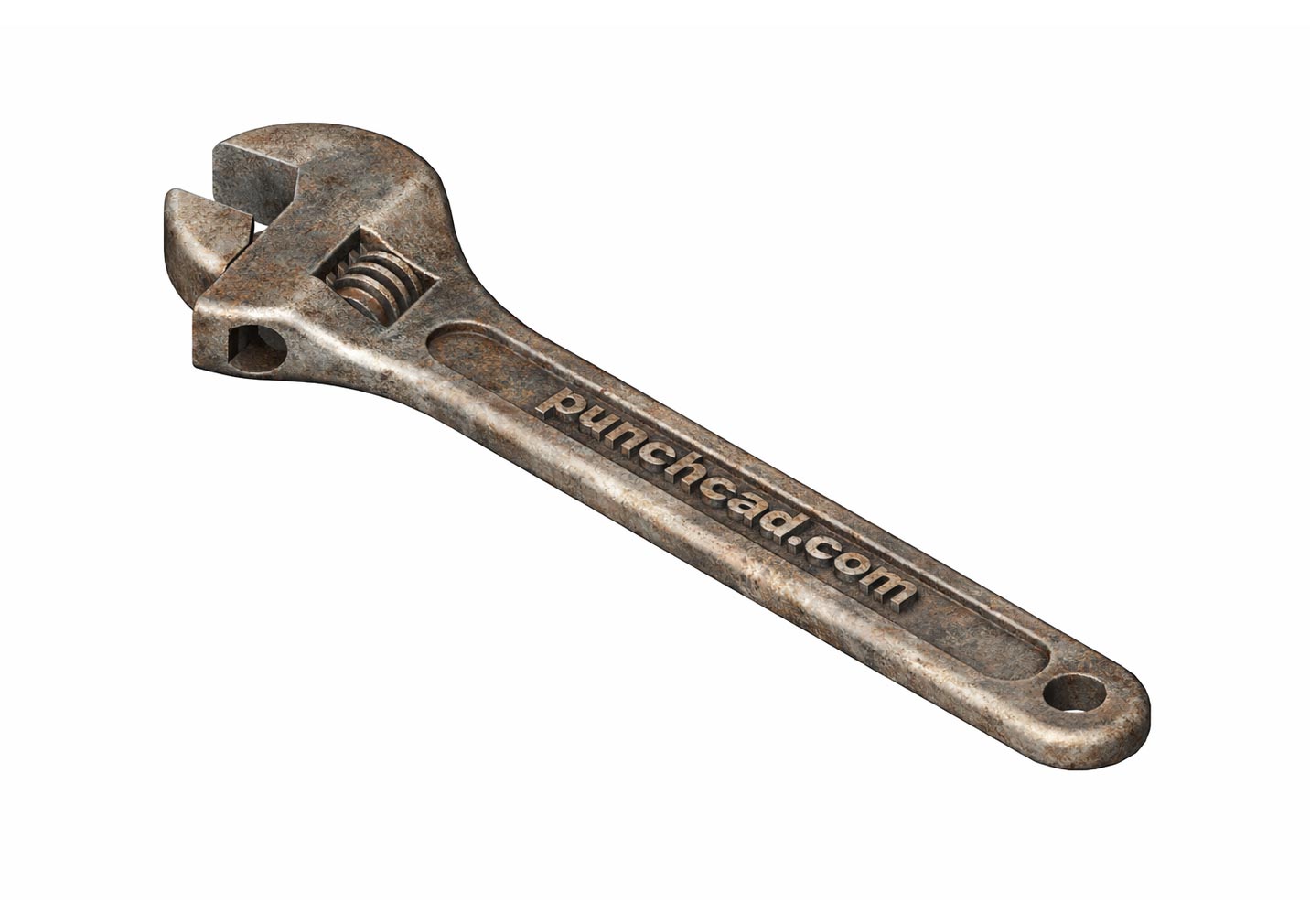
Aged
Adds wear, patina, and age cues for vintage, used, or environment-specific product studies.
Reference-aware image sources
Copilot Render can use additional source images to guide textures, materials, and background direction while keeping the CAD drawing as the primary subject.
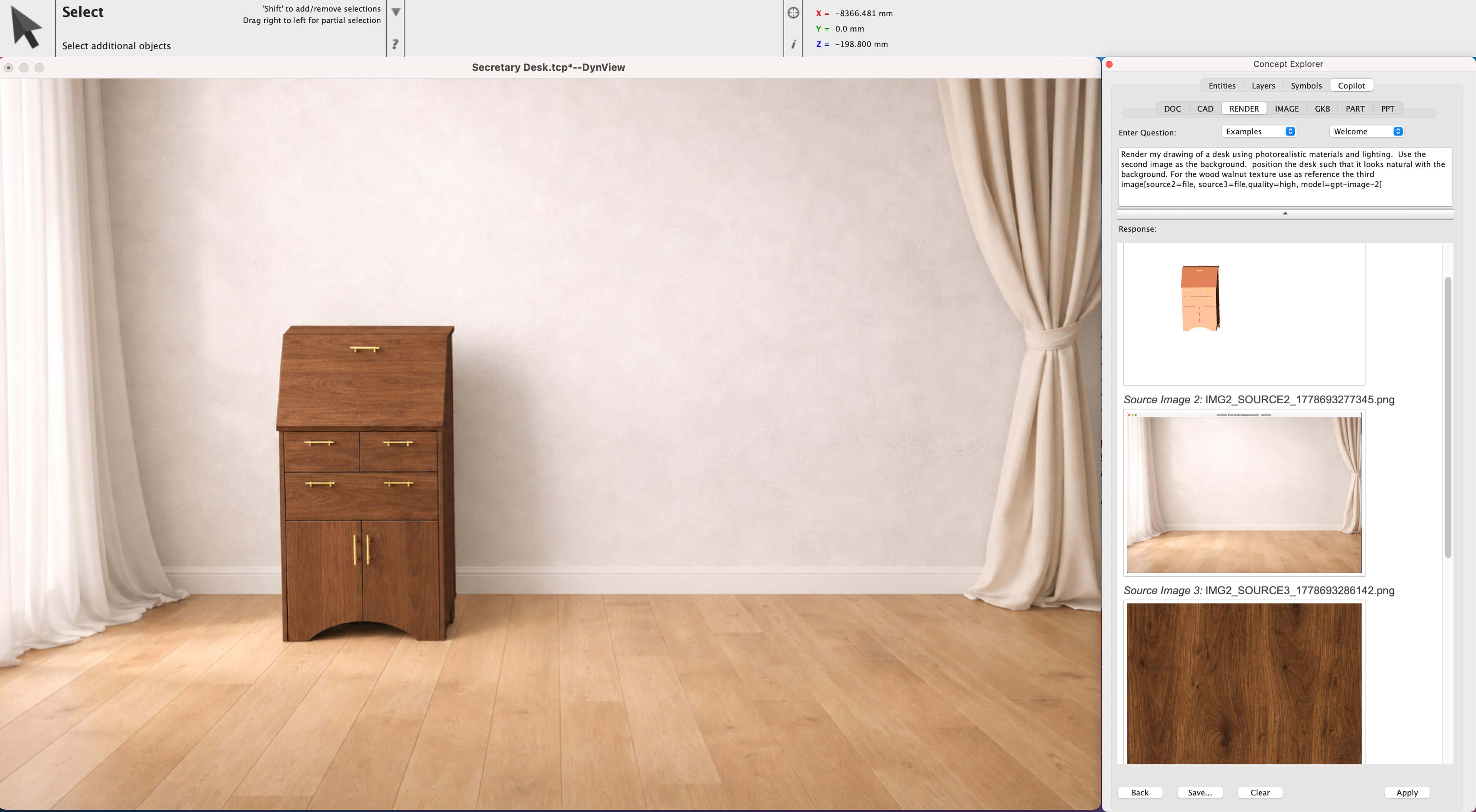
Tips and Tricks
Use these prompting patterns when you want more predictable Copilot Render results. A strong prompt usually names the scene, subject, materials, lighting, view, and anything that should stay unchanged.
Scene → Subject → Materials → Lighting → Camera/View → Constraints → Rendering options
Best Uses
Great for product, architecture, furniture, and concept visuals, especially when teams want review-ready imagery before final materials are locked.
Keep in Mind
These are conceptual visualizations. If geometric accuracy matters, say exactly what must remain unchanged.
Rule of Thumb
Start with plain-language art direction first. Add bracket options only when you need a specific rendering control.
Bracket Options
Use bracket options for quality, shape exploration, output size, source images, file comments, and input fidelity. Put style, camera, lighting, material, and preservation guidance directly in the prompt.
Build the scene first
Define the environment up front with phrases like clean white studio, modern kitchen, factory floor, or outdoor patio so the renderer knows where the object should live.
Name the materials directly
Ask for surfaces like brushed aluminum, matte black plastic, oak veneer, or polished ceramic instead of relying on vague visual mood words alone.
Say what should change
Be explicit: change the material, add a studio background, use softer shadows, or make the plastic matte black. Direct requests tend to produce cleaner iterations.
Say what must stay the same
Use constraints like preserve proportions, keep the same number of parts, do not change silhouette, and no labels or logos when CAD fidelity matters.
Use sources deliberately
Use [source=file] for the edited image, then use [source2=file], [source3=file], or [source4=file] for material, texture, or background references.
Choose shape change carefully
Use low shape change when topology should stay close to the CAD view, and reserve higher values for alternate form exploration.
Photoreal product render
High-fidelity pass for a finished-looking concept image with preserved proportions and stronger material realism.
Quick concept pass
Fast iteration prompt for early review cycles where speed matters more than the final polish level.
Reference-driven material pass
Useful when a second or third image should influence the material finish or background treatment.
Large hero output
Designed for presentation or marketing-style imagery when the team needs a larger finished render.