


Copilot Render: Intelligent Rendering for CAD Models
Copilot Render streamlines the design workflow by transforming CAD models into high-quality conceptual visuals within moments. Using simple natural language inputs, designers can generate expressive renderings directly from their drawings. By describing materials, lighting setups, atmospheric conditions, or stylistic preferences, the tool produces visual outputs seamlessly integrated with the original design. The underlying CAD geometry remains fully preserved, enabling continuous refinement of models while exploring diverse visual presentations and creative directions.
Supporting both 2D drawings and 3D models, Copilot Render offers a flexible solution for professionals in architecture, engineering, industrial design, and product development. It is particularly valuable during early-stage ideation, design reviews, and client presentations, where clear visual communication is essential.
Users can further enhance results by providing reference images. These guide the rendering process by shaping material definitions, surface finishes, color palettes, environmental settings, and overall visual tone—ensuring alignment with the intended design vision.
Getting started with Copilot Render
Follow these steps to generate conceptual visualizations from your project:
Step 1: Open the Copilot Palette
From the Tools menu, open Concept Explorer and navigate to the Copilot tab.
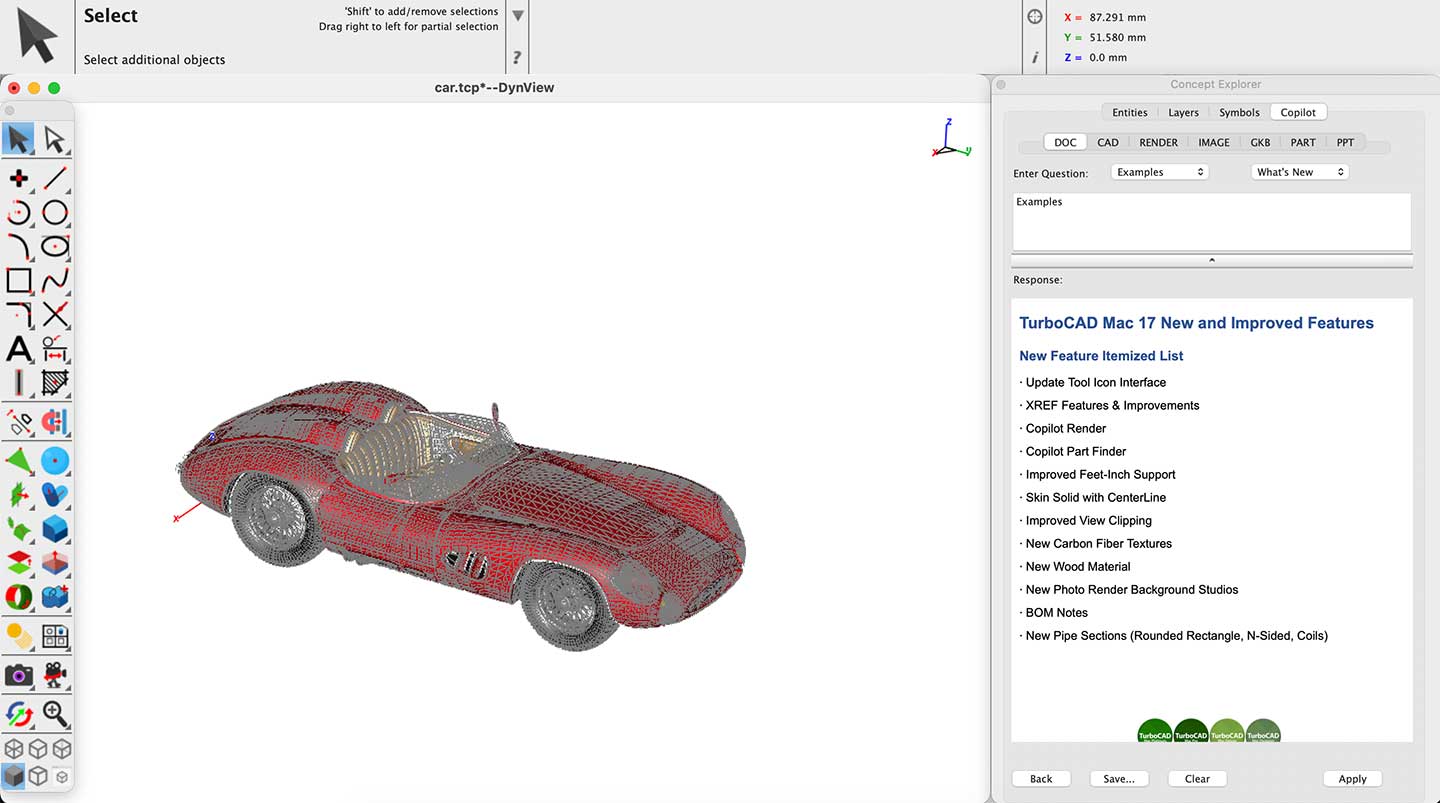
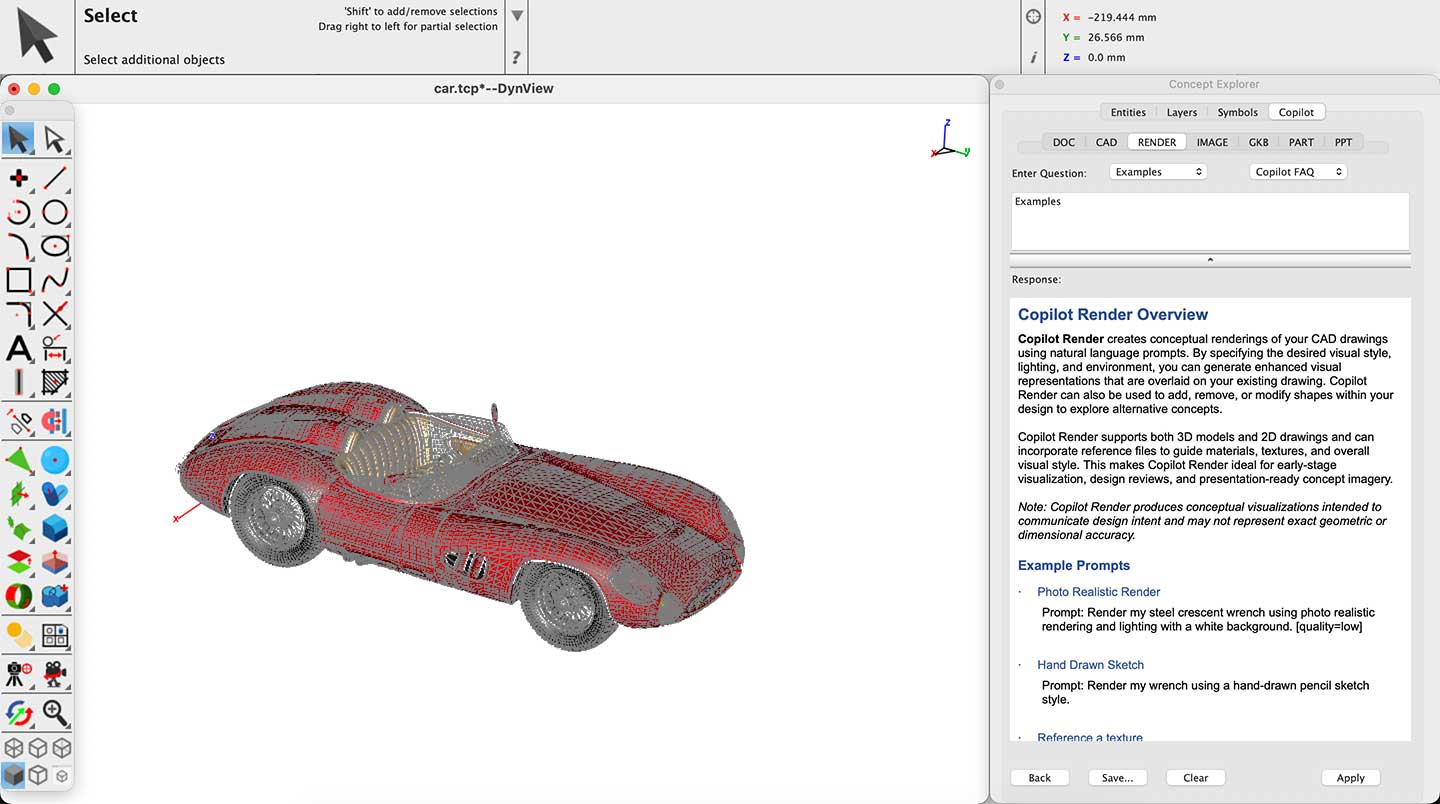
Step 2: Access the Render tab and review the Copilot Render Overview and Example Prompts.
Within the Copilot, click the Render tab. Scroll down the page to review the Copilot Render Overview and Example Prompts. These examples can help you craft effective prompts and achieve better rendering outcomes.
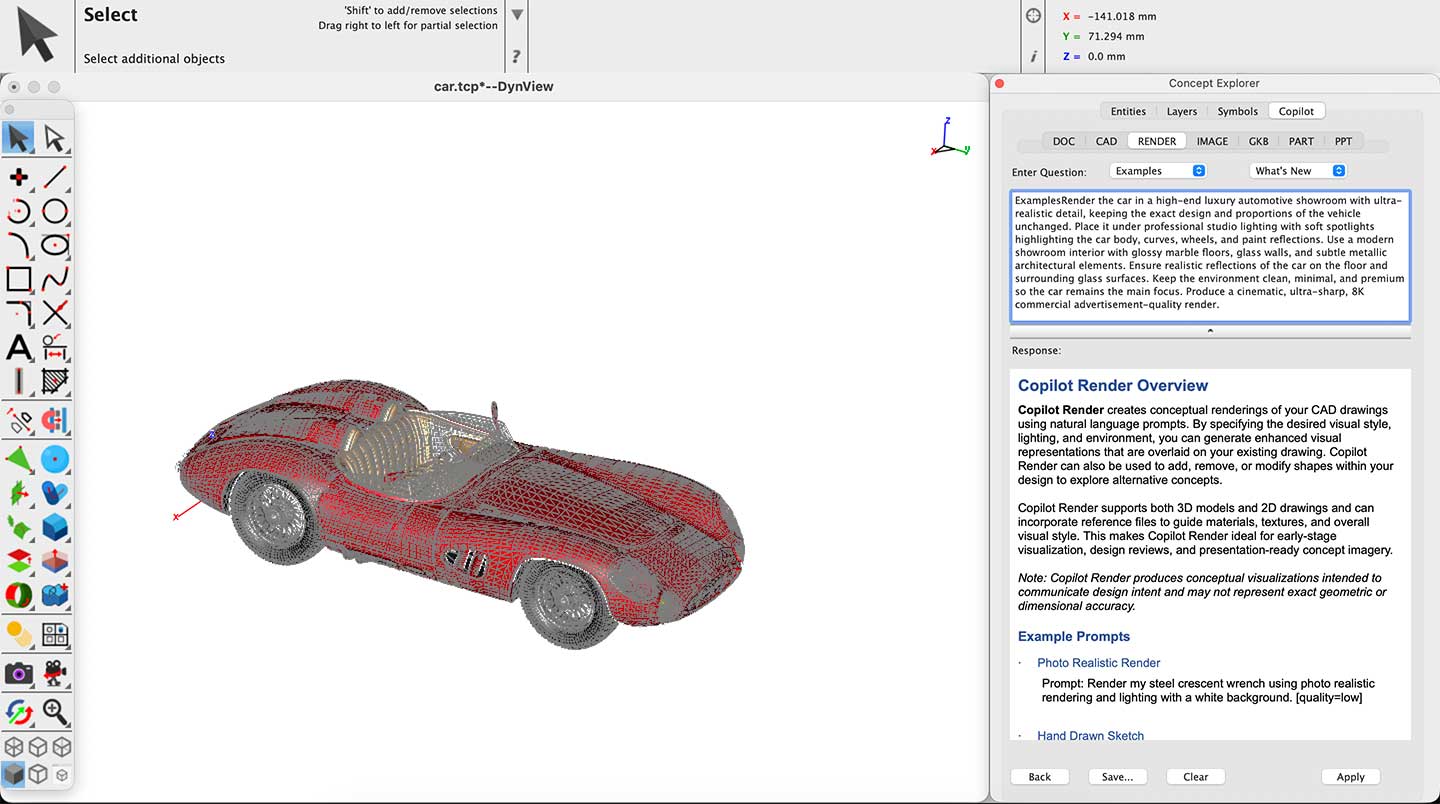
Step 3: Enter Your Prompt
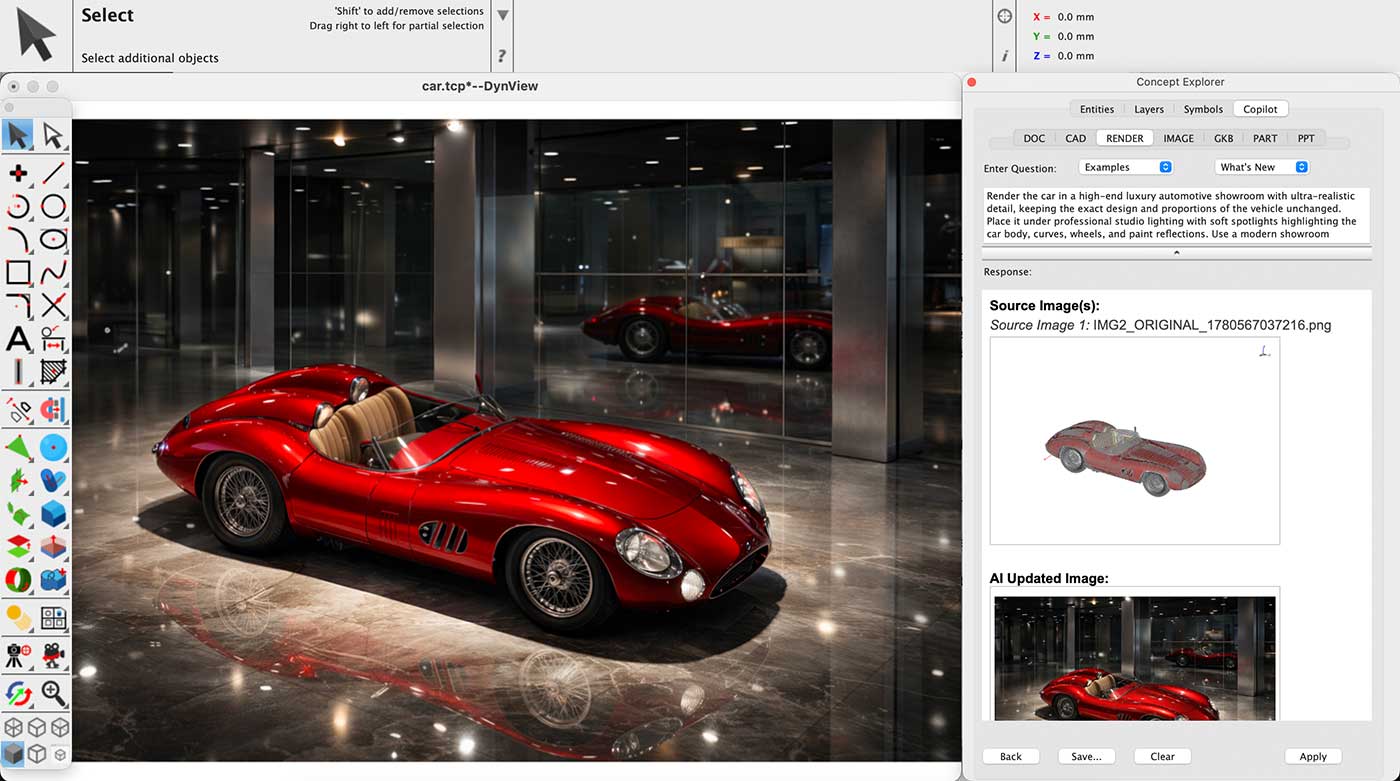
Type or paste your desired rendering prompt into the prompt field and click Apply.
For example:
Render the car in a high-end luxury automotive showroom with ultra-realistic detail, keeping the exact design and proportions of the vehicle unchanged. Place it under professional studio lighting with soft spotlights highlighting the car body, curves, wheels, and paint reflections. Use a modern showroom interior with glossy marble floors, glass walls, and subtle metallic architectural elements. Ensure realistic reflections of the car on the floor and surrounding glass surfaces. Keep the environment clean, minimal, and premium so the car remains the main focus. Produce a cinematic, ultra-sharp, 8K commercial advertisement-quality render.
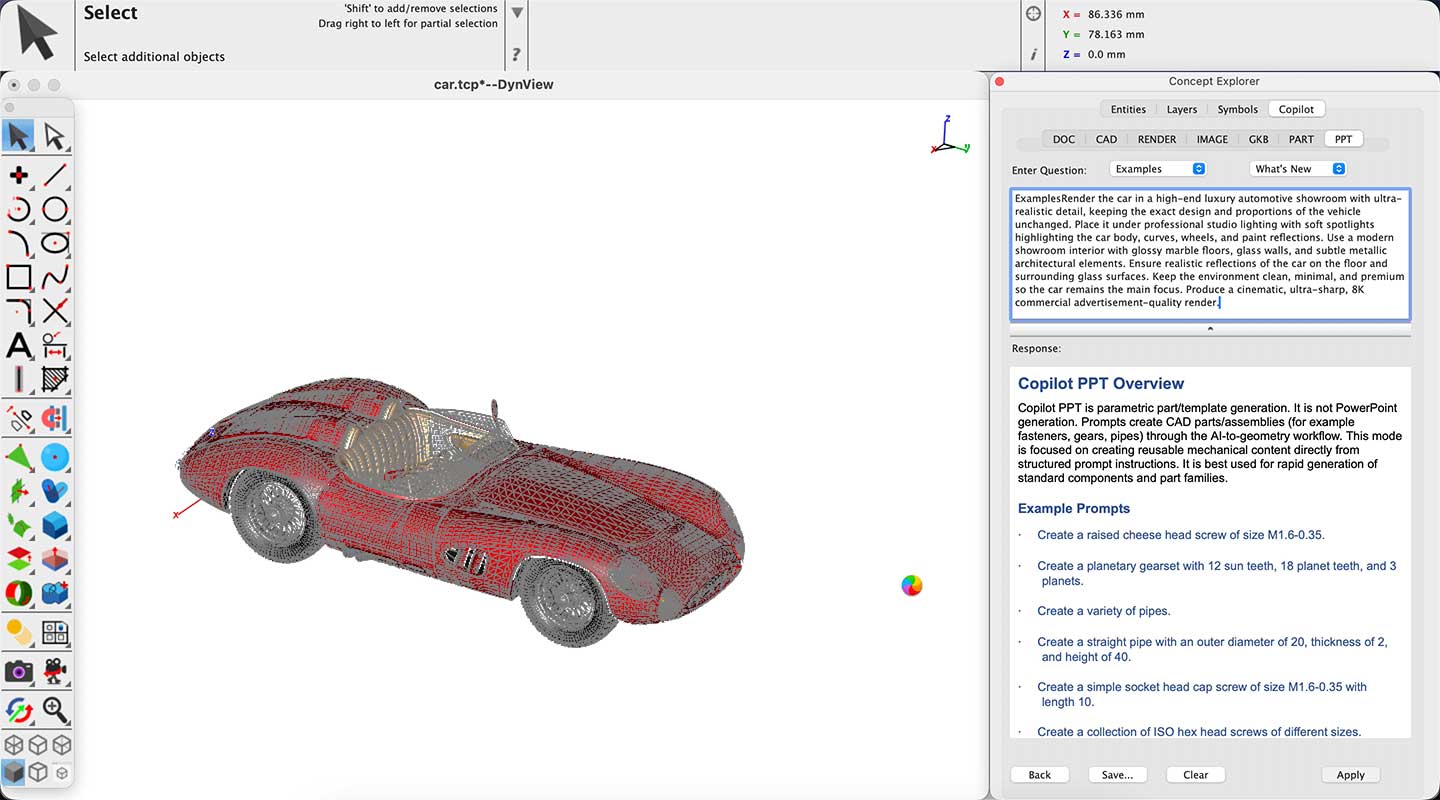
Step 4: Wait for Processing
Copilot Render will process your prompt and generate the visualization.
Step 5: Review the Rendered Result
Once complete, the generated output will appear directly on the canvas.
Additional Examples
Architecture:
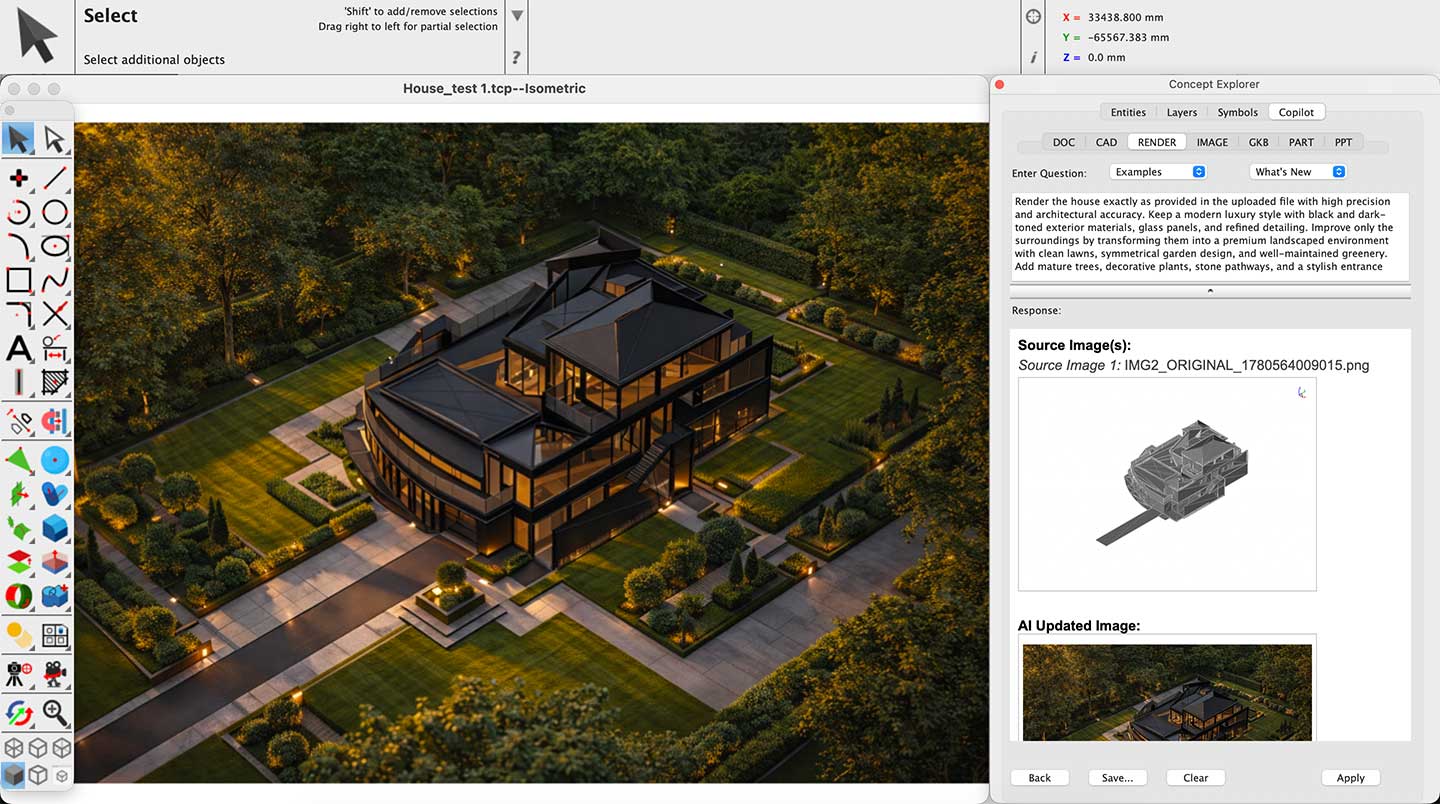
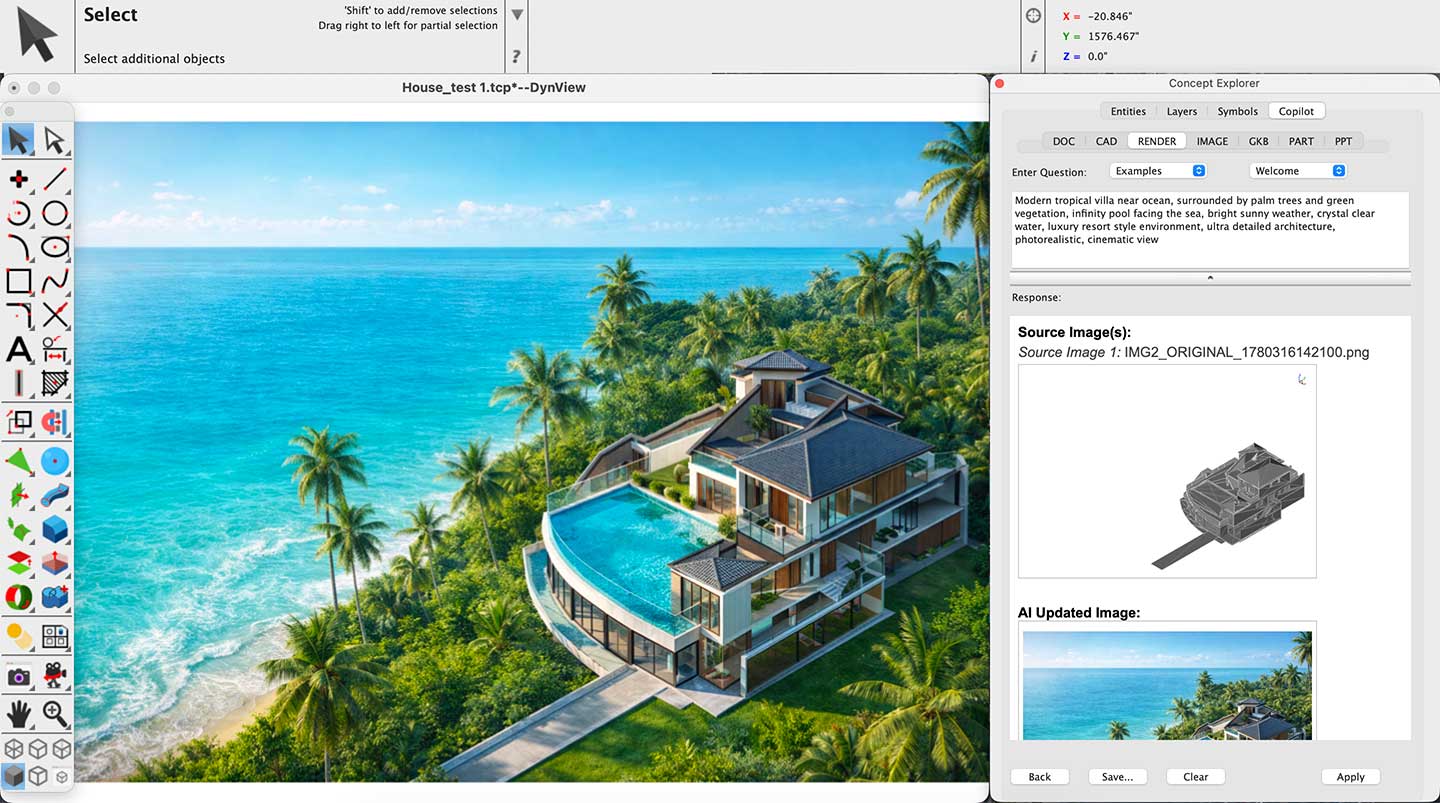
These examples demonstrate how Copilot Render can be applied to architectural models, focusing on exterior materials, natural lighting, and realistic environmental setups suitable for residential design presentations.
1)
2)
Mechanical:
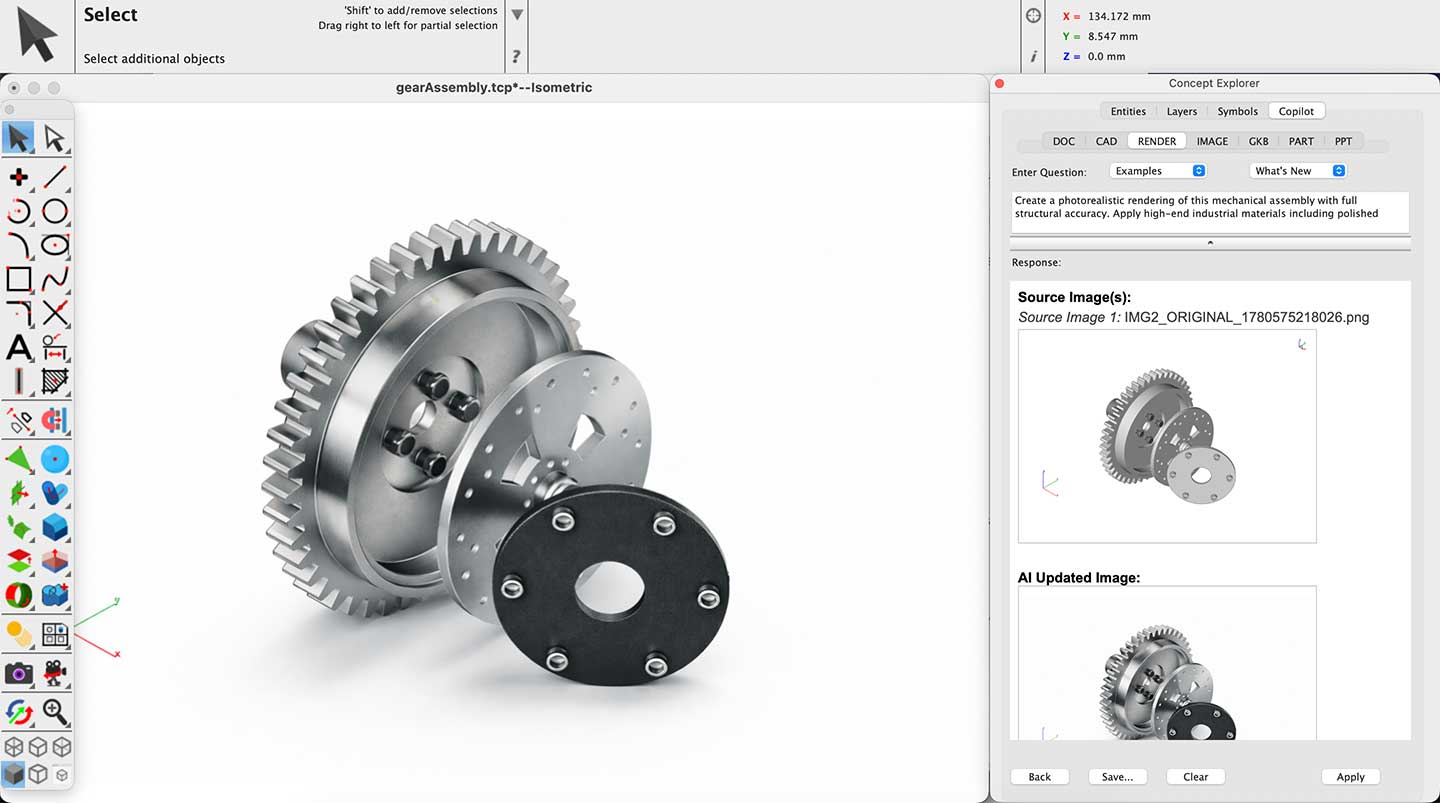
These examples show the workflow applied to mechanical parts across different presentation scenarios. Outputs may range from clean technical views to workshop environments and contextual industrial settings. While surroundings and rendering styles vary, the emphasis remains on precise geometry, accurate material representation, and clear depiction of mechanical form, function, and assembly intent.
1)
2)
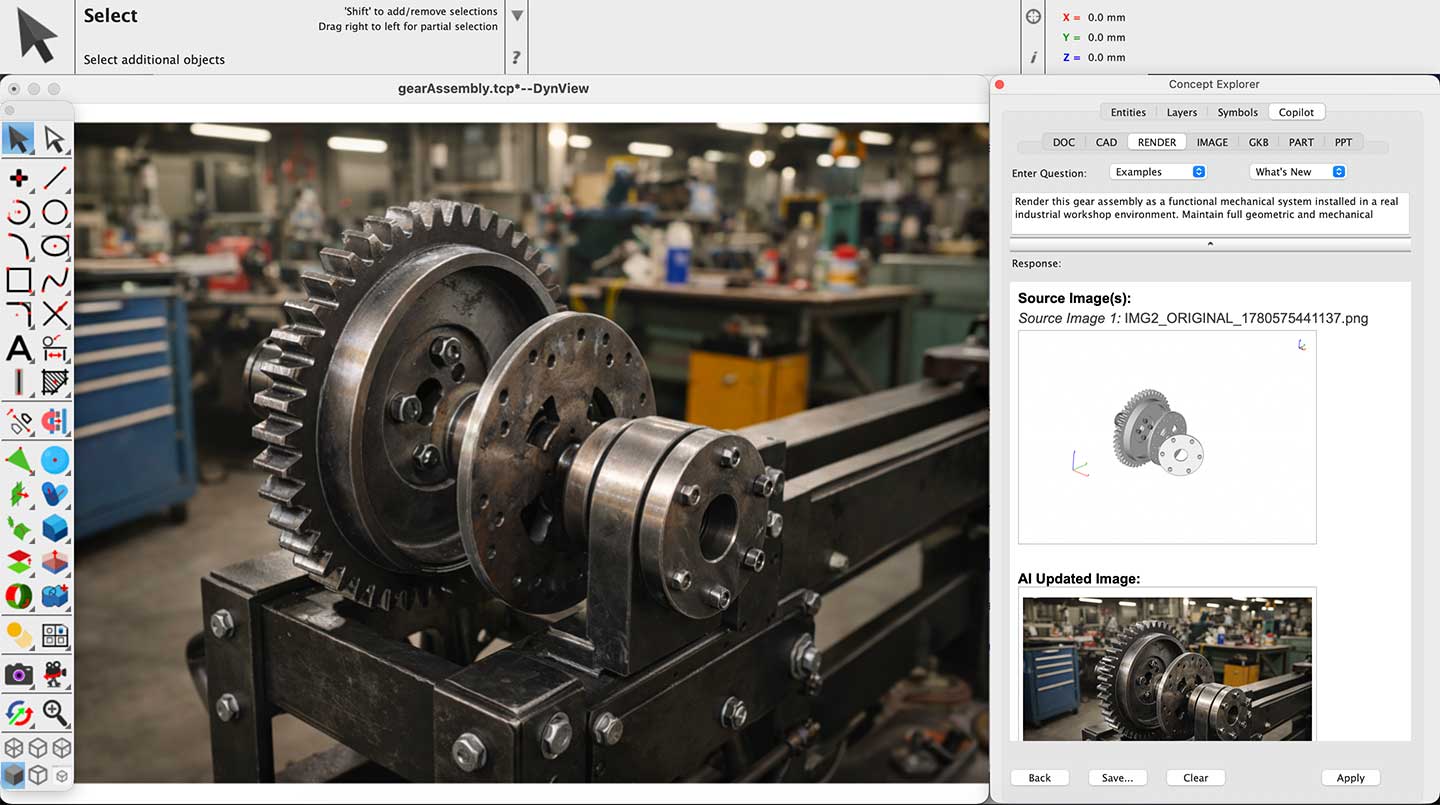
3)
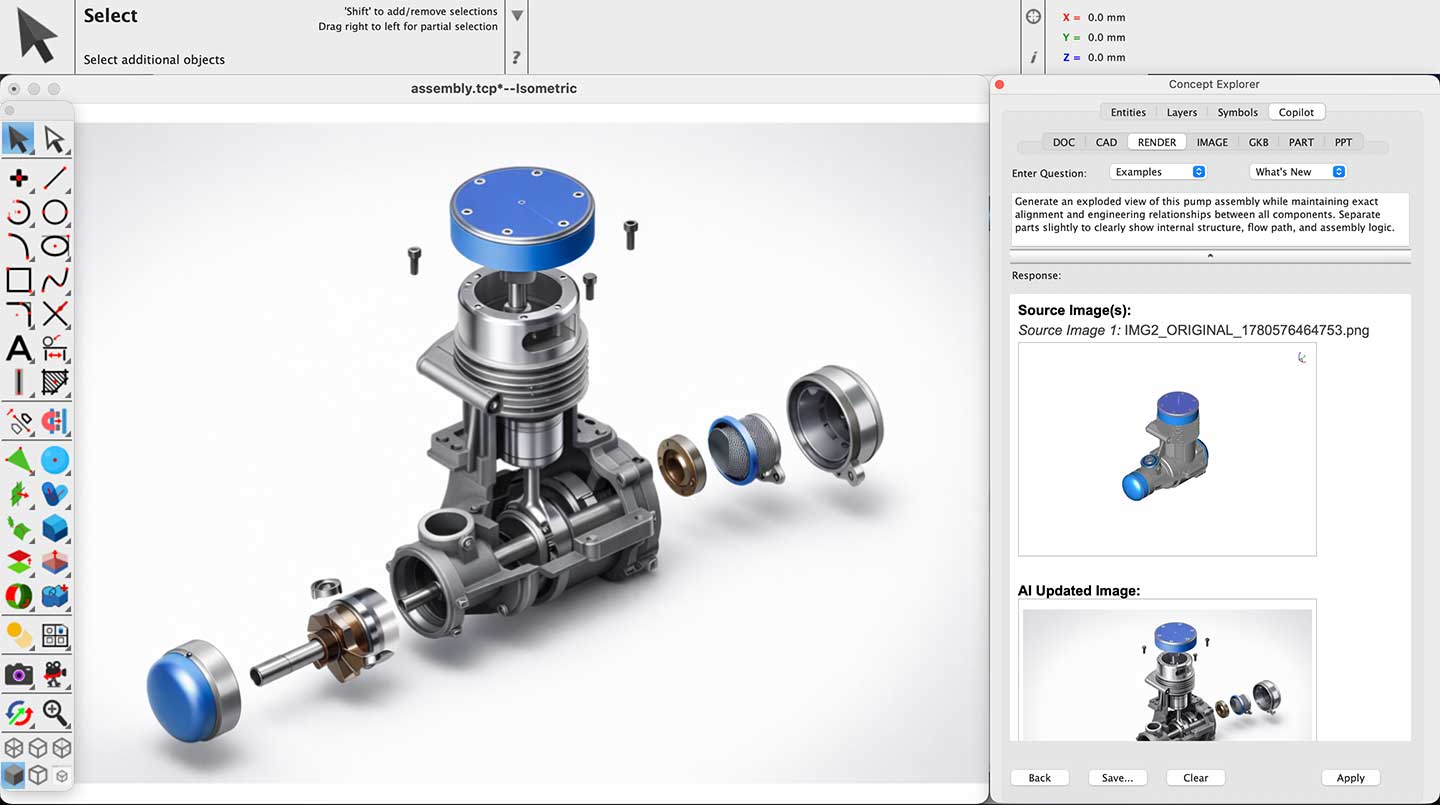
Copilot Render simplifies the process of transforming CAD designs into compelling conceptual outputs without disrupting your workflow. By leveraging AI-powered rendering and natural language prompts, it enables rapid exploration of materials, styles, and environmental settings directly within your design environment.
Whether refining early-stage ideas, presenting proposals, or gathering feedback, Copilot Render enhances your ability to communicate design intent effectively—bringing concepts to life with greater speed and clarity.