Disclaimer: The features described in this blog require the Home Design Copilot Add‑On. You can purchase the add‑on here: Home Design Copilot
Home Design Copilot’s Image Studio provides a powerful and flexible set of input options that allow you to generate AI-powered designs in multiple ways. Whether you’re starting with a simple text description, refining an existing design, or using your current project as a reference, these input options give you complete control over how the AI interprets your design ideas.
Instead of relying solely on text prompts, Image Studio enables you to generate high-quality visualizations from various sources, including your current 2D or 3D project views, previously generated Copilot images, uploaded reference images, and even AI-generated textures or plants. This flexibility allows designers to iterate faster, maintain design consistency, and produce more accurate results with minimal effort.
In this article, we’ll explore each available input option in Image Studio, explain its purpose, and demonstrate how it can be used to create realistic and visually appealing home designs. By understanding these options, you’ll be able to choose the most appropriate input method for your project and unlock the full creative potential of Home Design Copilot.
Step-by-Step Guide to Using Input Options
To learn these features, first open a sample project that you want to use for rendering with reference images. Once the project is open, navigate to the 3D View and adjust the view to capture the area you want to transform.
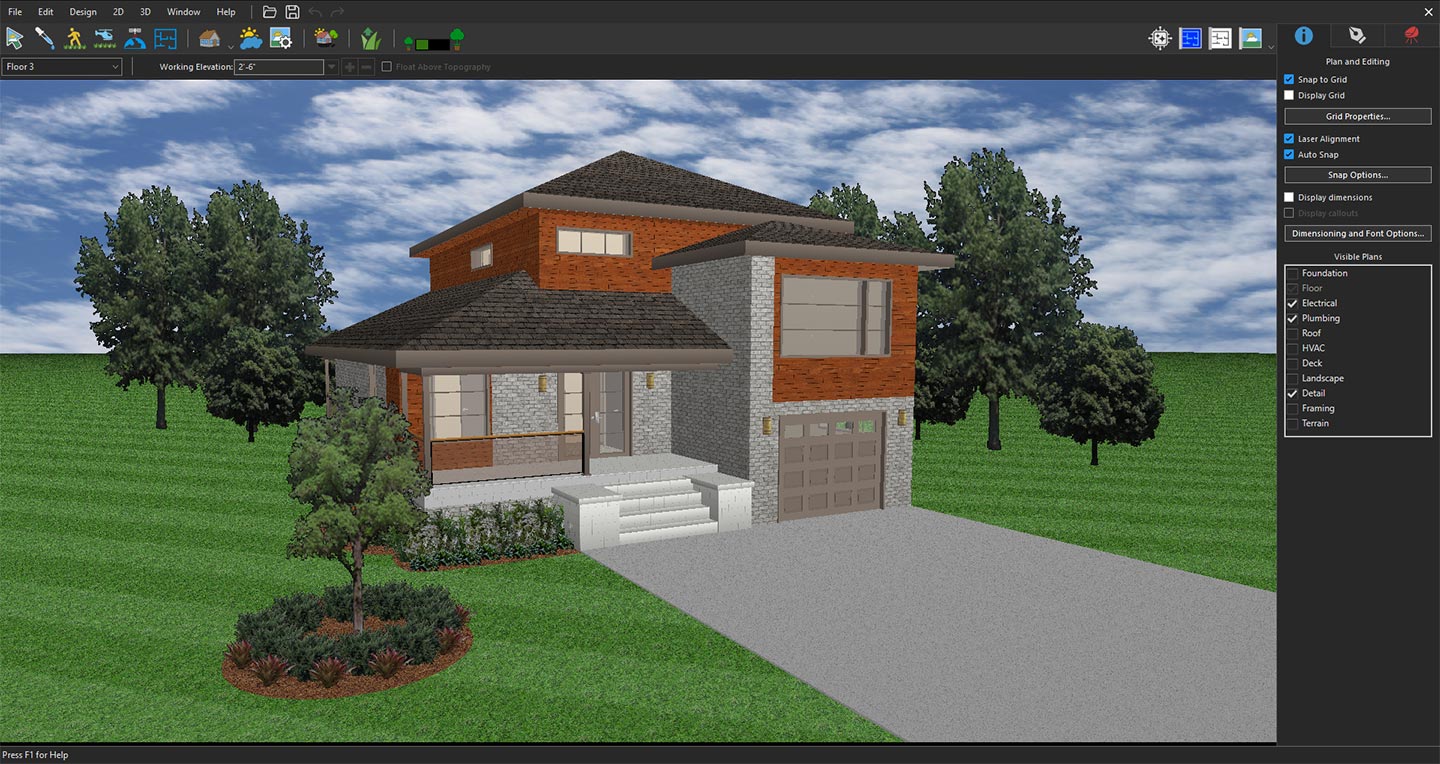
3D view prepared for reference rendering
Next, click the Copilot icon to open Copilot.
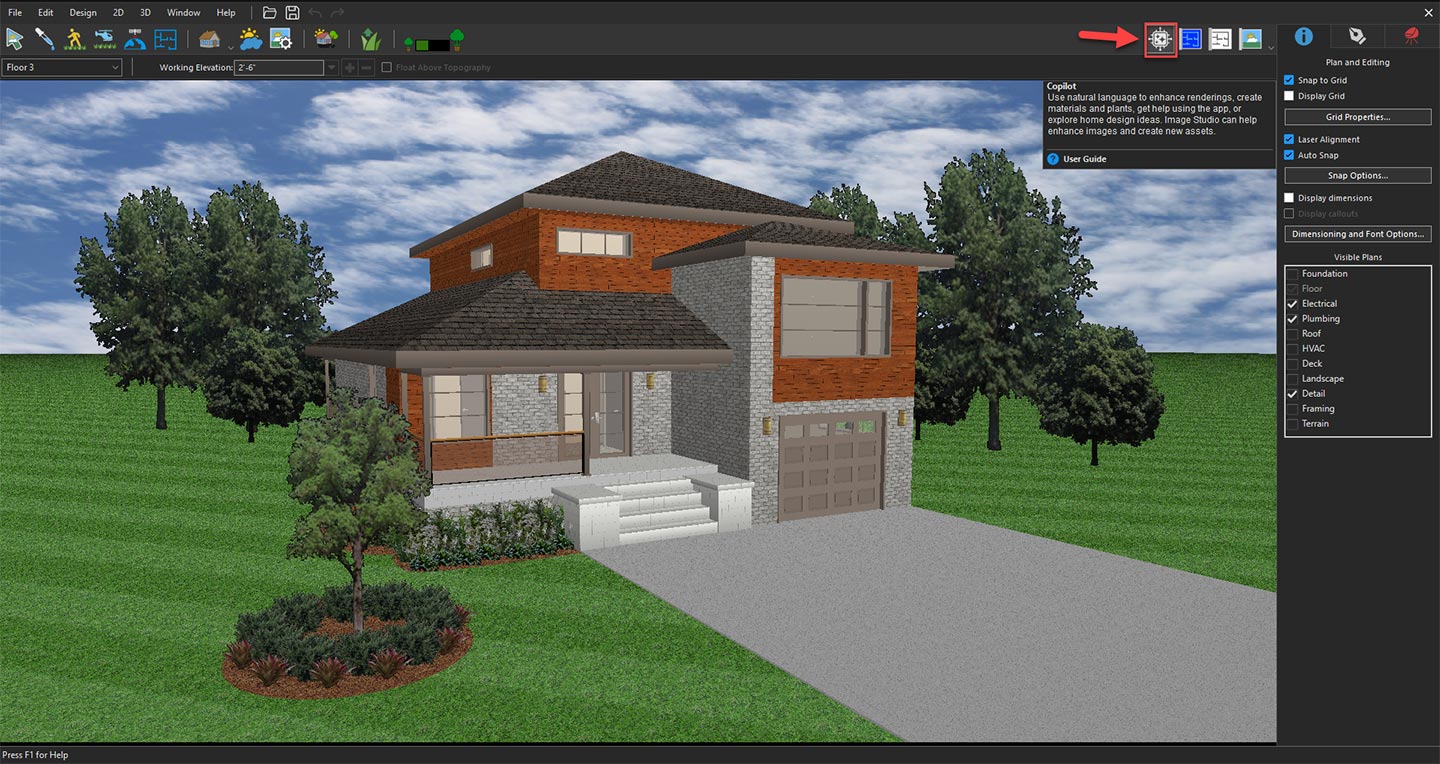
Opening Copilot to explore AI design features
From the available options, select Image Studio from the drop-down menu, and then click the Prompt button.
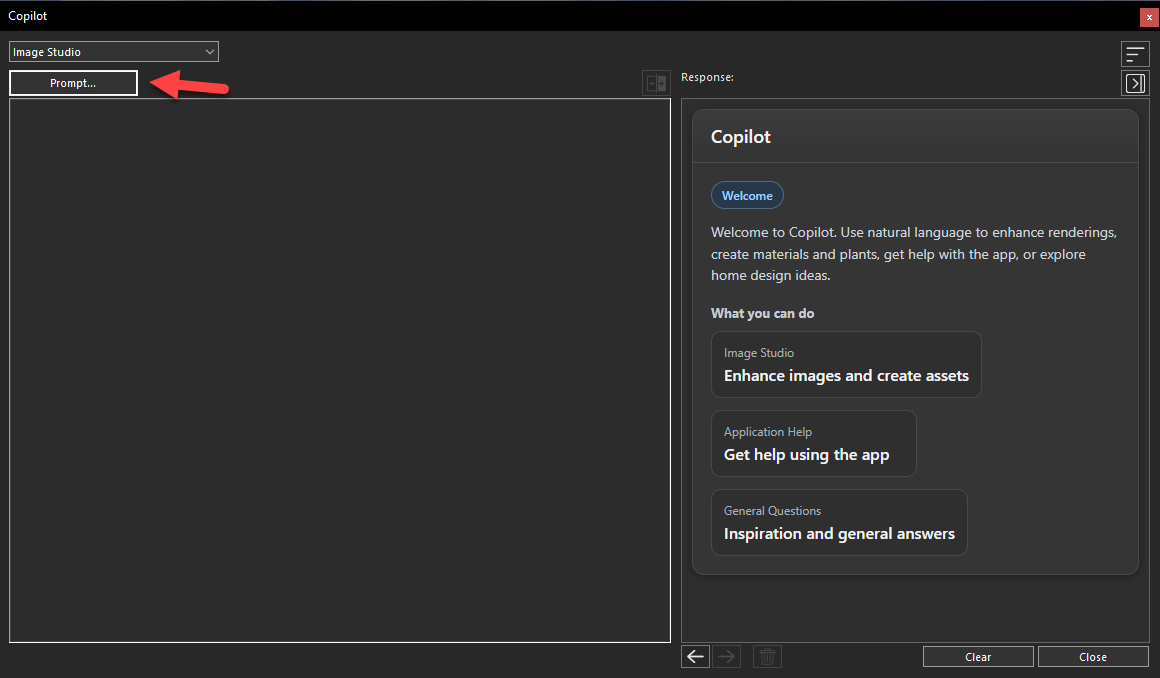
Clicking the Prompt button to access and explore the available input options in Image Studio.
In the next window, you’ll find all the available Input Options by opening the Input drop-down menu. The available options include Last Source Image, Last Copilot Image, Current 3D View, Current 2D View, Selected File, Text Prompt, Generate Texture, and Generate Plant.
Each of these input methods serves a unique purpose and provides a different way to guide the AI during image generation. In the following sections, we’ll explore each option in detail, explaining when to use it and how it differs from the others so you can choose the most suitable input method for your design workflow.
Last Source Image
The Last Source Image option allows you to reuse the image that was previously selected as the input for your last generation. This is useful when you want to experiment with different prompts or settings while keeping the same source image as the design reference.
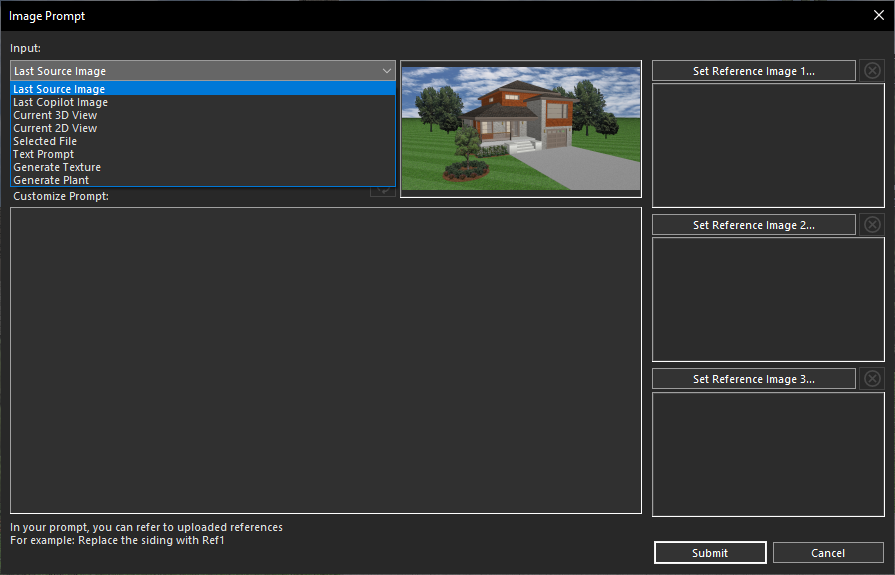
Selecting the Last Source Image option from the Input drop-down menu
Last Copilot Image
The Last Copilot Image option uses the most recently generated AI image as the input for a new generation. It is ideal for refining an existing design, creating alternative versions, or making incremental improvements without starting from scratch.
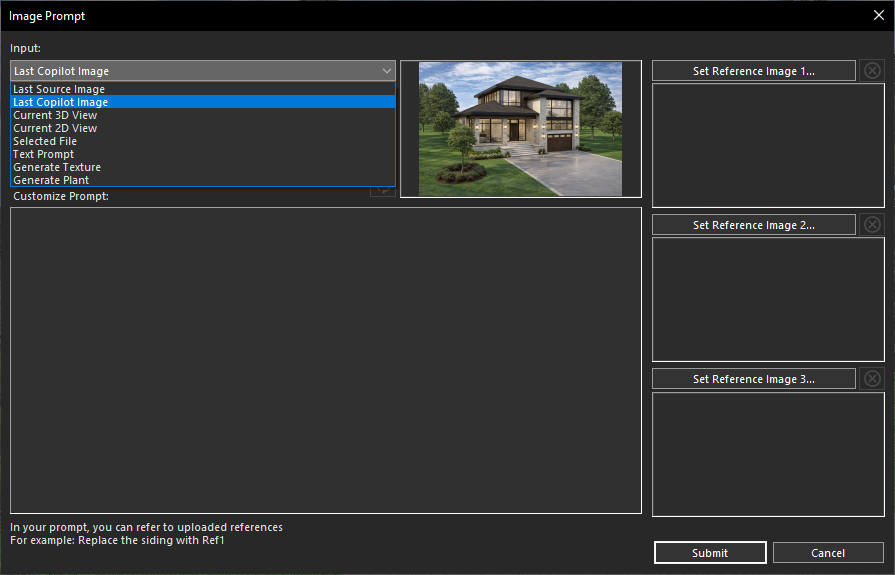
Selecting the Last Copilot Image option from the Input drop-down menu
Current 3D View
The Current 3D View option captures the active 3D view of your project and uses it as the reference for AI image generation. This enables you to transform your existing 3D model into a realistic, high-quality visualization while preserving the overall layout and perspective.
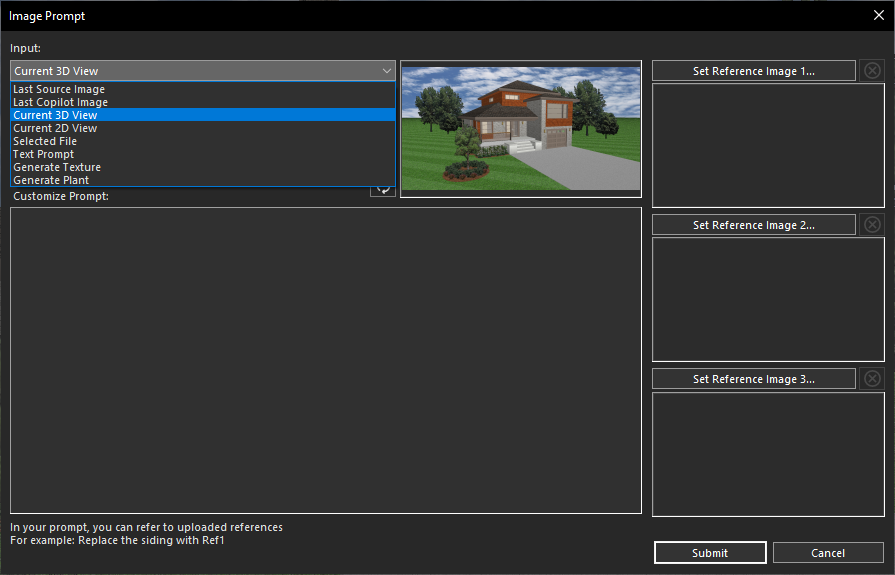
Selecting the Current 3D View option from the Input drop-down menu
Current 2D View
The Current 2D View option uses the active floor plan or 2D drawing as the starting point for AI generation. It allows the AI to interpret your design layout and produce a visually appealing rendering based on the structure of your plan.
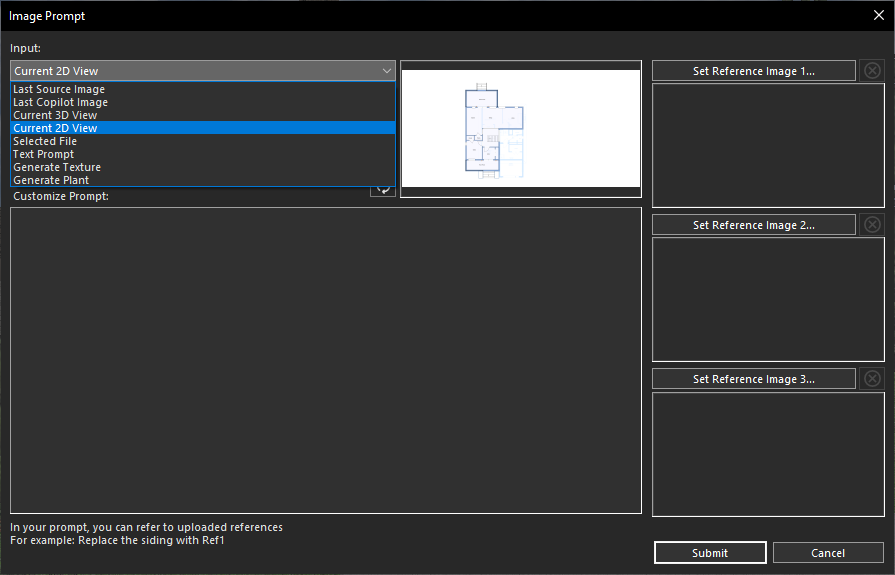
Selecting the Current 2D View option from the Input drop-down menu
Selected File
The Selected File option lets you upload an external image from your computer to use as a reference. Whether it’s a photograph, concept image, or design inspiration, the AI analyzes the uploaded image to generate results that closely match its style and composition.
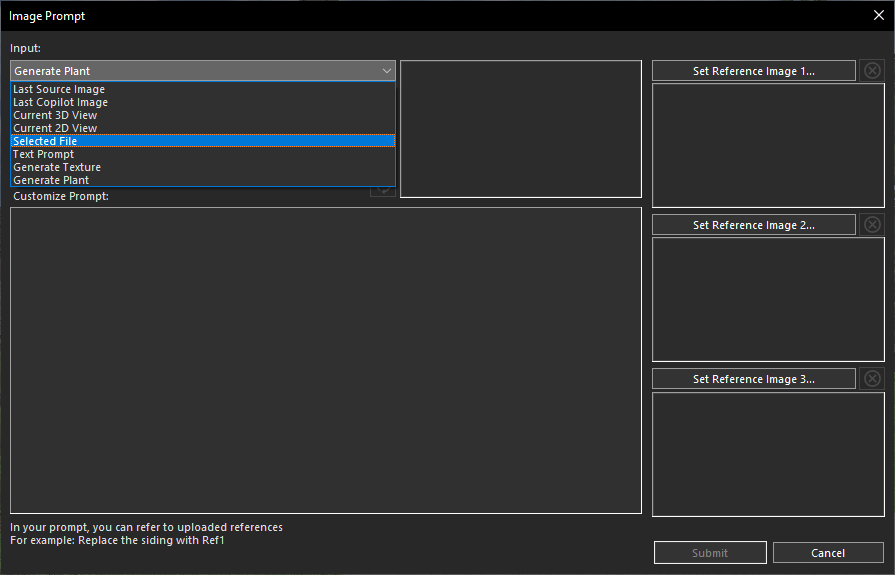
Selecting the Select File option from the Input drop-down menu
After choosing the Select File from the Input drop-down menu, click on the Choose Image button in next window.
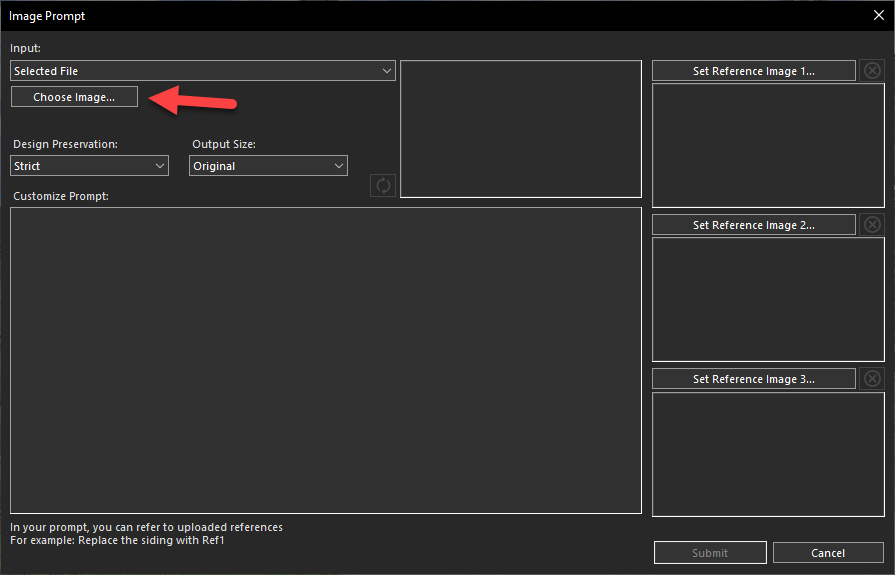
Clicking the Choose Image button to browse and select an image from the local drive
After successfully selecting an image from your local drive, it will be displayed in the Image Preview area. This preview allows you to verify that the correct image has been selected before proceeding with AI image generation.
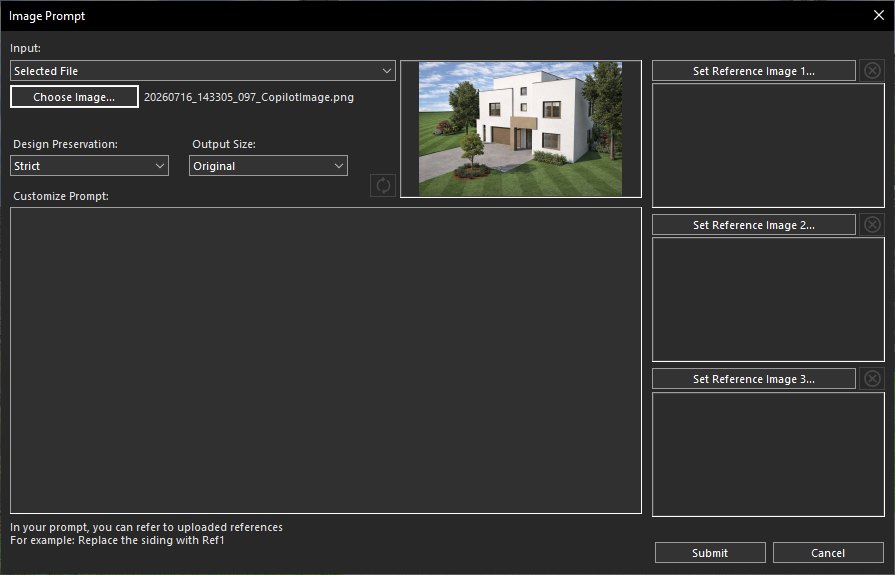
Generated design based on the applied prompt
Text Prompt
The Text Prompt option enables you to generate entirely new designs using only a written description. Simply describe your desired architectural style, materials, colors, lighting, or landscaping, and the AI will create a unique image based on your instructions. For this first enter a detailed text prompt in the Customize Prompt section describing your desired rendering style and then click on submit button.
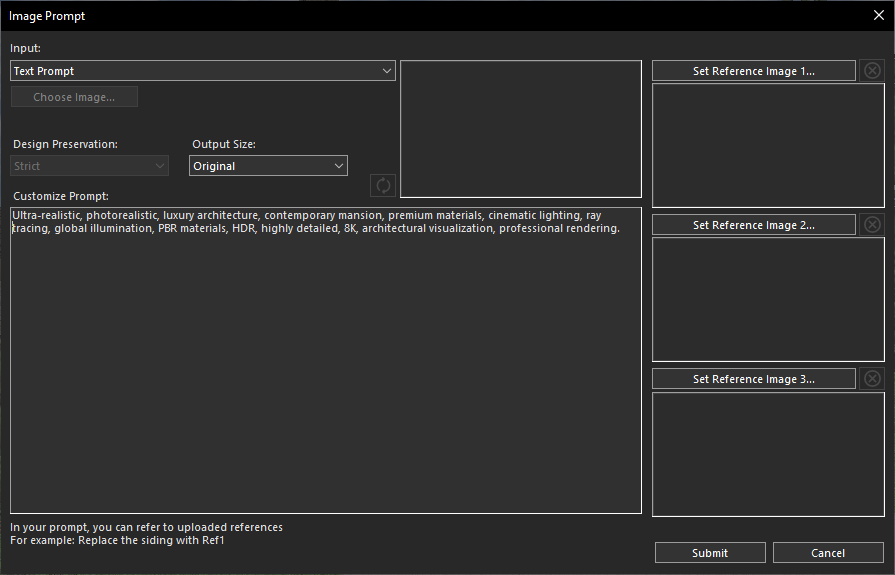
Entering a descriptive text prompt to generate an AI-powered image
Copilot will process your request within a few seconds and generate an AI-powered rendered result based on your instructions.
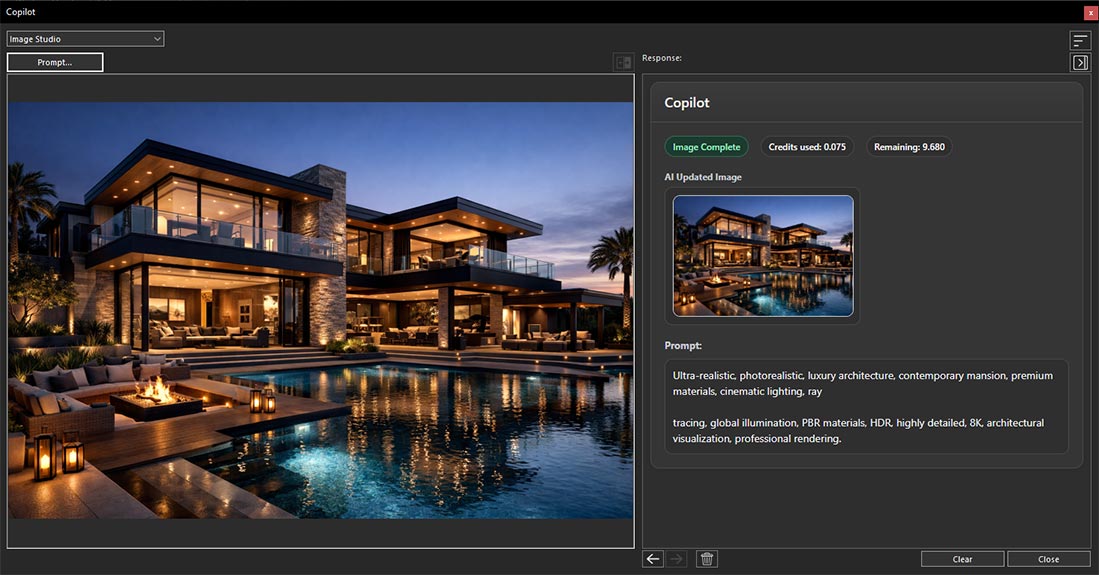
AI-generated image created from the provided text prompt
Generate Texture
The Generate Texture option creates high-quality, AI-generated textures that can be applied to surfaces such as walls, floors, roofs, or furniture. It helps you quickly produce realistic and seamless materials that enhance the visual quality of your designs. For this first enter a detailed text prompt in the Customize Prompt section after selecting the Generate Texture from Input drop-down menu describing your desired texture style and then click on Submit button.
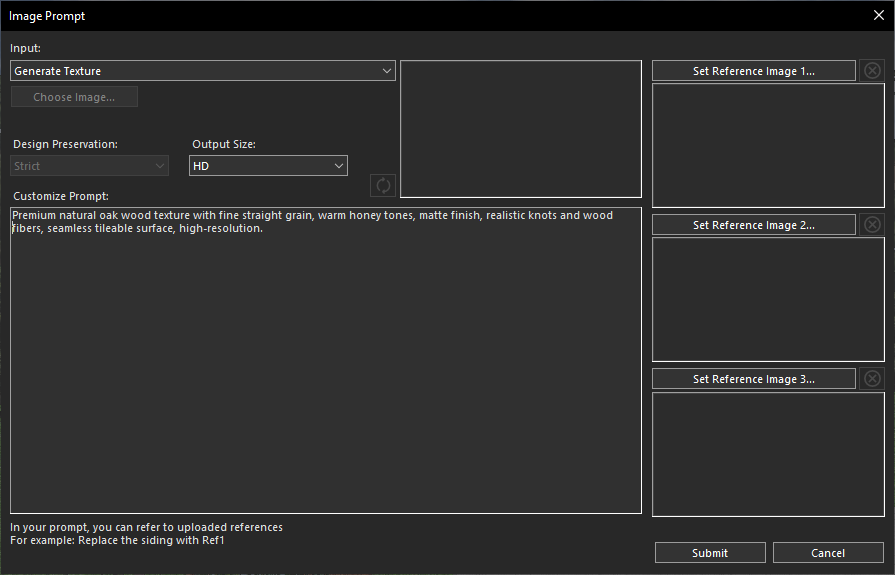
Selecting the Generate Texture option and entering a prompt to create a custom AI-generated texture
Copilot will process your request within a few seconds and generate an AI-powered rendered texture result based on your instructions.
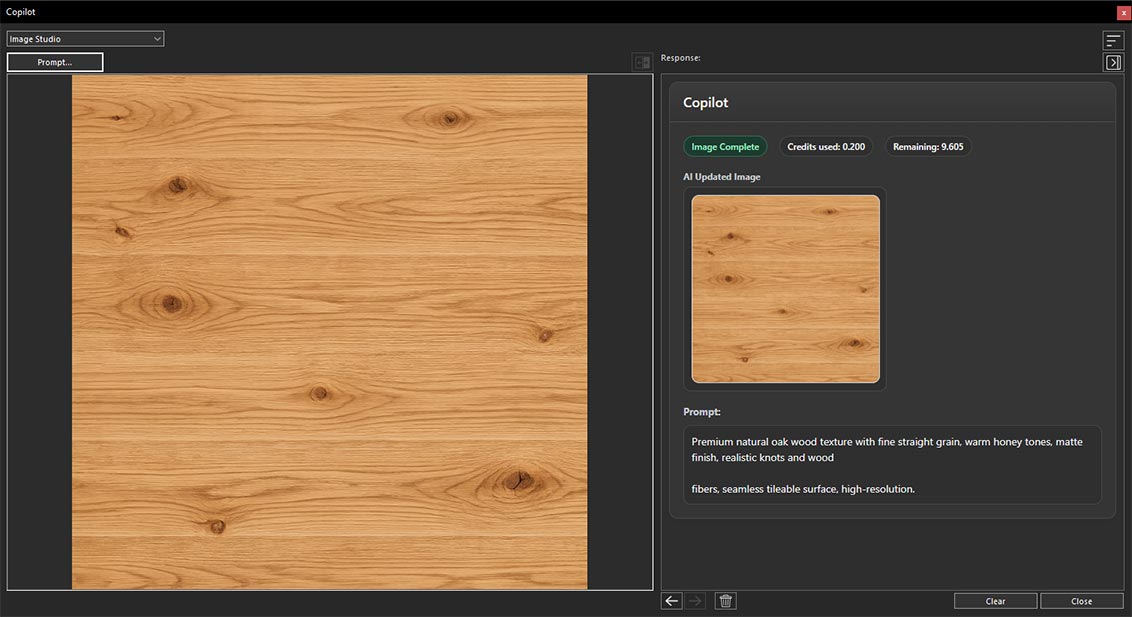
Texture generated by Home Design Copilot based on the entered prompt
Generate Plant
The Generate Plant option creates realistic AI-generated plants and vegetation for use in your projects. It allows you to enrich gardens, landscapes, patios, and outdoor spaces with natural-looking greenery that complements your overall design. For this first enter a detailed text prompt in the Customize Prompt section after selecting the Generate Plant from Input drop-down menu describing your desired Plant style, type and then click on Submit button.
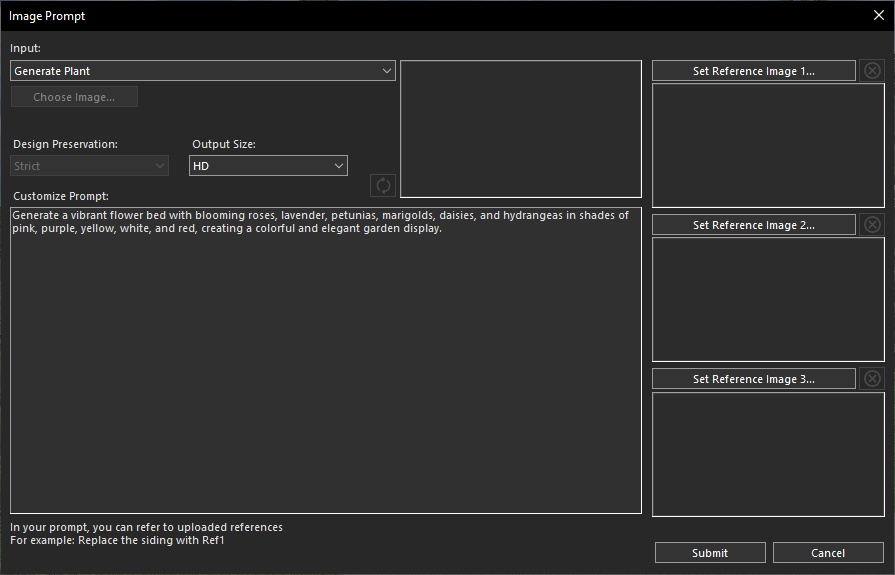
Selecting the Generate Plant option and entering a prompt to create a custom AI-generated plant
Copilot will process your request within a few seconds and generate an AI-powered rendered Plants based on your instructions.
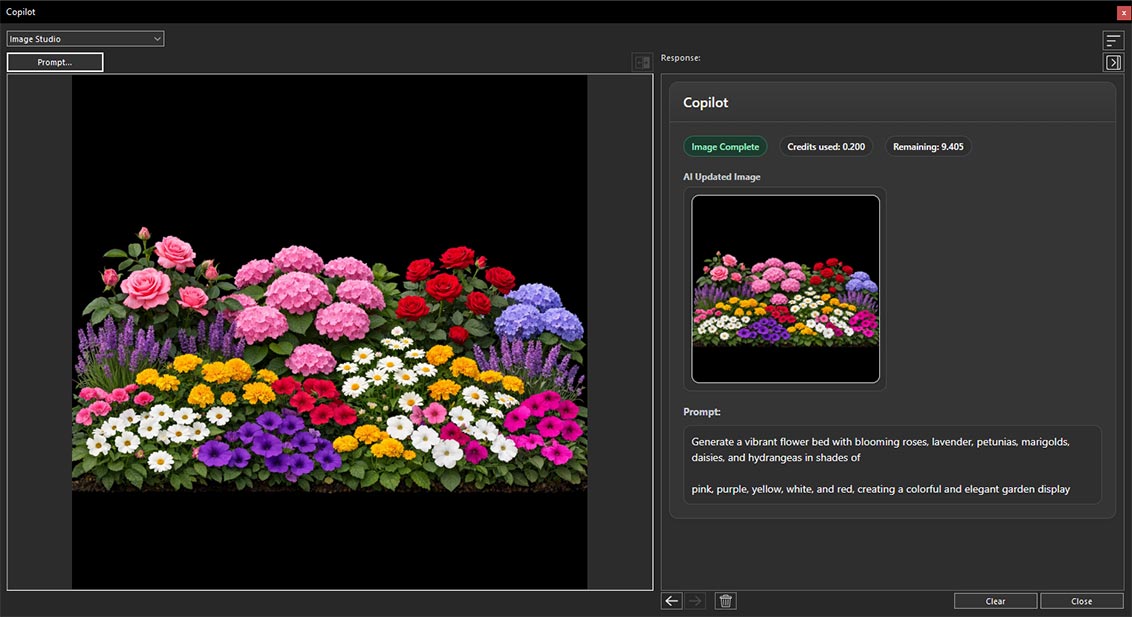
Plant generated by Home Design Copilot based on the entered prompt
Conclusion
The Input Options in Home Design Copilot Image Studio provide a flexible and intuitive way to guide AI image generation based on your specific design requirements. Whether you want to reuse a previously generated image, work from your current 2D or 3D project view, upload a custom reference image, create a design from a text prompt, or generate textures and plants, each input option is designed to support a different stage of your creative workflow.
By understanding when and how to use these input methods, you can produce more accurate, realistic, and visually compelling results while reducing the time required to create high-quality design visualizations. Experimenting with different input options and prompts will help you unlock the full potential of Home Design Copilot Image Studio and create AI-powered designs that closely align with your vision.
Copilot Render Showcase
Also check out our Copilot Render Showcase by clicking the banner below.