Disclaimer: The features described in this blog require the Home Design Copilot Add‑On. You can purchase the add‑on here: Home Design Copilot
Reference images help transform ideas and inspirations into more accurate and personalized designs. With Home Design Copilot, you can use your preferred images as visual guidance to influence the AI rendering process. Whether you want to recreate a specific style, explore new materials, or achieve a particular atmosphere, reference images provide the AI with a clearer understanding of your design goals.
By combining your existing 3D views with reference images, Home Design Copilot can generate realistic design concepts that better match your vision. Instead of relying only on text descriptions, you can provide visual examples of elements such as furniture styles, color schemes, architectural details, lighting, and overall aesthetics to achieve more refined results.
This feature gives designers and homeowners greater control over the creative process. You can experiment with different inspirations, compare various design directions, and quickly visualize how different styles would look within your own space. It makes exploring design possibilities faster, easier, and more intuitive.
With Reference Image support in Home Design Copilot, turning inspiration into reality becomes a seamless experience. By combining AI technology with your creative ideas, you can generate high-quality renderings that bring your dream spaces closer to life.
How to Create AI-Powered Renderings in Home Design Copilot with Reference Images?
To begin, open a sample project that you want to use for rendering with reference images. Once the project is open, navigate to the 3D View and adjust the view to capture the area you want to transform.
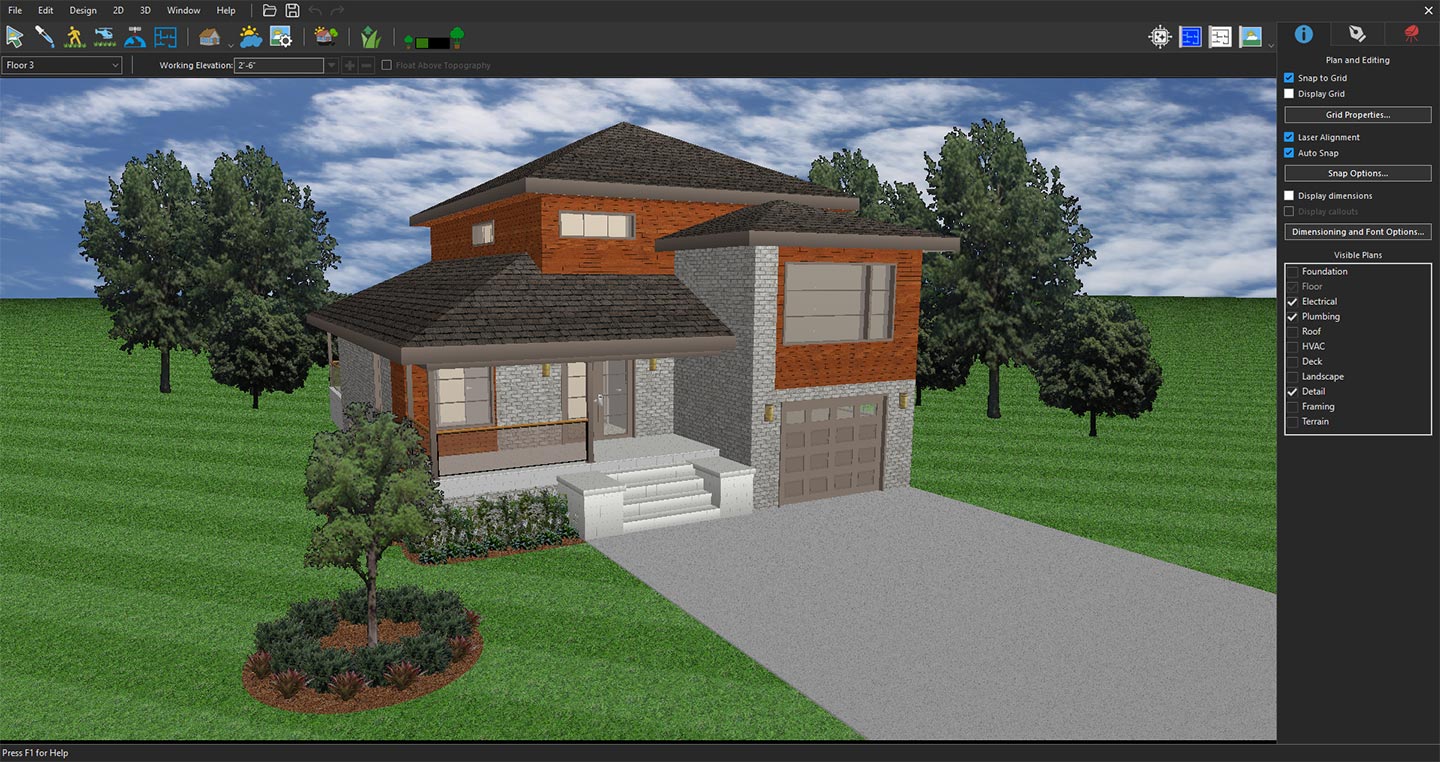
3D view prepared for reference rendering
Next, click the Copilot icon to open Copilot.
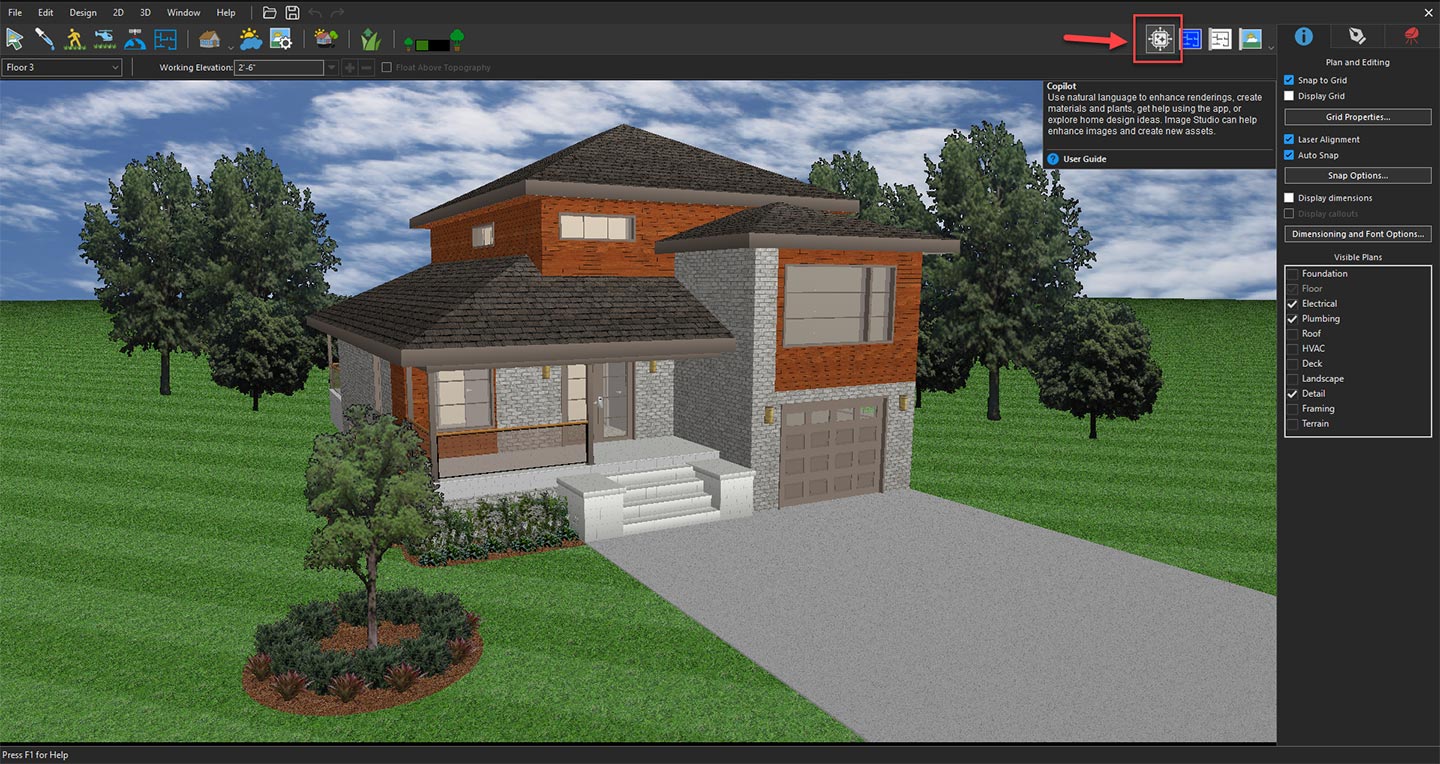
Opening Copilot to explore AI design features
From the available options, select Image Studio from the drop-down menu, and then click the Prompt button. In the Image Studio window, choose Current 3D View from the Input drop-down menu to use the selected view as the reference image.
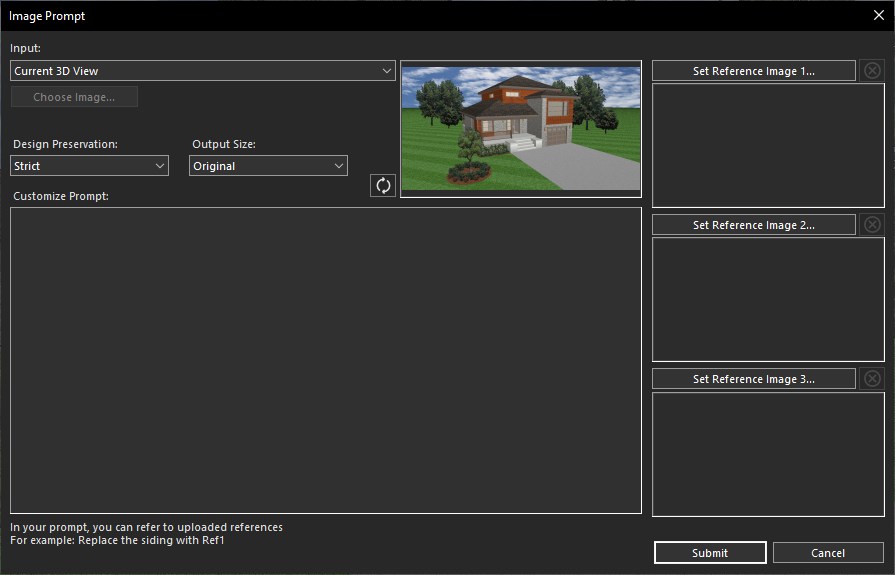
Using the current 3D View for AI transformation
After selecting the input, enter a detailed text prompt in the Customize Prompt section describing your desired photorealistic rendering.
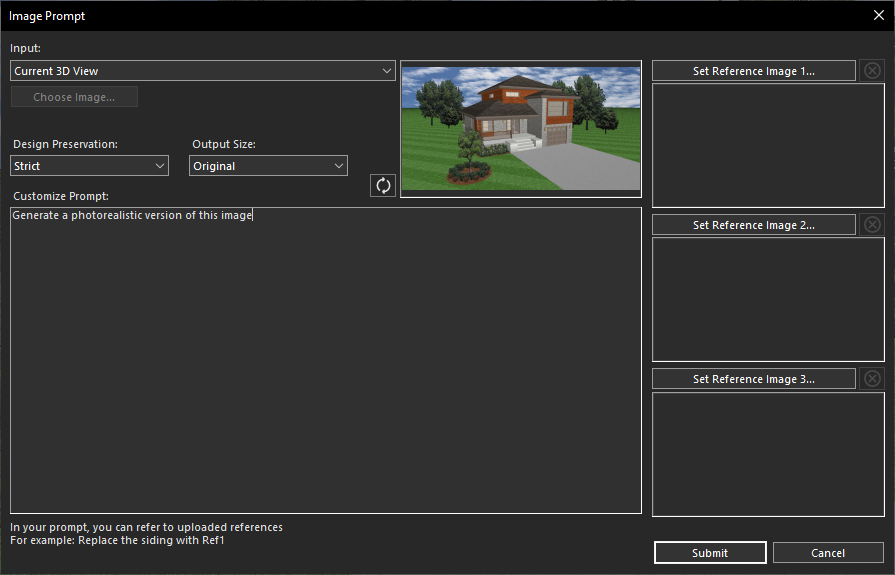
Creating a prompt for Photorealistic rendering
Once the prompt is added, click Submit. Copilot will process your request within a few seconds and generate an AI-powered rendered result based on your instructions.
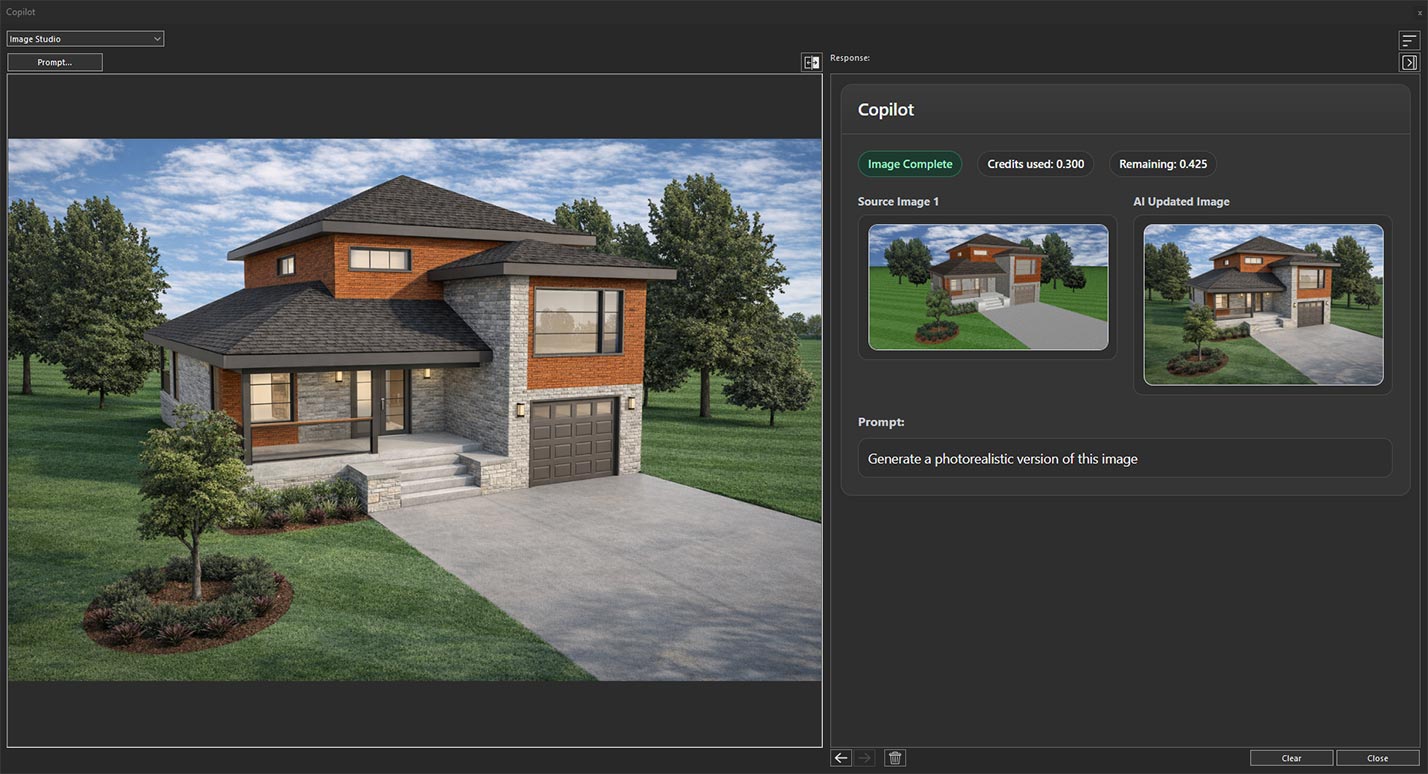
Generated design based on the applied prompt
You can use the same 3D View of the project as a reference; however, for better results, it is recommended to first apply photorealistic rendering and save the rendered image to your local drive by choosing Save Image file option.
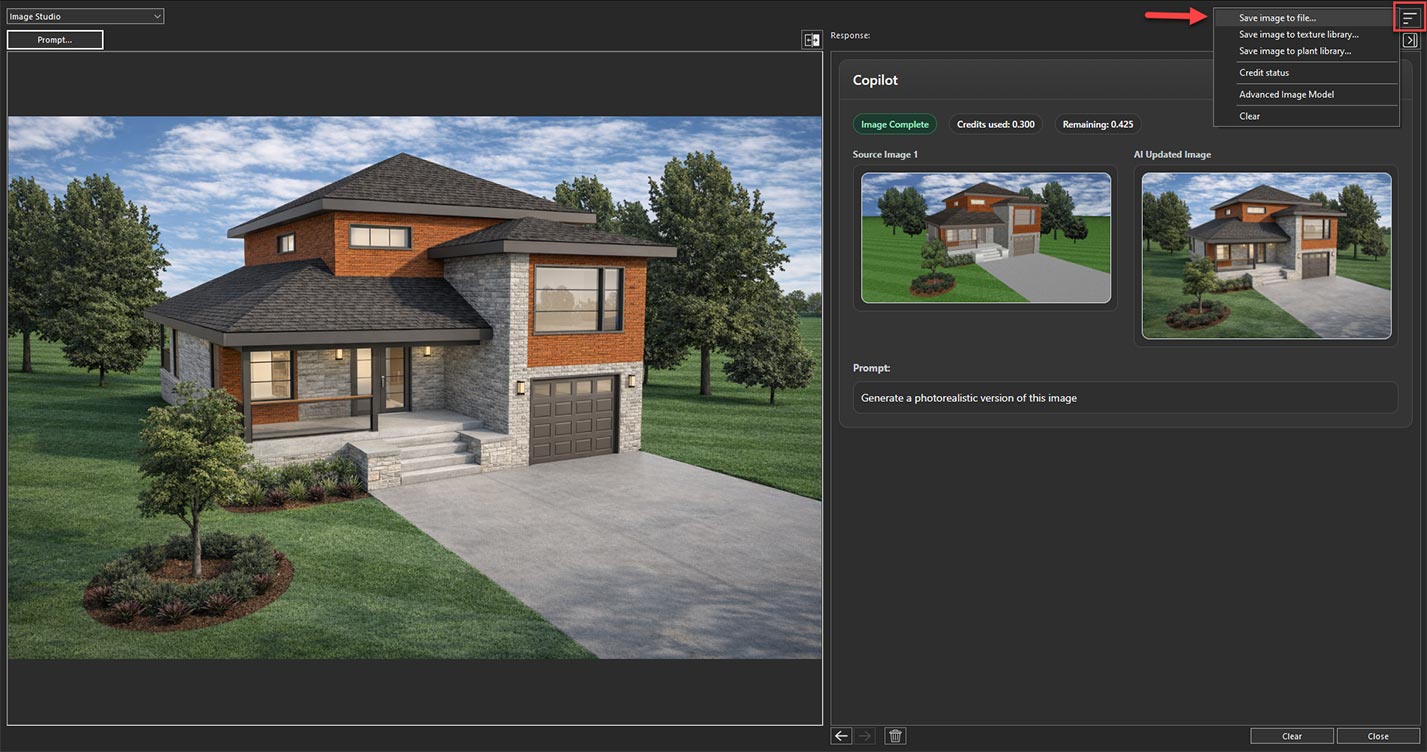
Save the rendered image using the Save Image File option
After saving the rendered image, open Image Studio again and select the Select File option from the Input drop-down menu.
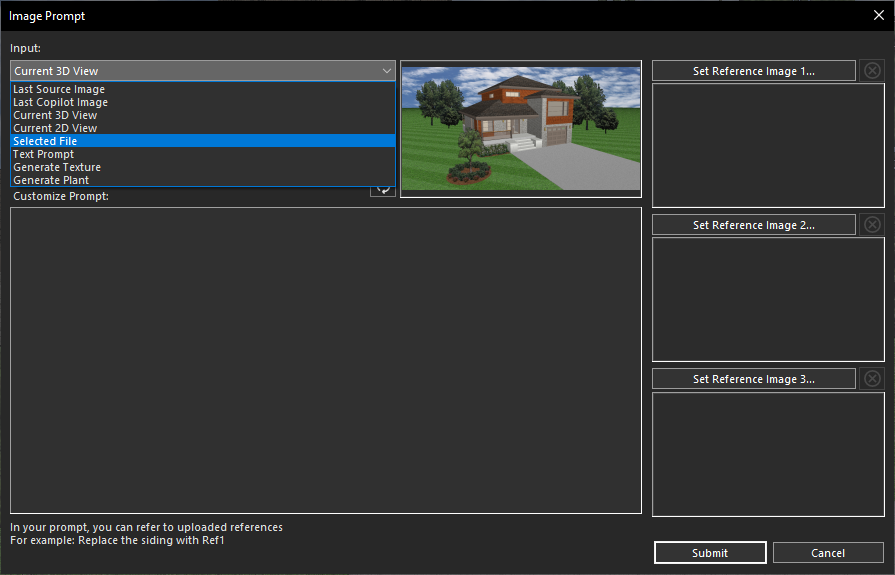
Use Select File to load the saved render.
Choose the saved photorealistic image from your local drive to use it as the reference image for generating more refined AI-rendered results.
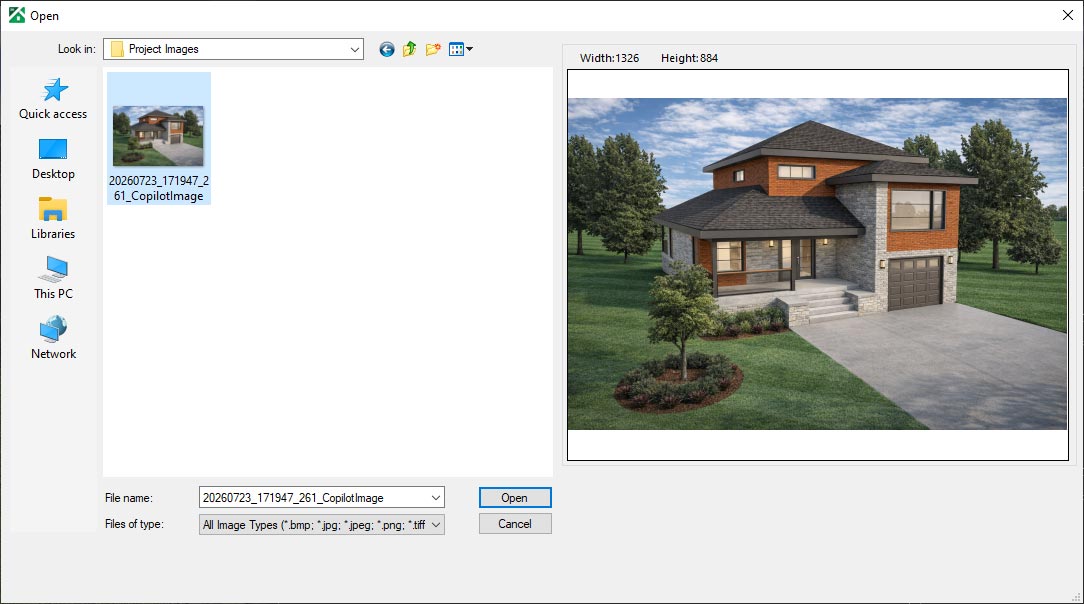
Choose the saved render from your local drive
After selecting the saved photorealistic image of the project in Copilot, you can add additional design inspiration by using reference images. Click on Set Reference Image 1, Set Reference Image 2, or Set Reference Image 3 to add the desired reference images.
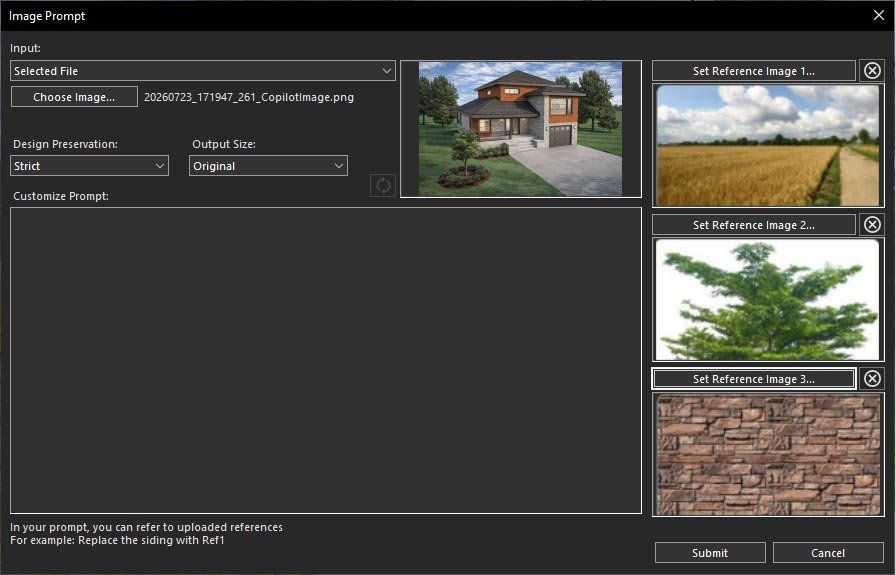
Add reference images using Set Reference Image options
Once the reference images are added, enter a detailed prompt in the Customize Prompt section. In your prompt, specify which reference image you want Copilot to use, such as Reference Image 1, Reference Image 2, or Reference Image 3, to guide the rendering process.
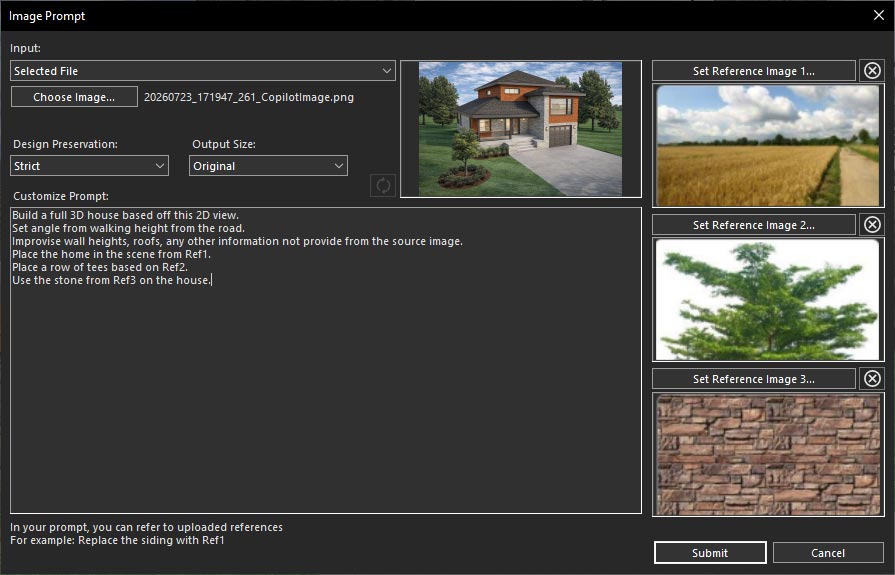
Enter a prompt to generate a reference-guided rendering
After entering the prompt, click Submit. Copilot will process your request within a few seconds and generate an AI-powered rendered result based on your instructions and selected reference images.
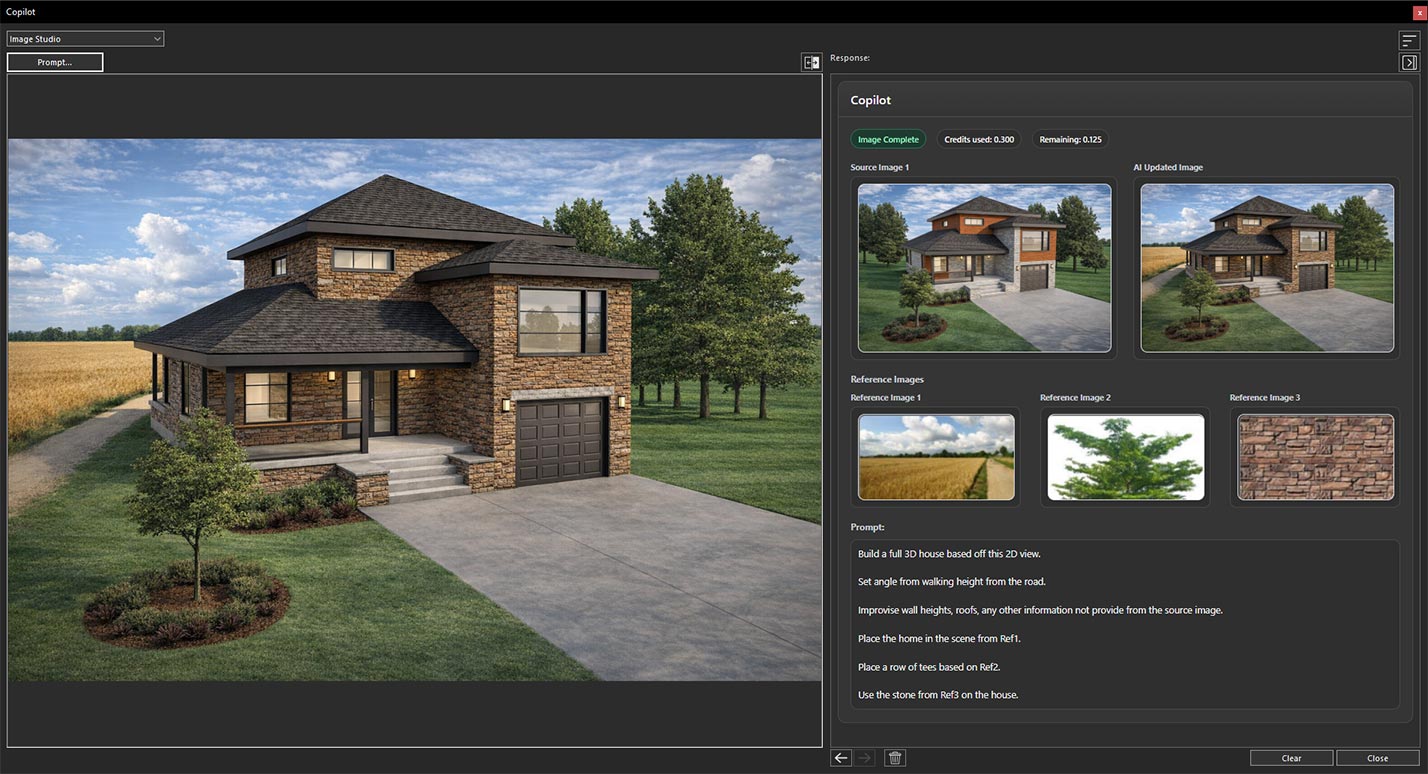
Generated rendering using reference images and custom instructions
Similarly, you can use one or two reference images to guide the rendering process. The number of reference images depends on the specific rendering requirements and the level of detail needed to achieve the desired result.
Conclusion
Reference Image support in Home Design Copilot bridges the gap between inspiration and visualization, making it easier to create designs that truly reflect your vision. By combining the power of AI with visual references, you gain greater creative control, achieve more accurate and consistent renderings, and explore design possibilities with confidence. Whether you’re refining a concept or presenting a final design, this feature helps transform ideas into stunning, photorealistic spaces with greater speed, precision, and creativity.
Copilot Render Showcase
Also check out our Copilot Render Showcase by clicking the banner below.