
Founded in 1983, IMSI is a leader in feature-rich, yet affordable, general-purpose CAD (Computer Aided Design) and home design desktop software, and a pioneer in mobile solutions for the AEC (Architectural, Engineering, and Construction) industry.

Visualizing a home renovation or interior design idea has traditionally required advanced design skills, professional software, or hours of manual editing. Copilot Image Studio changes that experience by allowing anyone to transform ideas into stunning visuals using simple natural language prompts.
Powered by AI, Copilot Image Studio enables you to generate and enhance realistic images by simply describing what you want. Whether you’re redesigning a living room, modernizing a kitchen, creating a luxurious bathroom, refreshing an outdoor patio, or completely reimagining a home’s exterior, Copilot Image Studio can produce high-quality design concepts within seconds.
Instead of manually adjusting colors, furniture, materials, lighting, or landscaping, you simply describe your vision in plain language. The AI interprets your prompt and generates visually compelling design variations, making it easier than ever to explore different styles, layouts, and creative possibilities.
In this blog, you’ll discover how to use Copilot Image Studio to transform houses, living rooms, kitchens, bathrooms, outdoor spaces, and landscapes with carefully crafted text prompts. You’ll also learn prompt-writing techniques that help you generate more realistic, professional, and inspiring design results.
Getting Started with Image Studio in Copilot
To get started with Copilot Image Studio, first open a sample project or any project you would like to enhance using AI. Once the project is open, switch to the 3D View, as Image Studio uses the current 3D perspective as the source for generating new design concepts.
In this example, we’ll transform a house exterior into a modern, luxurious design. Begin by opening a project that displays the front or exterior view of the house, then adjust the 3D view until you have the desired angle.
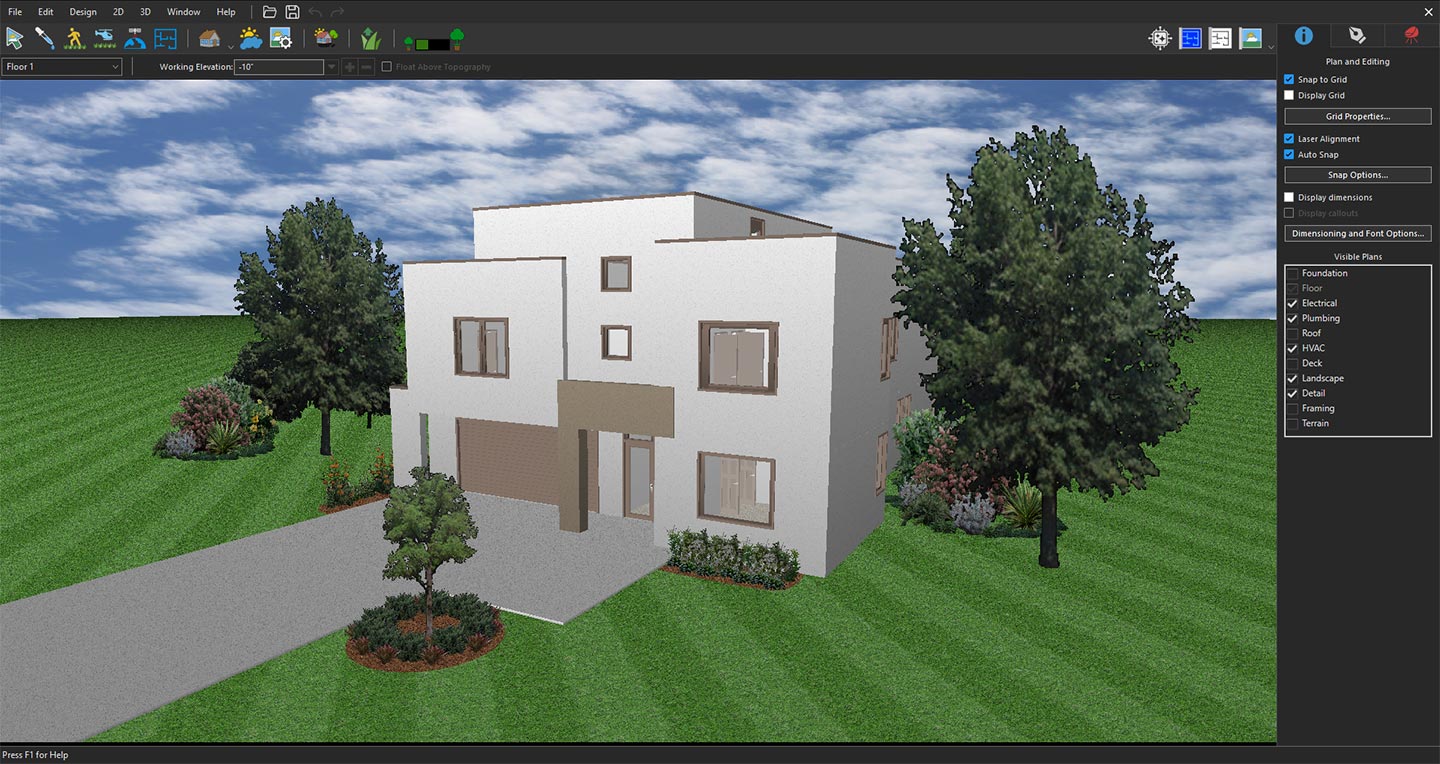
3D View focused on the house exterior
Next, click the Copilot icon to open the Copilot panel.
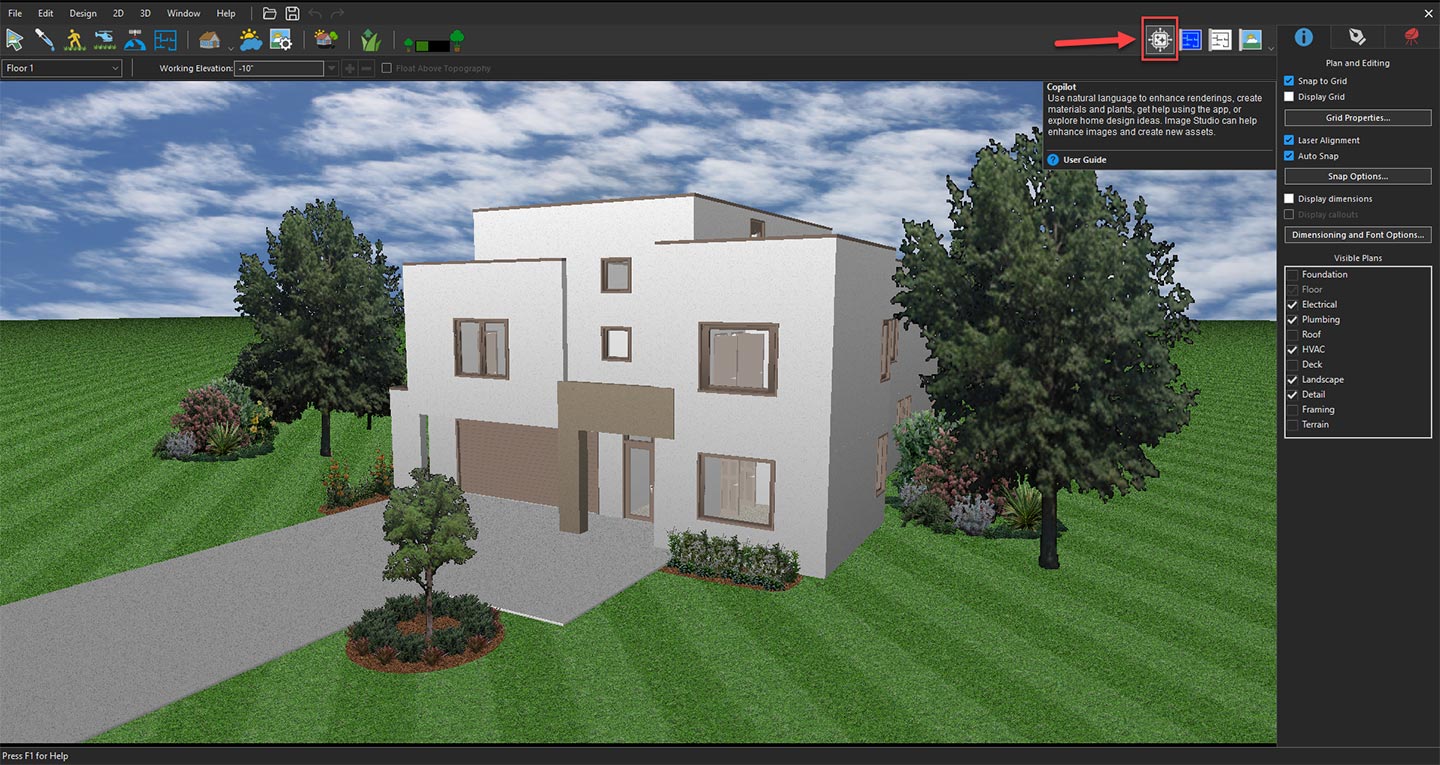
Opening Copilot to explore AI design features
From the available options, select Image Studio from the drop-down menu, and then click the Prompt button.
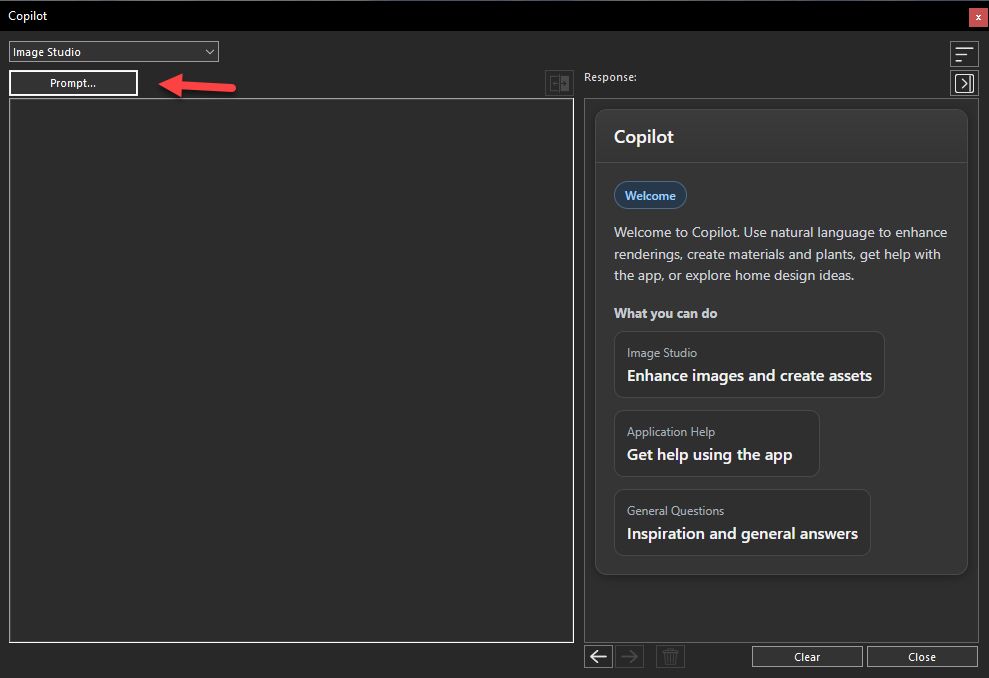
Exploring input options in Copilot Image Studio
In the Image Studio window, choose Current 3D View from the Input drop-down menu. The selected view of your project will appear in the preview window, confirming that Image Studio is ready to use it as the reference image.
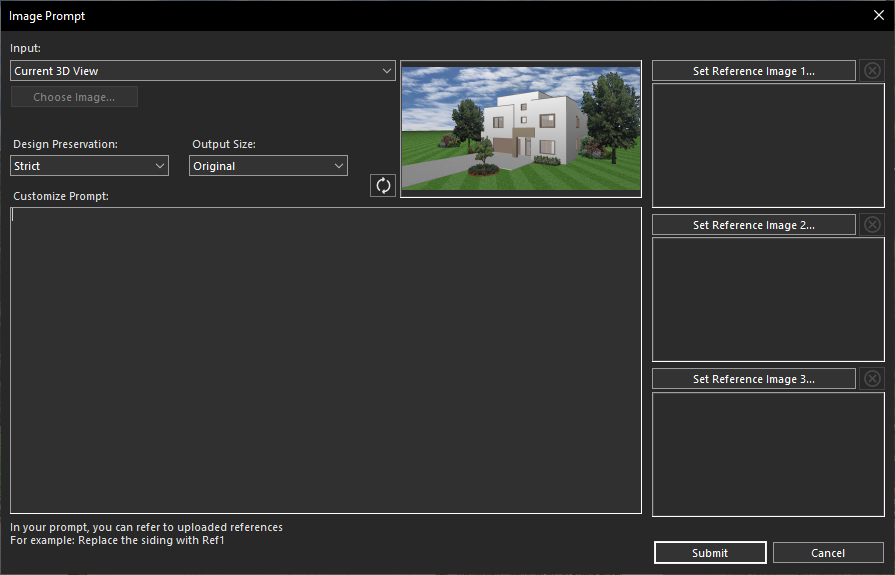
Using the current 3D View for AI transformation
Now it’s time to describe your vision. Enter a detailed text prompt in the Customize Prompt section, explaining how you want the house to be transformed. For example, you might request a contemporary façade with premium materials, large glass windows, elegant outdoor lighting, and modern landscaping.
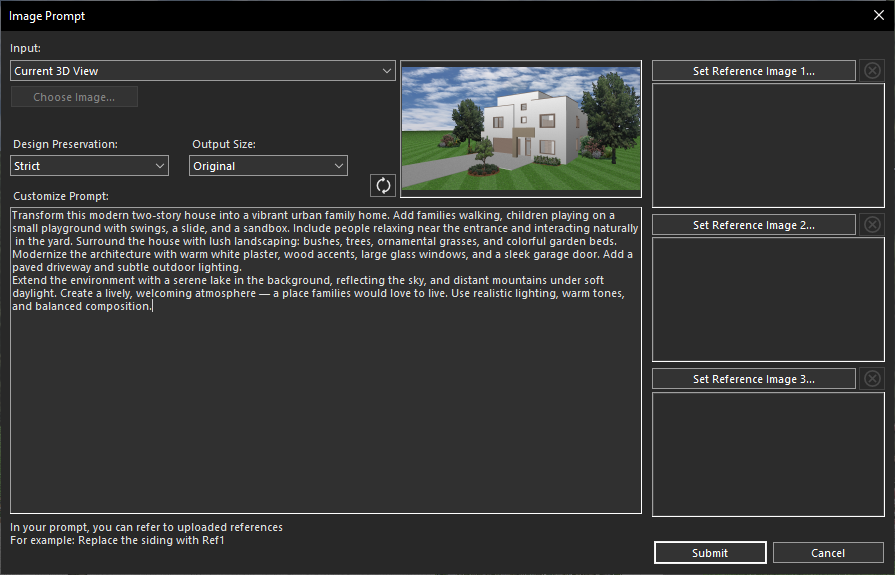
Defining the desired house exterior makeover
Once your prompt is ready, click Submit. Within a few seconds, Copilot Image Studio will generate a beautifully rendered version of your design based on your instructions.
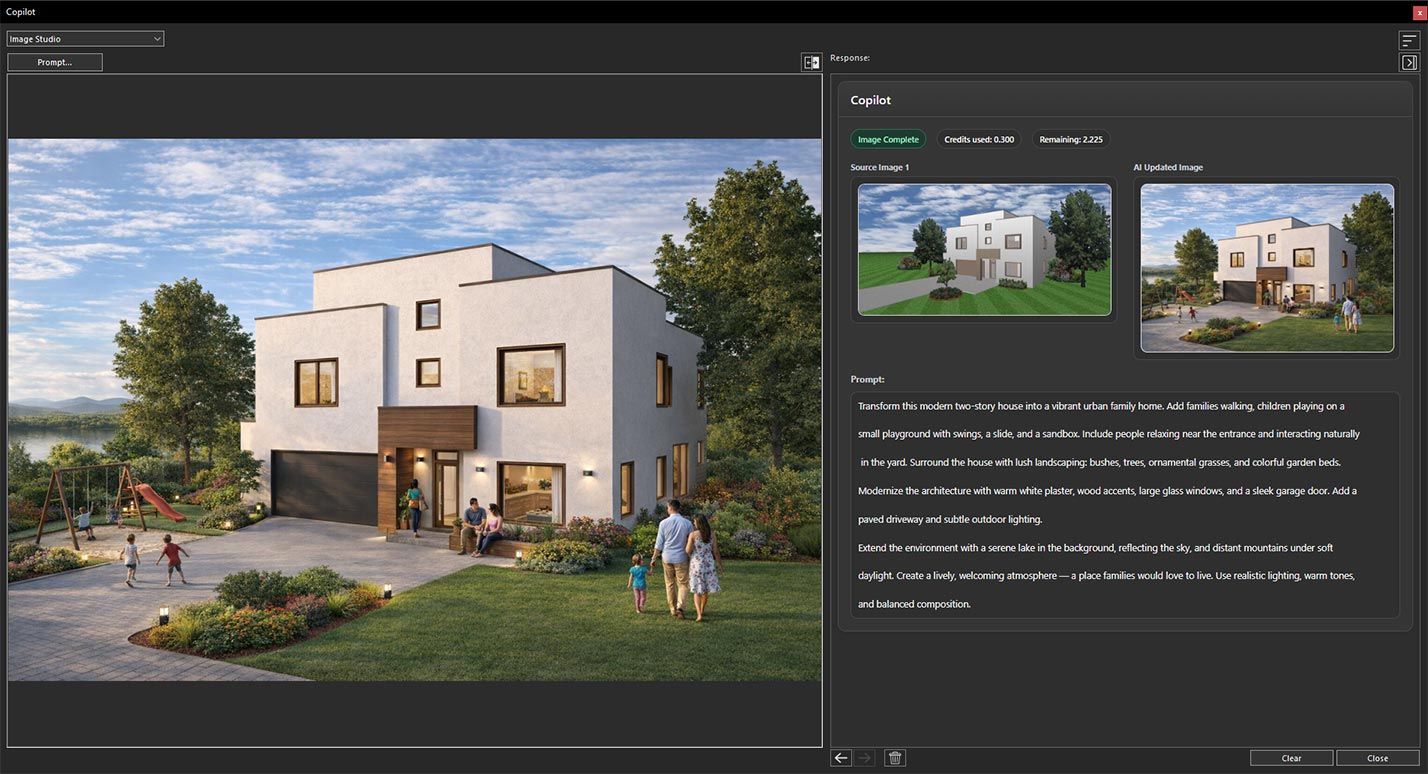
AI-generated house transformation result
After the image has been generated, you can easily compare the original and AI-enhanced versions by using the Previous and Next buttons. This side-by-side comparison makes it simple to evaluate the transformation and experiment with different design ideas until you achieve the perfect result.
Now, we’ve opened a project featuring an outdoor living area and positioned the 3D View to capture the space we want to enhance.
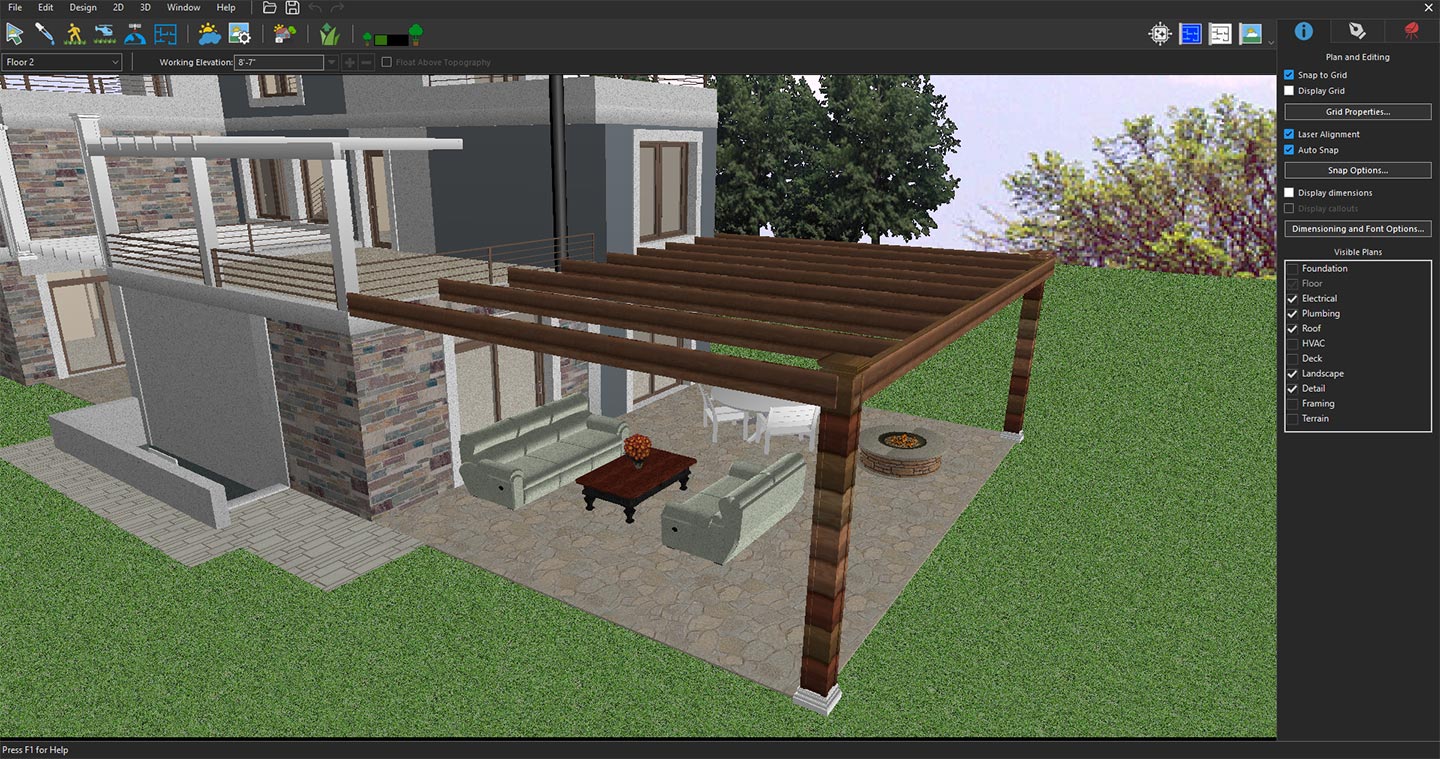
3D View focused on the outdoor living space
Click the Copilot icon, select Image Studio from the drop-down menu, and then click Prompt. In the Image Studio window, choose Current 3D View from the Input drop-down menu. The selected view will appear in the preview window as the reference image.
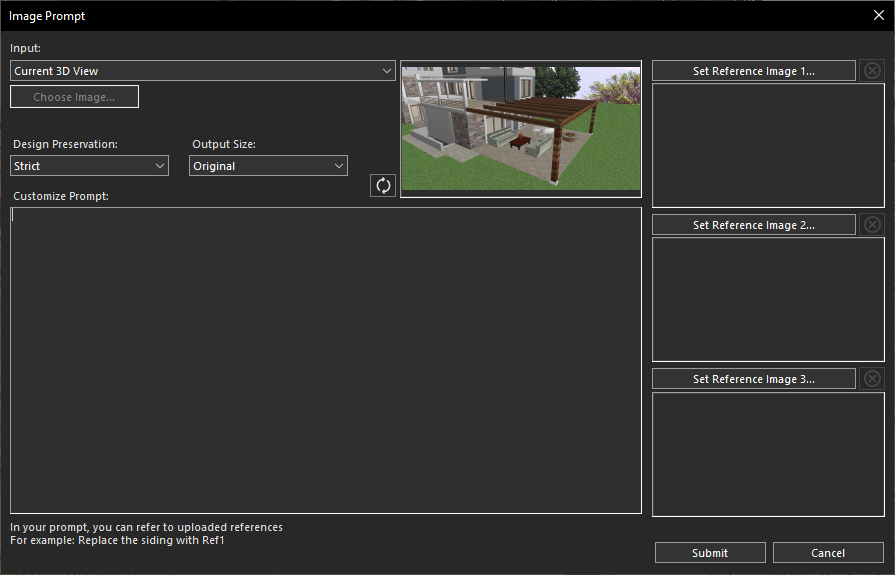
Using the current 3D View for AI transformation
Next, enter a prompt in the Customize Prompt section describing your desired transformation. For example, you might request a modern patio with luxury seating, a pergola, a fire pit, ambient lighting, and lush landscaping.
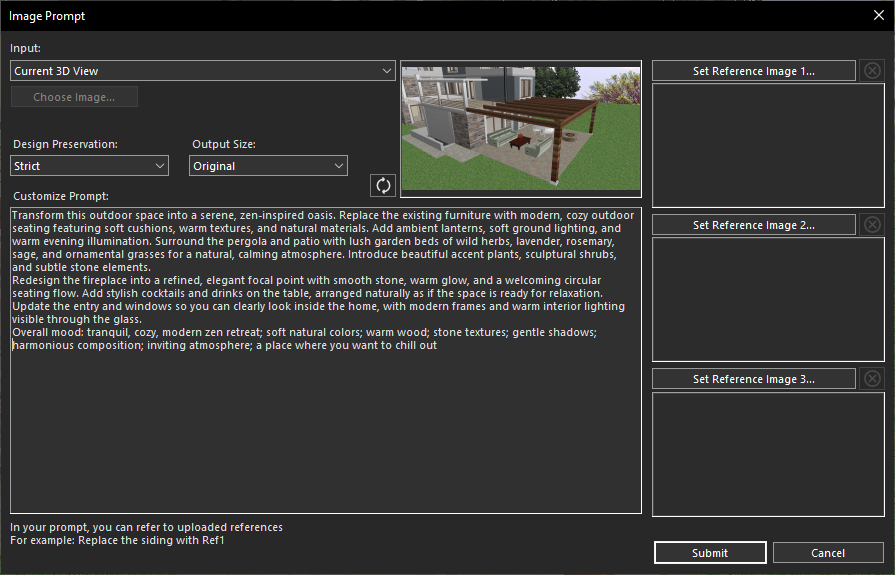
Creating a prompt for outdoor living transformation
Click Submit, and within a few seconds, Copilot Image Studio will generate a high-quality rendered image based on your prompt.
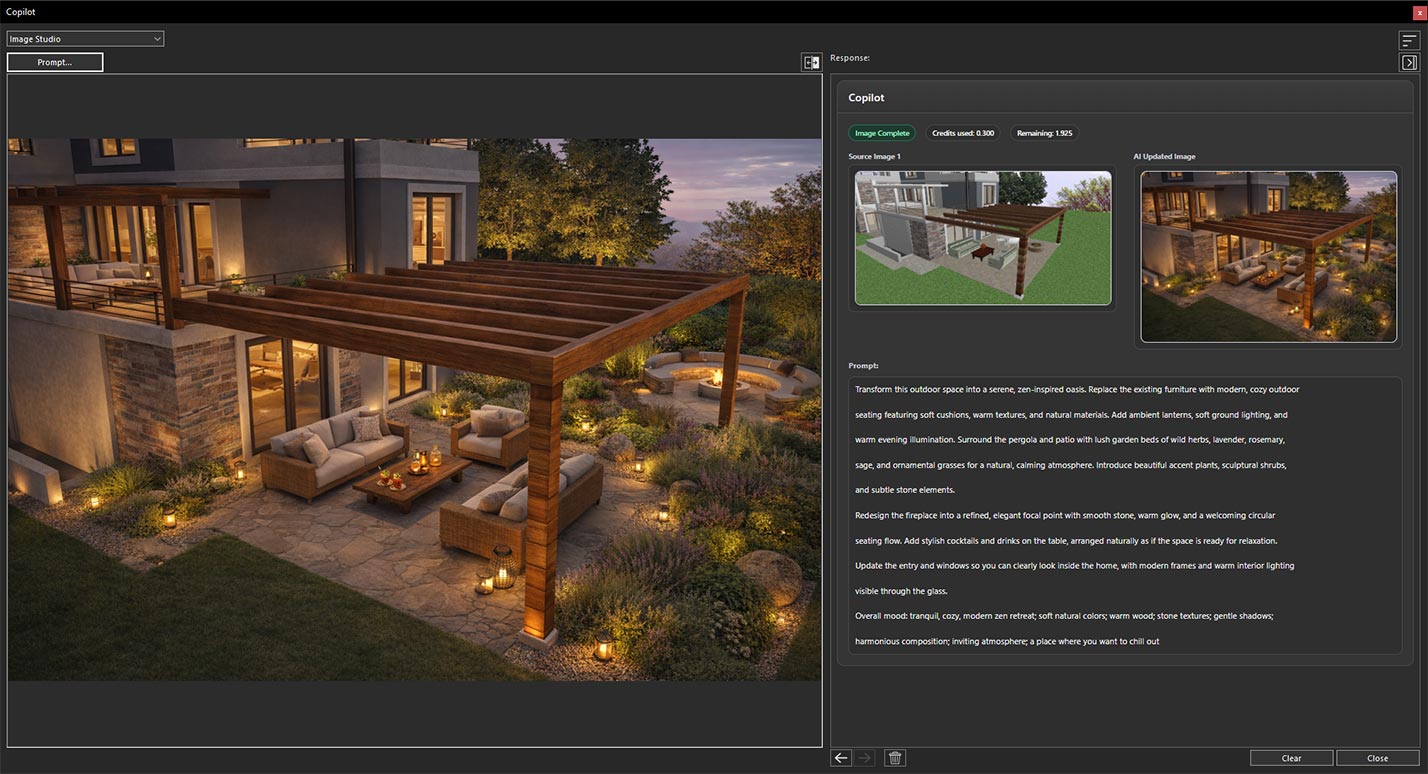
Generated design based on the applied prompt
Finally, use the Previous and Next buttons to compare the original and AI-generated versions, making it easy to evaluate the transformation and explore different outdoor design ideas.
Now, we’ve opened a project featuring a living room and positioned the 3D View to capture the area we want to transform.
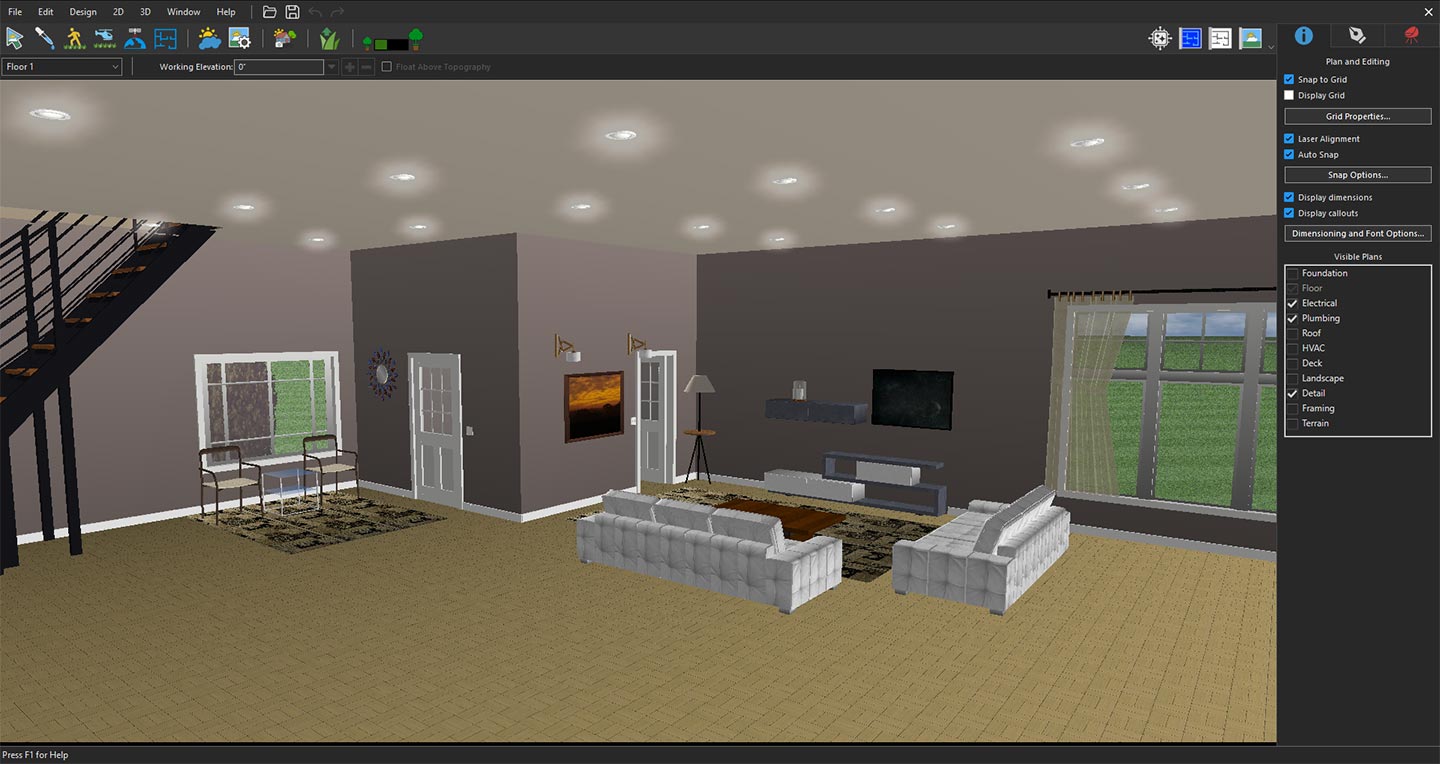
3D View focused on the living room space
Click the Copilot icon, select Image Studio from the drop-down menu, and then click Prompt. In the Image Studio window, choose Current 3D View from the Input drop-down menu. The selected view will appear in the preview window as the reference image.
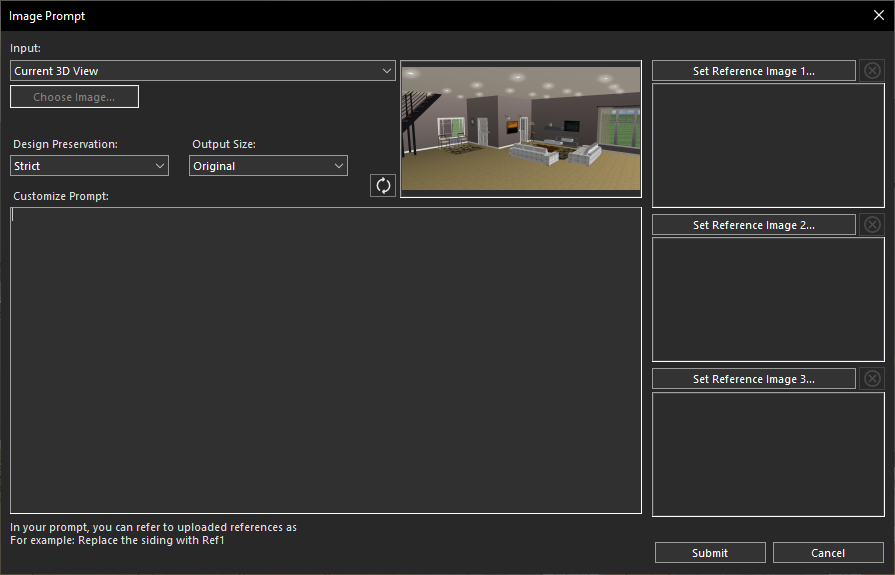
Using the current 3D View for AI transformation
Next, enter a prompt in the Customize Prompt section describing your desired transformation. For example, you might request a modern luxury living room with elegant furniture, warm ambient lighting, premium flooring, a stylish feature wall, large windows, decorative accents, and a cozy, welcoming atmosphere.
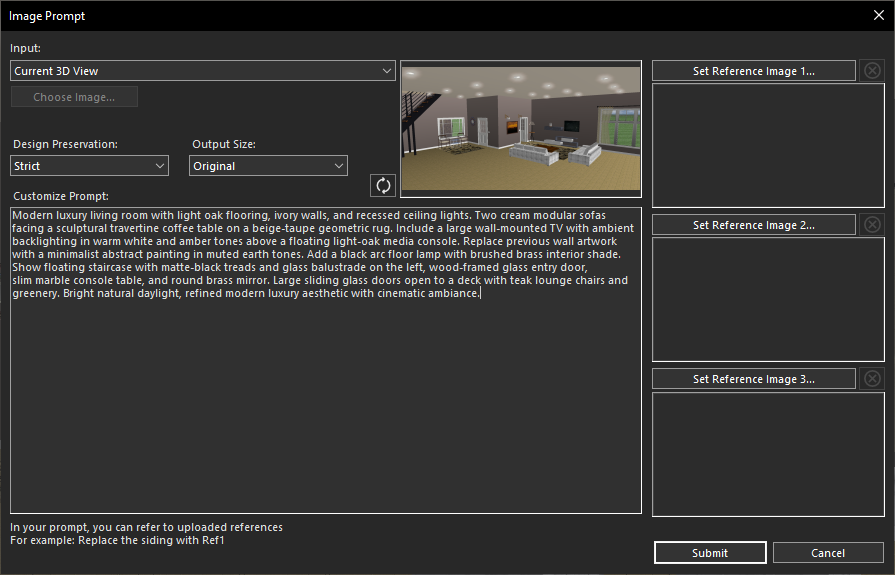
Creating a prompt for living room transformation
Click Submit, and within a few seconds, Copilot Image Studio will generate a high-quality rendered image based on your prompt.
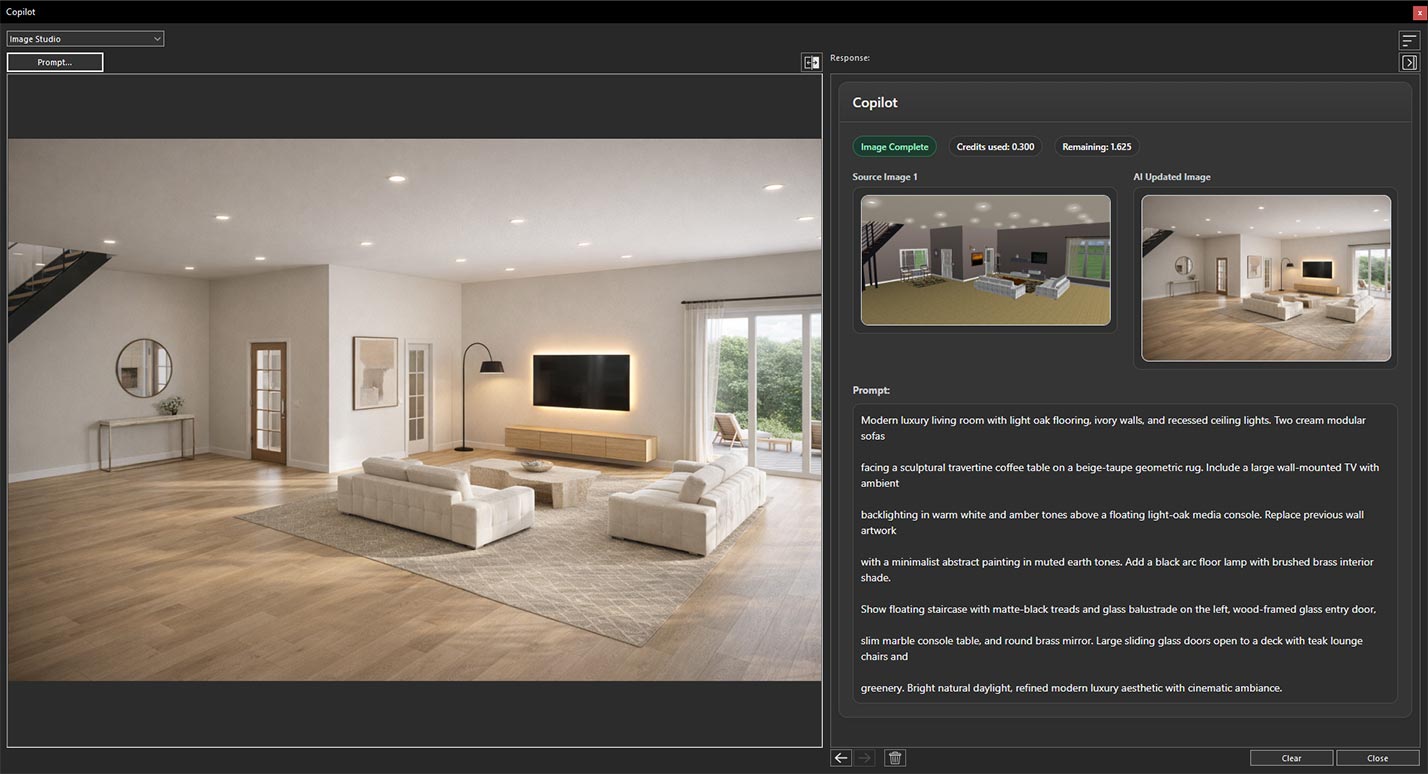
AI-generated living room transformation result
Finally, use the Previous and Next buttons to compare the original and AI-generated versions, making it easy to evaluate the transformation and explore different living room design concepts.
Now, we’ve opened a project featuring a kitchen and positioned the 3D View to capture the area we want to transform.
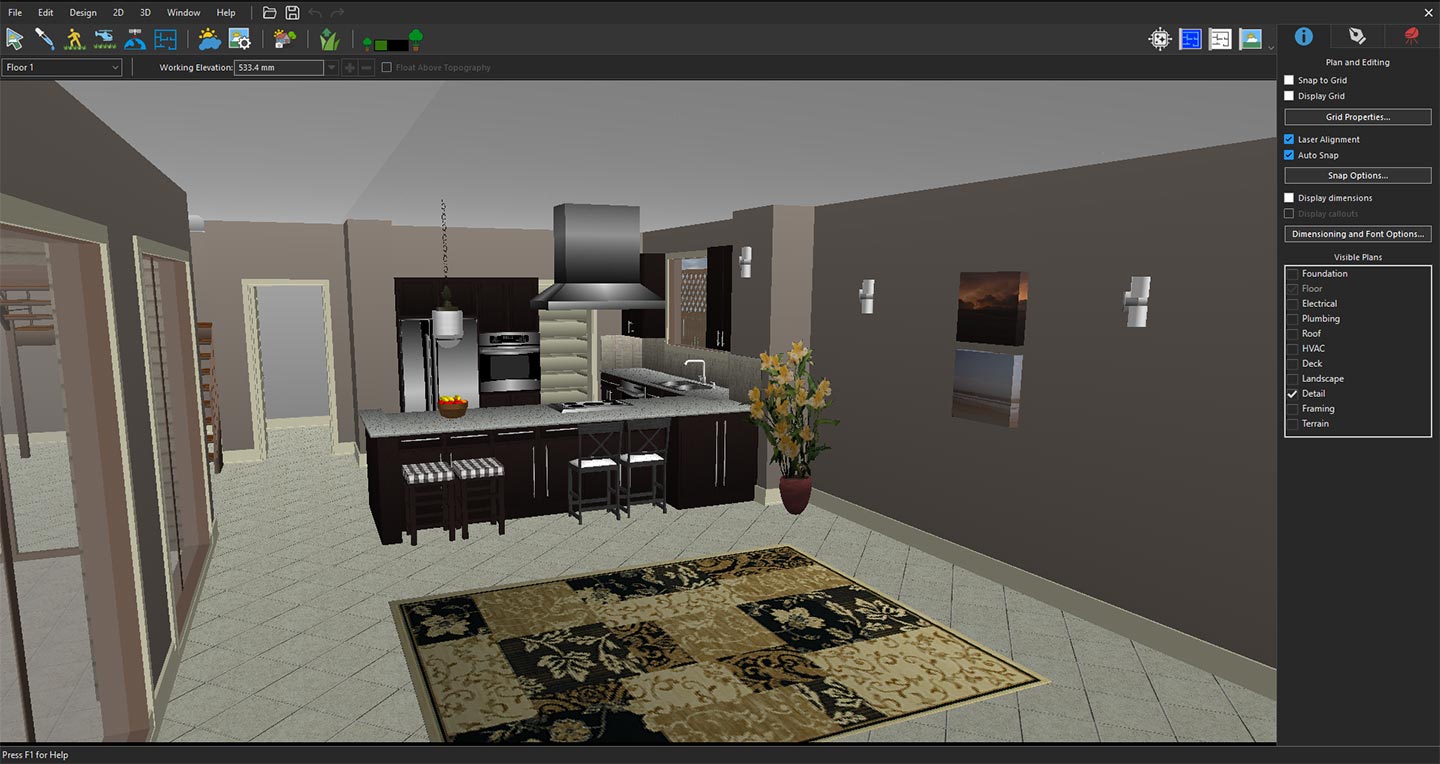
3D View focused on the kitchen space
Click the Copilot icon, select Image Studio from the drop-down menu, and then click Prompt. In the Image Studio window, choose Current 3D View from the Input drop-down menu. The selected view will appear in the preview window as the reference image.
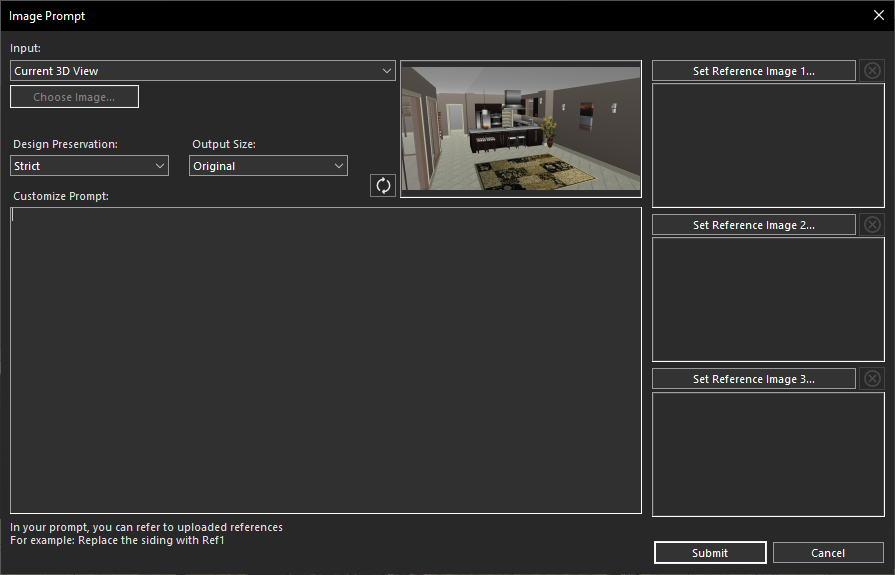
Using the current 3D View for AI transformation
Next, enter a prompt in the Customize Prompt section describing your desired transformation. For example, you might request a modern luxury kitchen with premium cabinetry, a spacious island, marble countertops, stylish pendant lighting, high-end appliances, elegant finishes, and a bright, contemporary atmosphere.
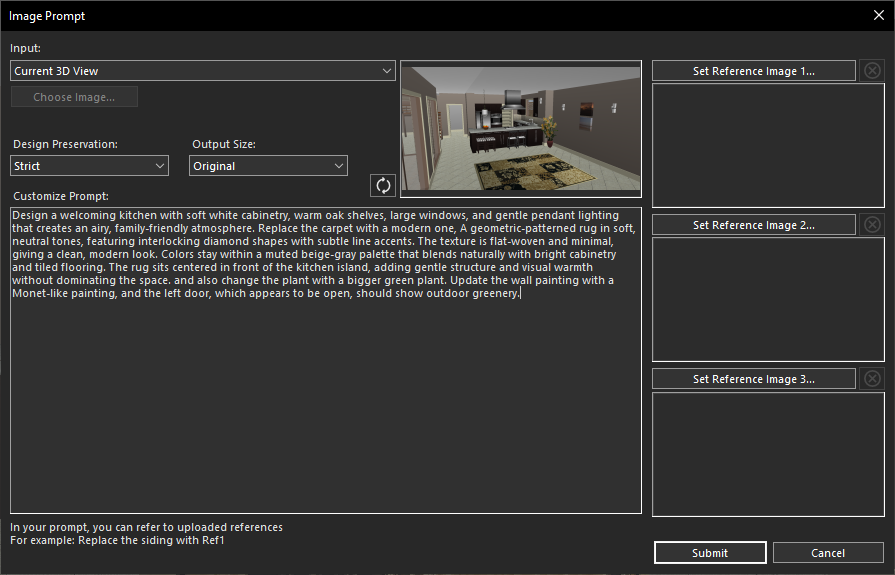
Entering design details for the Kitchen
Click Submit, and within a few seconds, Copilot Image Studio will generate a high-quality rendered image based on your prompt.
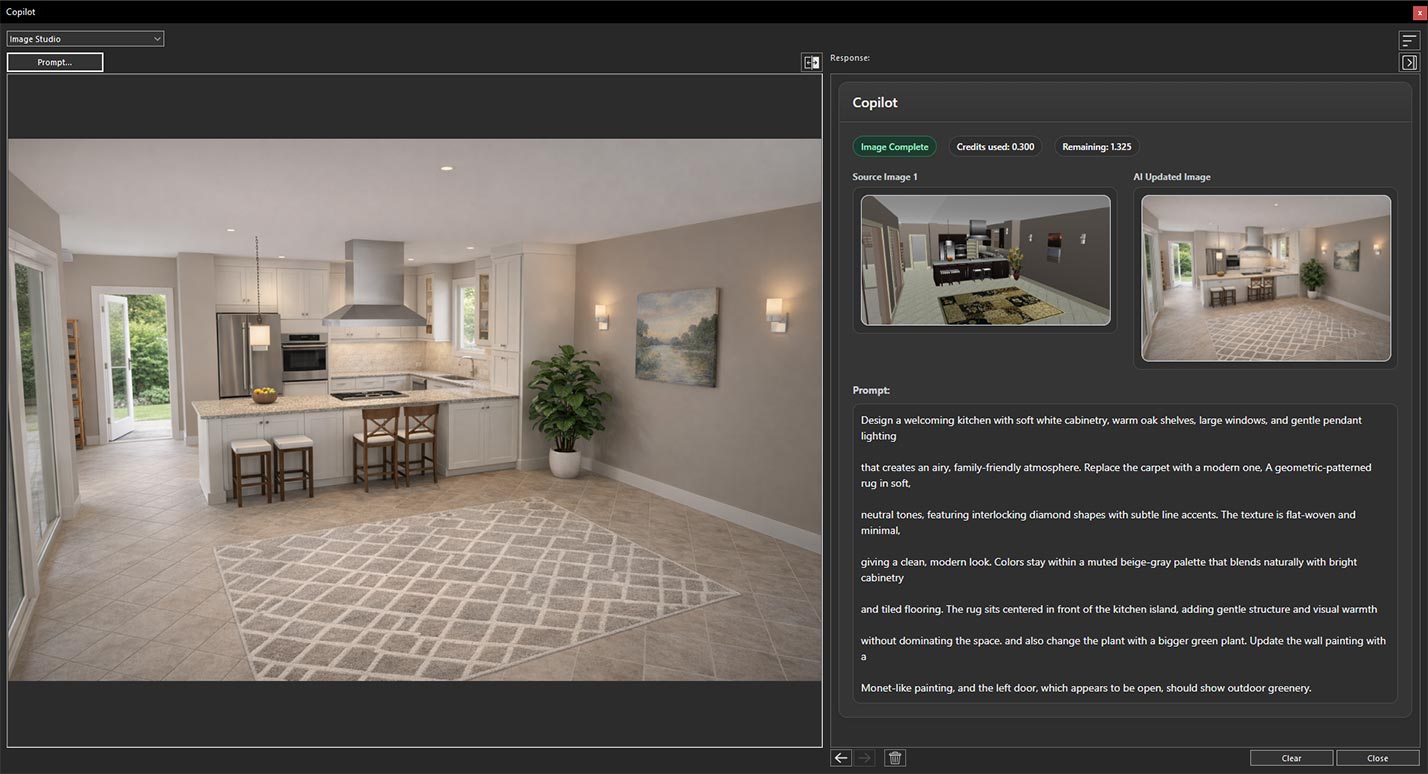
Generated design based on the applied prompt
Finally, use the Previous and Next buttons to compare the original and AI-generated versions, making it easy to evaluate the transformation and explore different kitchen design concepts.
Now, we’ve opened a project featuring a bathroom and positioned the 3D View to capture the area we want to transform.
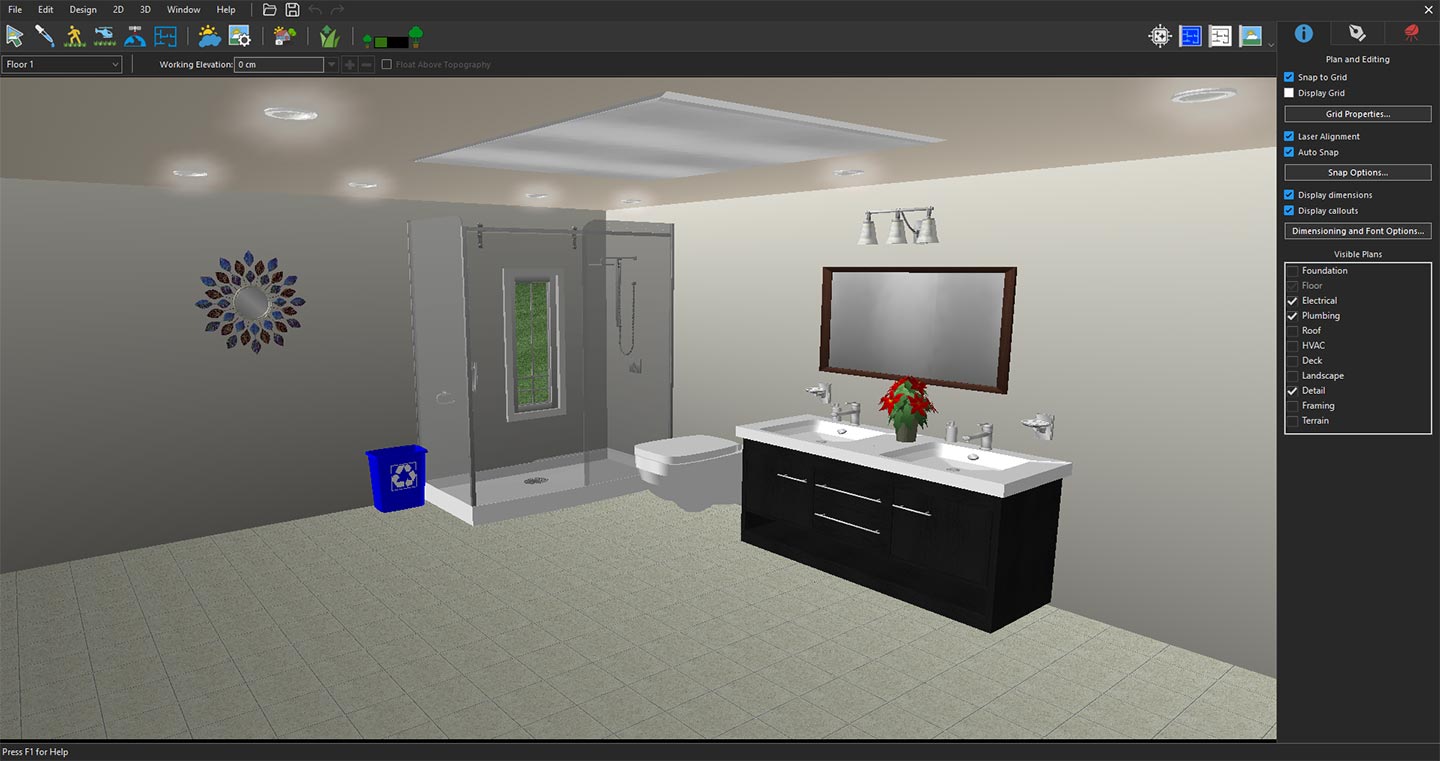
Exploring the bathroom area in 3D View
Click the Copilot icon, select Image Studio from the drop-down menu, and then click Prompt. In the Image Studio window, choose Current 3D View from the Input drop-down menu. The selected view will appear in the preview window as the reference image.
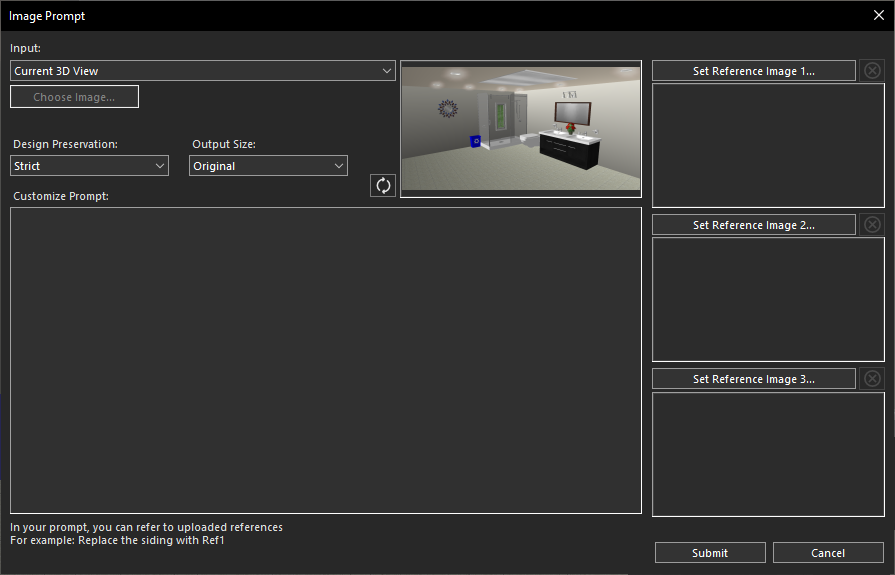
Using the current 3D View for AI transformation
Next, enter a prompt in the Customize Prompt section describing your desired transformation. For example, you might request a modern luxury bathroom with elegant fixtures, a freestanding bathtub, stylish vanity cabinets, premium tiles, glass shower enclosure, ambient lighting, sophisticated finishes, and a clean contemporary atmosphere.
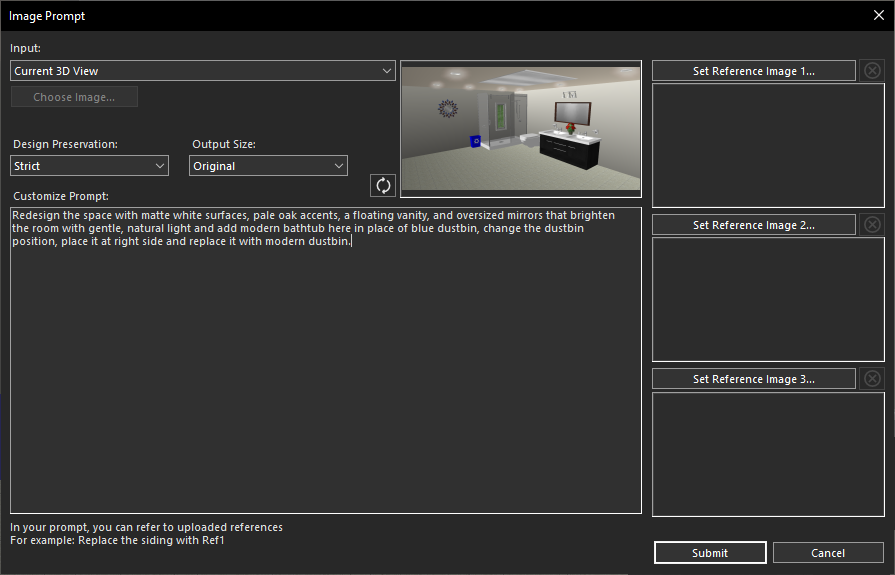
Creating a prompt for bathroom transformation
Click Submit, and within a few seconds, Copilot Image Studio will generate a high-quality rendered image based on your prompt.
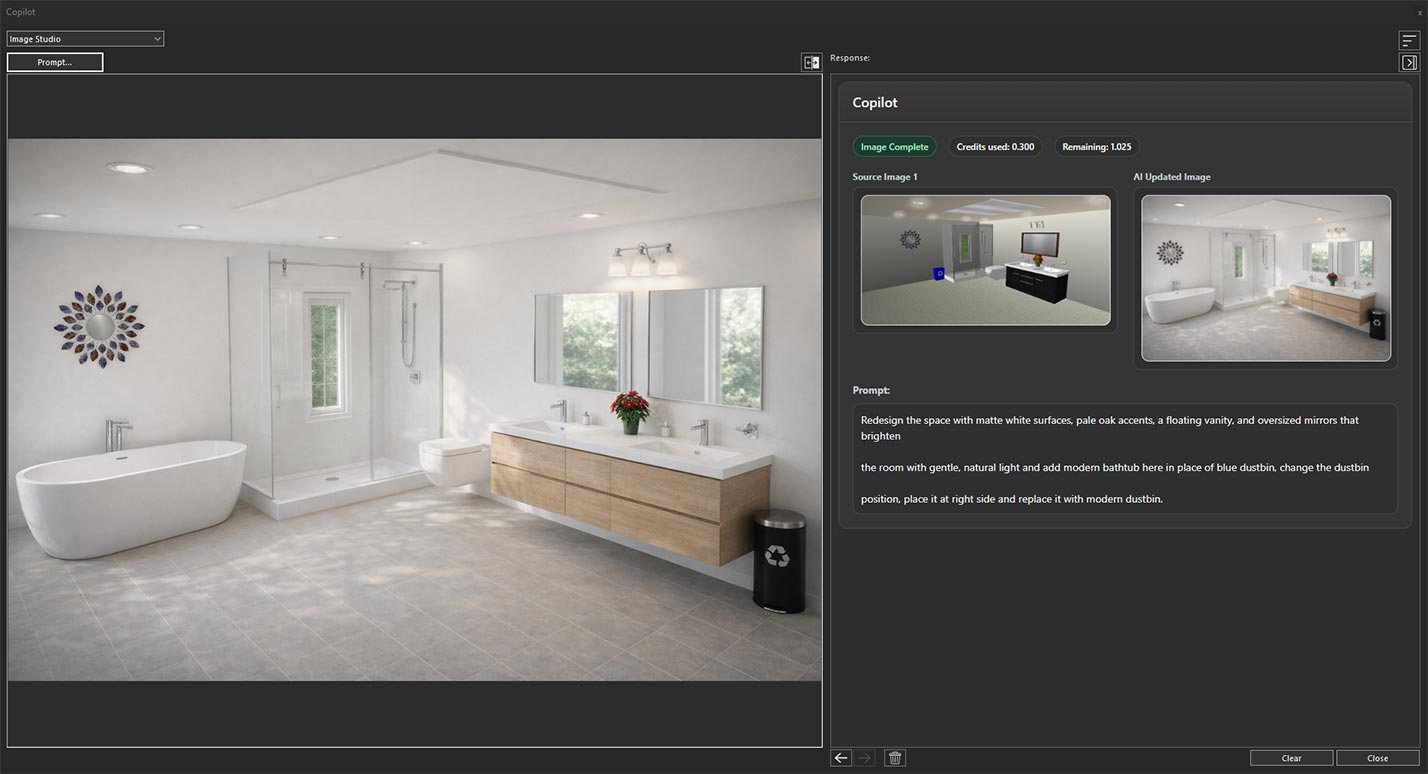
AI-generated bathroom transformation result
Finally, use the Previous and Next buttons to compare the original and AI-generated versions, making it easy to evaluate the transformation and explore different bathroom design concepts.
Now, we’ve opened a project with an outdoor landscape design and selected the 3D View of the area we want to transform and enhance.
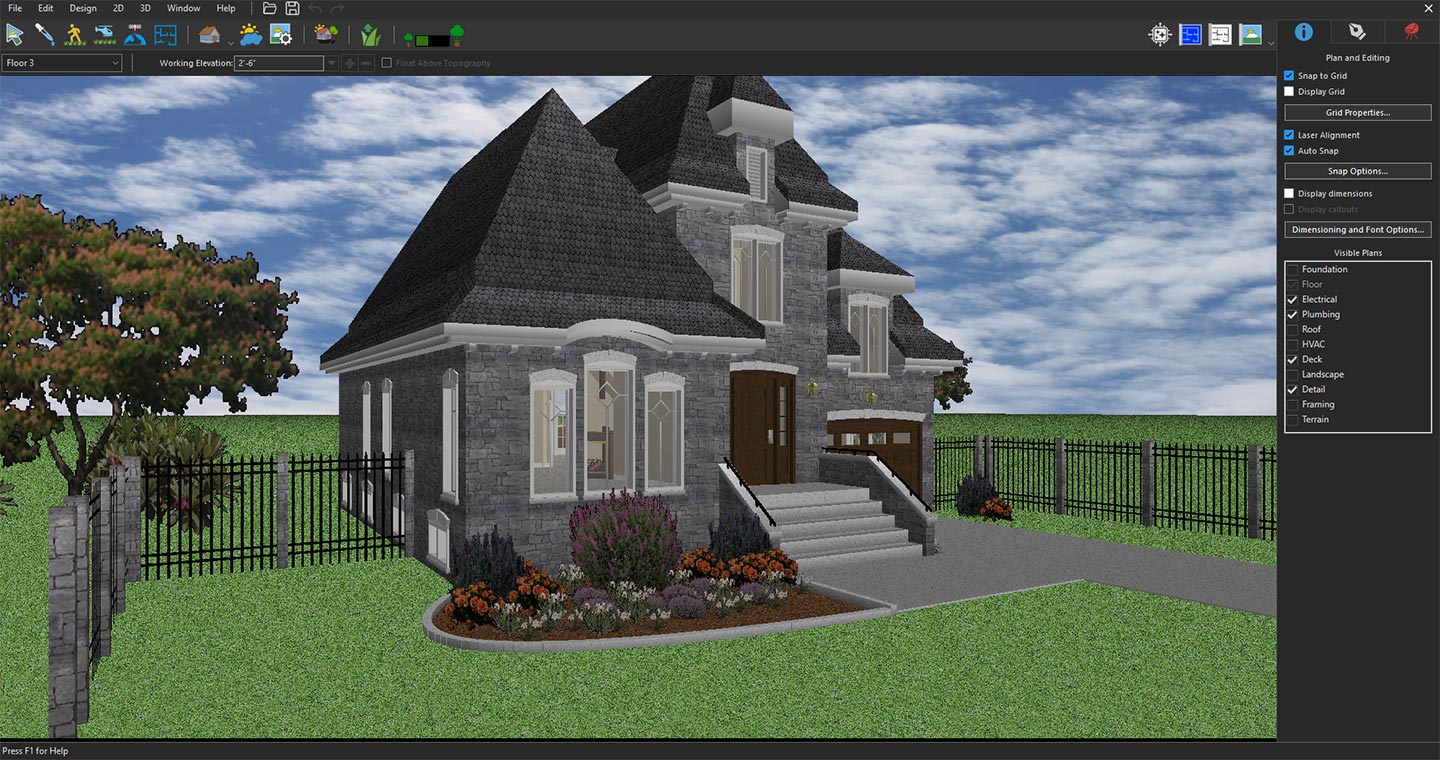
Exploring the landscape area by opening the project and positioning the 3D View to capture the space
Click the Copilot icon, select Image Studio from the drop-down menu, and then click Prompt. In the Image Studio window, choose Current 3D View from the Input drop-down menu. The selected view will appear in the preview window as the reference image.
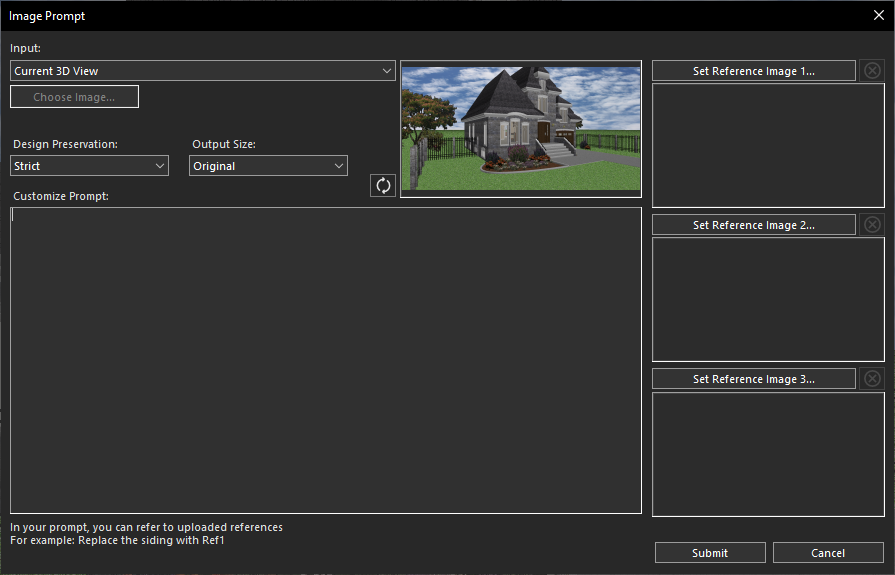
Using the current 3D View for AI transformation
Next, enter a prompt in the Customize Prompt section describing your desired transformation. For example, you might request a beautifully landscaped garden area with lush greenery, colorful flowers, decorative plants, stone pathways, outdoor lighting, stylish seating areas, modern landscaping elements, and a welcoming outdoor atmosphere.
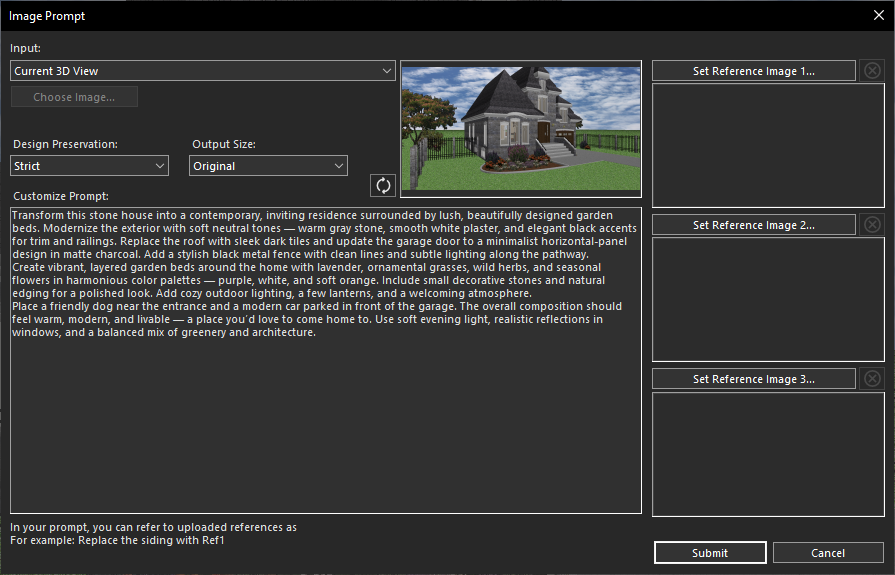
Creating a prompt for landscape area transformation
Click Submit, and within a few seconds, Copilot Image Studio will generate a high-quality rendered image based on your prompt.
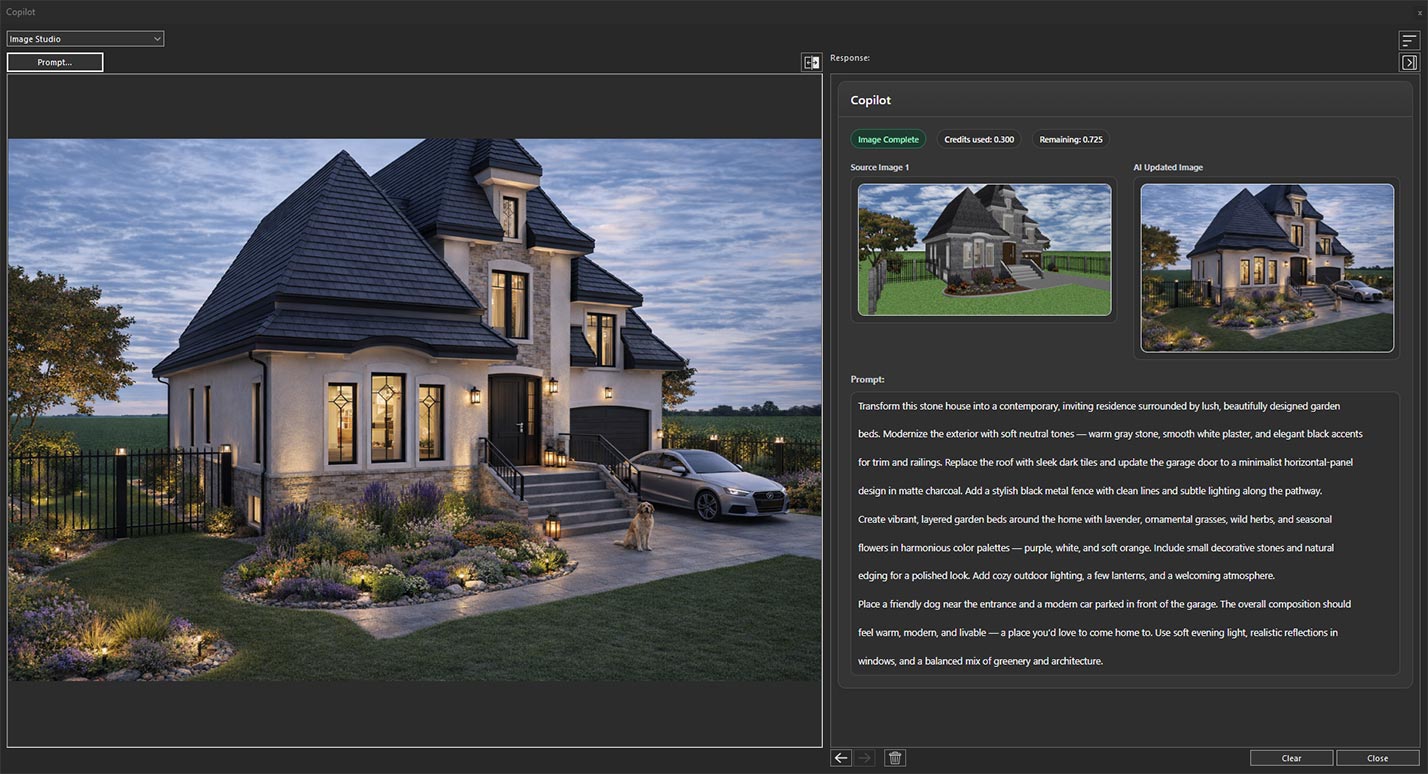
Generated design based on the applied prompt
Finally, use the Previous and Next buttons to compare the original and AI-generated versions, making it easy to evaluate the transformation and explore different landscape design concepts.
ConclusionWith Copilot Image Studio, transforming any space becomes faster and more intuitive. Whether redesigning a kitchen, bathroom, living area, or outdoor landscape, you can easily generate realistic design concepts by applying simple prompts to your existing 3D views. This powerful AI feature helps visualize ideas, explore different styles, and bring creative design possibilities to life with just a few clicks.
Disclaimer: The features described in this blog require the Home Design Copilot Add‑On. You can purchase the add‑on here: Home Design Copilot
Reference images help transform ideas and inspirations into more accurate and personalized designs. With Home Design Copilot, you can use your preferred images as visual guidance to influence the AI rendering process. Whether you want to recreate a specific style, explore new materials, or achieve a particular atmosphere, reference images provide the AI with a clearer understanding of your design goals.
By combining your existing 3D views with reference images, Home Design Copilot can generate realistic design concepts that better match your vision. Instead of relying only on text descriptions, you can provide visual examples of elements such as furniture styles, color schemes, architectural details, lighting, and overall aesthetics to achieve more refined results.
This feature gives designers and homeowners greater control over the creative process. You can experiment with different inspirations, compare various design directions, and quickly visualize how different styles would look within your own space. It makes exploring design possibilities faster, easier, and more intuitive.
With Reference Image support in Home Design Copilot, turning inspiration into reality becomes a seamless experience. By combining AI technology with your creative ideas, you can generate high-quality renderings that bring your dream spaces closer to life.
How to Create AI-Powered Renderings in Home Design Copilot with Reference Images?
To begin, open a sample project that you want to use for rendering with reference images. Once the project is open, navigate to the 3D View and adjust the view to capture the area you want to transform.
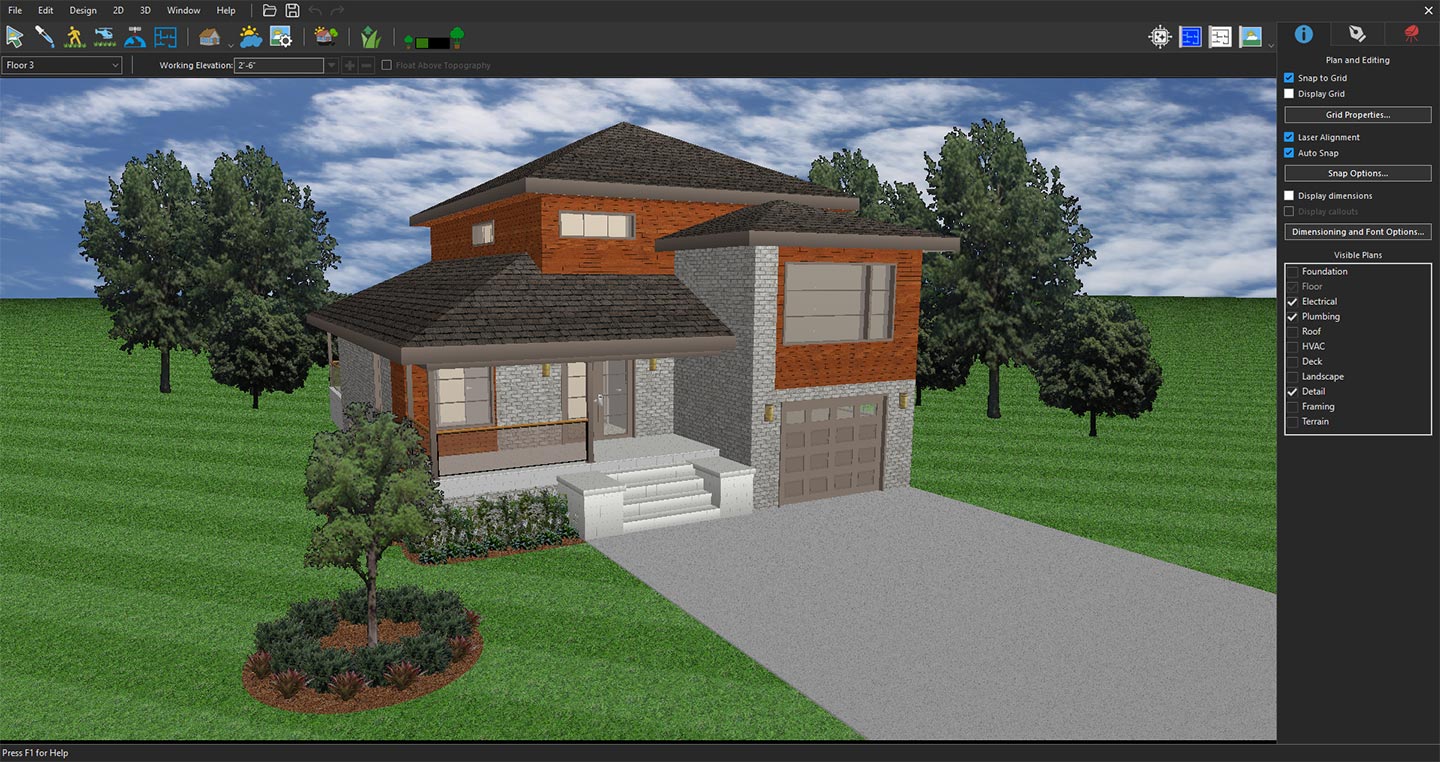
3D view prepared for reference rendering
Next, click the Copilot icon to open Copilot.
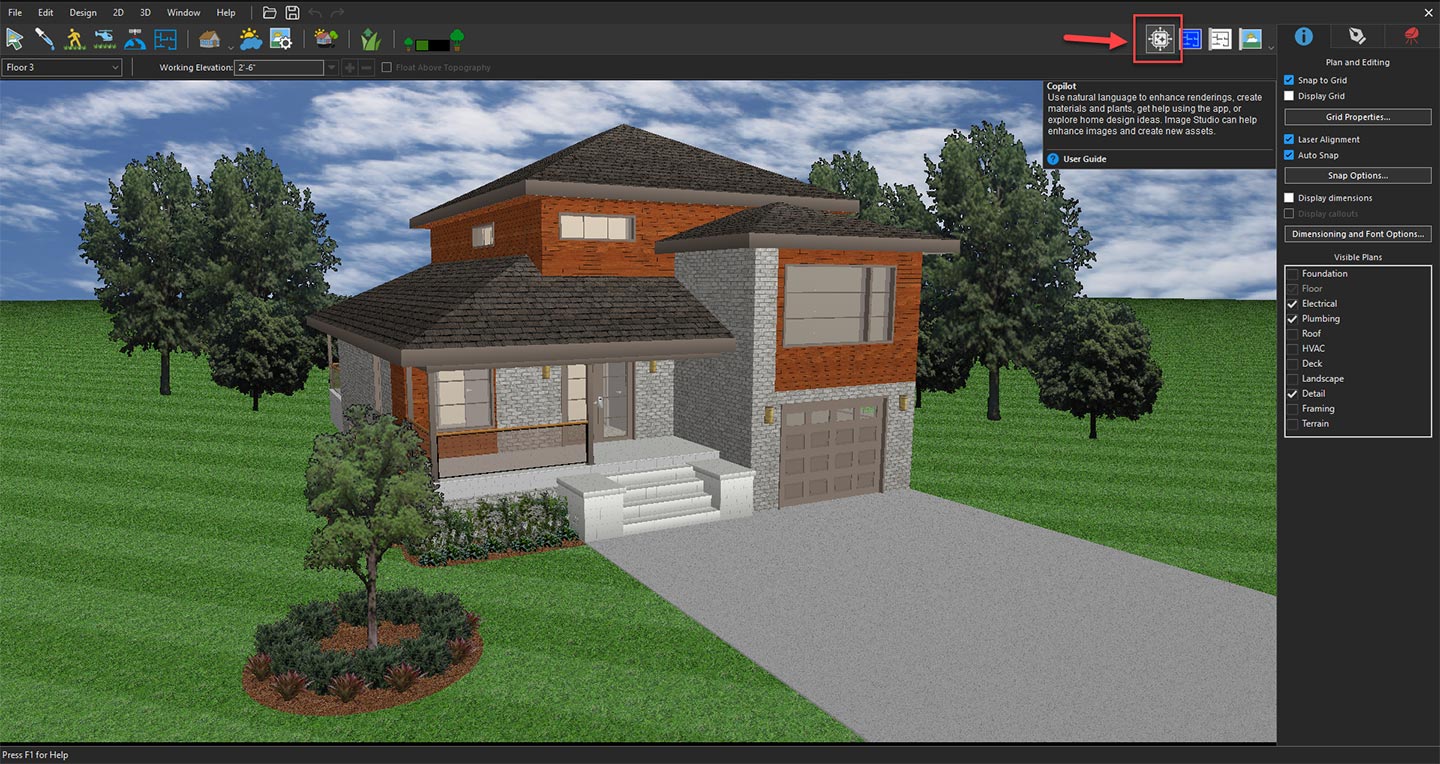
Opening Copilot to explore AI design features
From the available options, select Image Studio from the drop-down menu, and then click the Prompt button. In the Image Studio window, choose Current 3D View from the Input drop-down menu to use the selected view as the reference image.
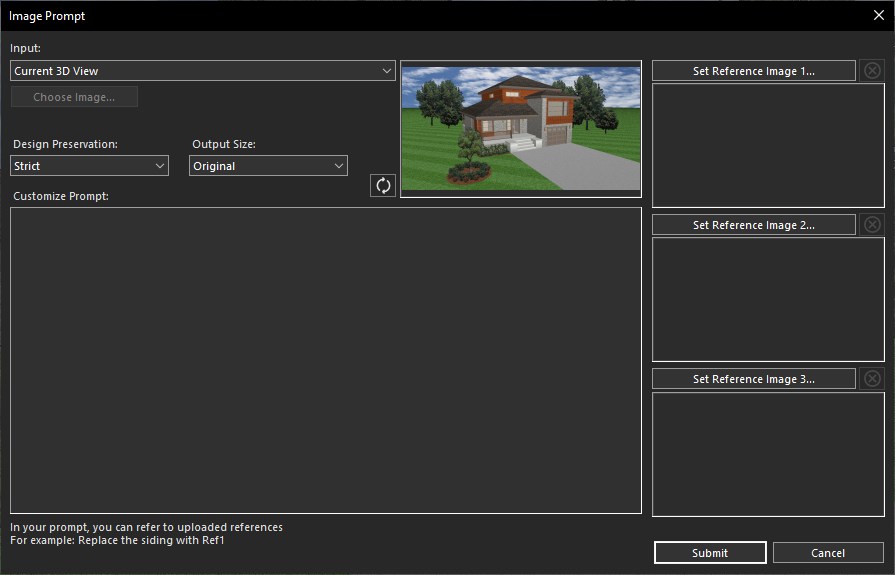
Using the current 3D View for AI transformation
After selecting the input, enter a detailed text prompt in the Customize Prompt section describing your desired photorealistic rendering.
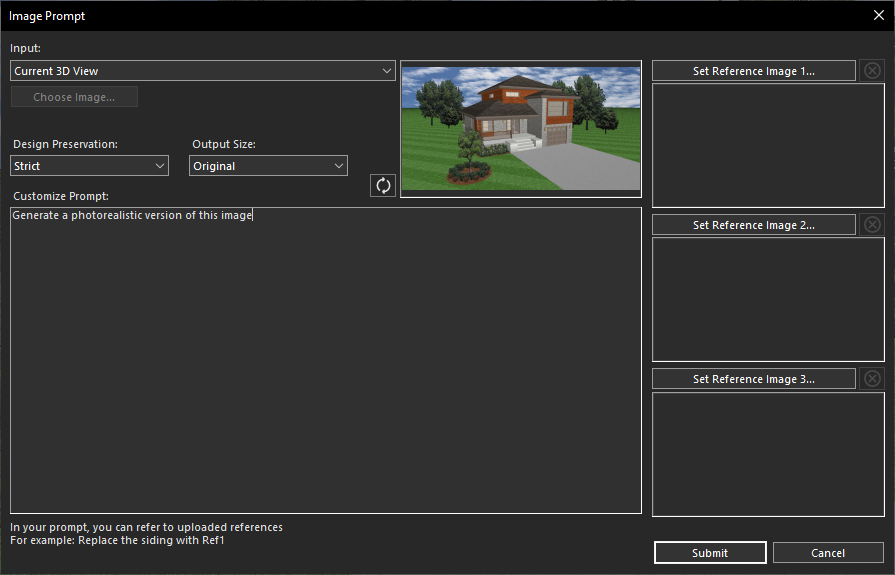
Creating a prompt for Photorealistic rendering
Once the prompt is added, click Submit. Copilot will process your request within a few seconds and generate an AI-powered rendered result based on your instructions.
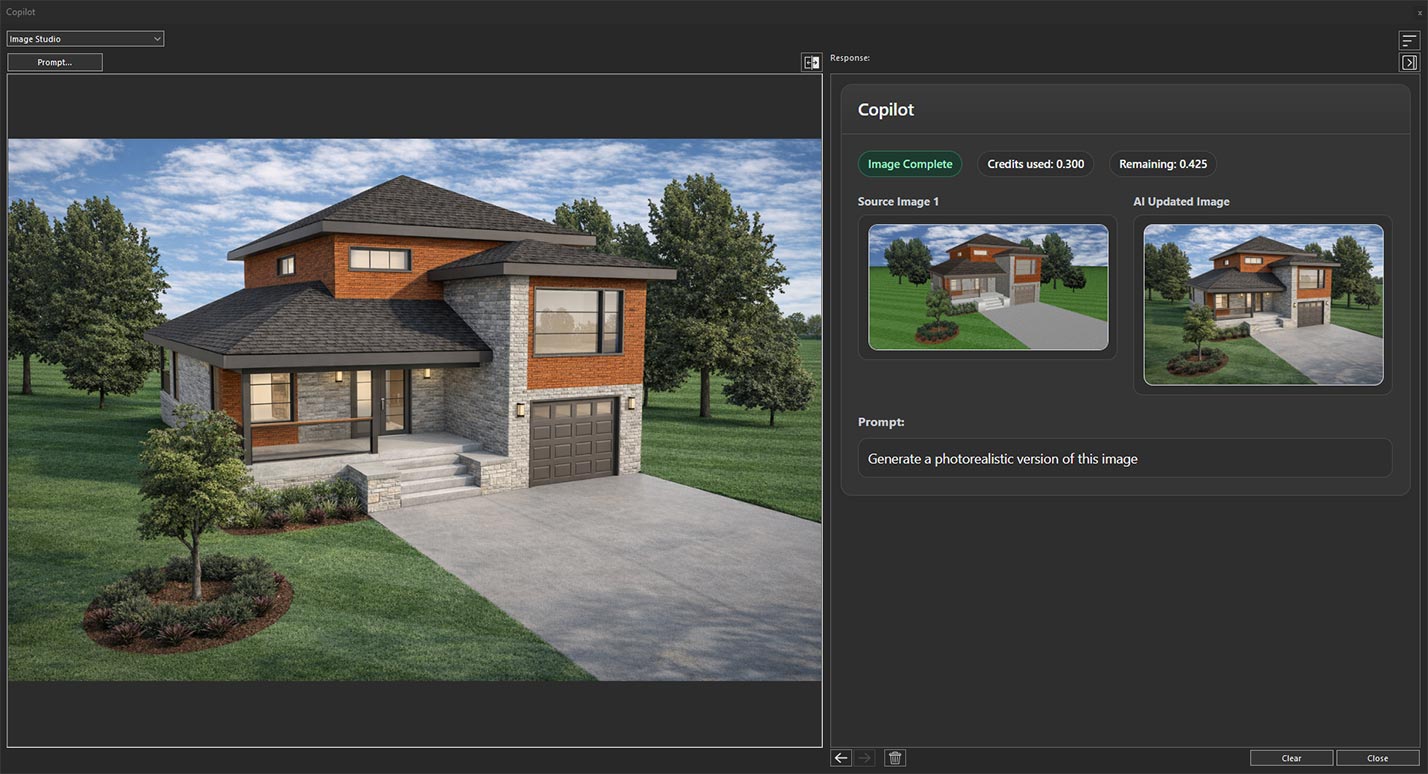
Generated design based on the applied prompt
You can use the same 3D View of the project as a reference; however, for better results, it is recommended to first apply photorealistic rendering and save the rendered image to your local drive by choosing Save Image file option.
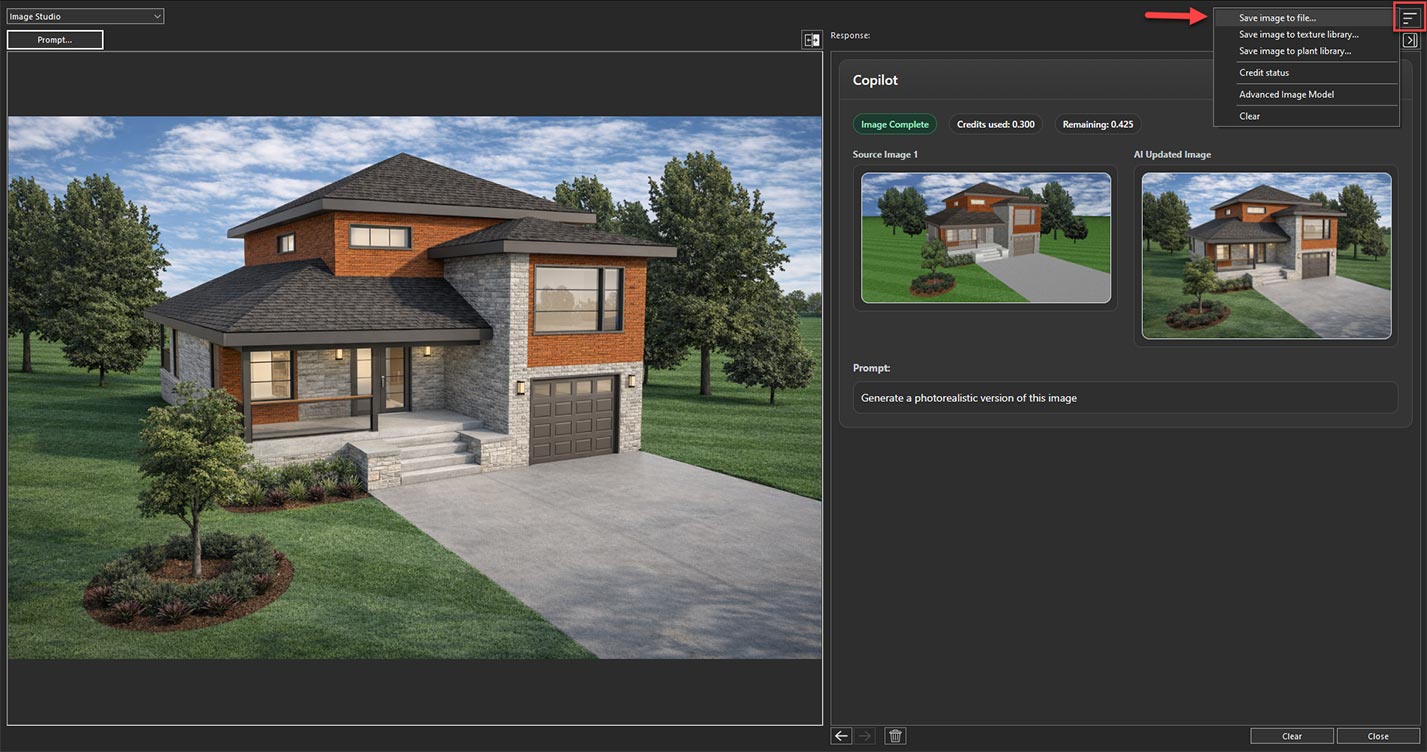
Save the rendered image using the Save Image File option
After saving the rendered image, open Image Studio again and select the Select File option from the Input drop-down menu.
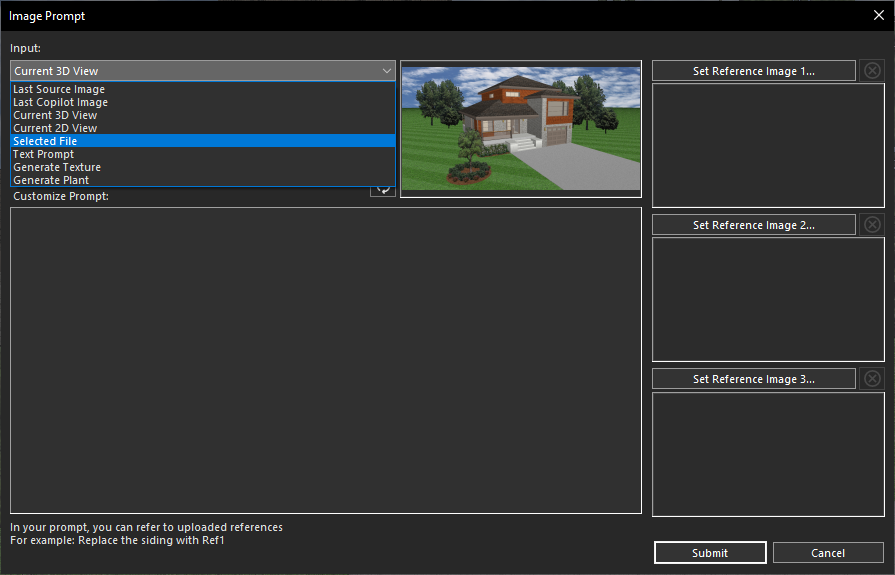
Use Select File to load the saved render.
Choose the saved photorealistic image from your local drive to use it as the reference image for generating more refined AI-rendered results.
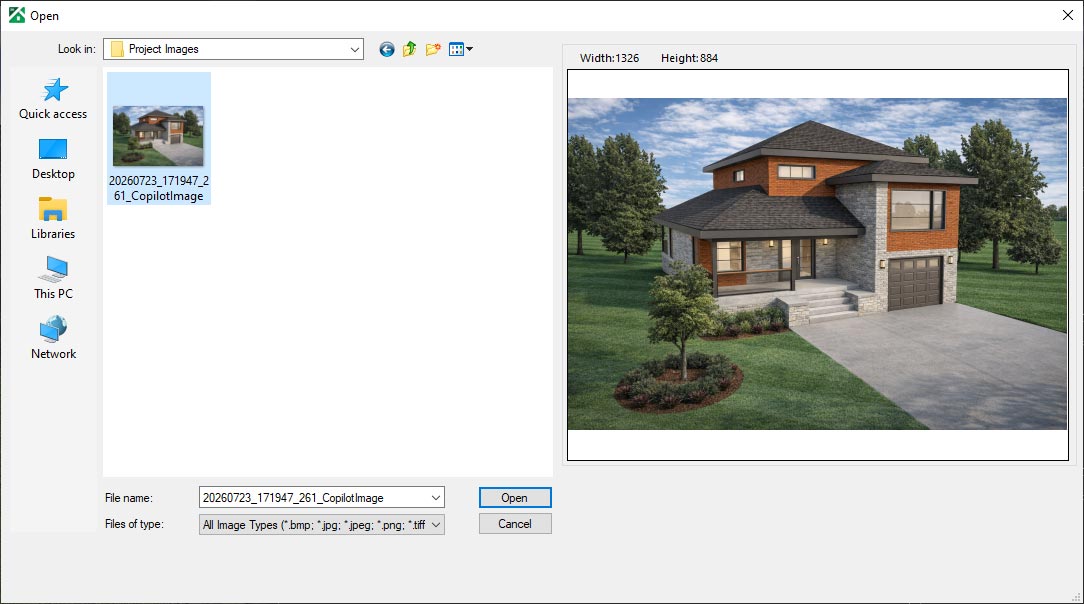
Choose the saved render from your local drive
After selecting the saved photorealistic image of the project in Copilot, you can add additional design inspiration by using reference images. Click on Set Reference Image 1, Set Reference Image 2, or Set Reference Image 3 to add the desired reference images.
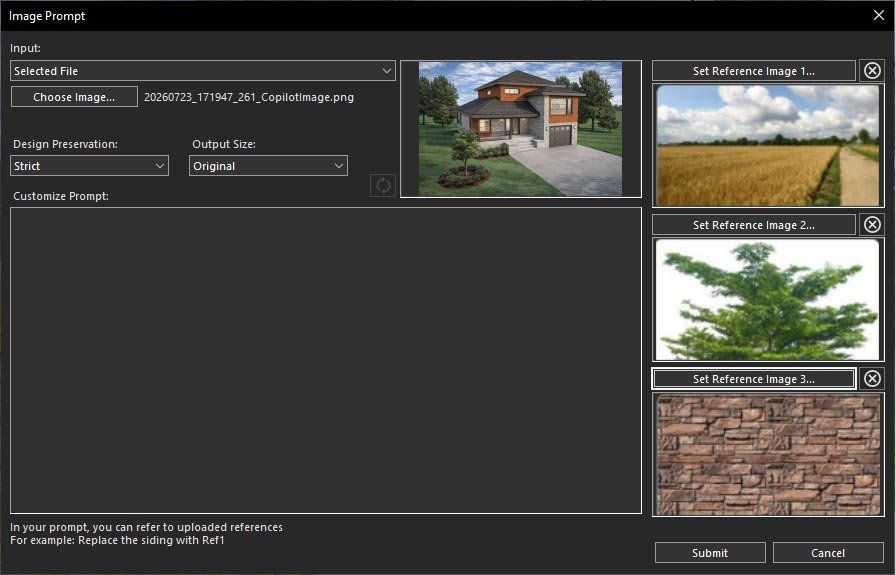
Add reference images using Set Reference Image options
Once the reference images are added, enter a detailed prompt in the Customize Prompt section. In your prompt, specify which reference image you want Copilot to use, such as Reference Image 1, Reference Image 2, or Reference Image 3, to guide the rendering process.
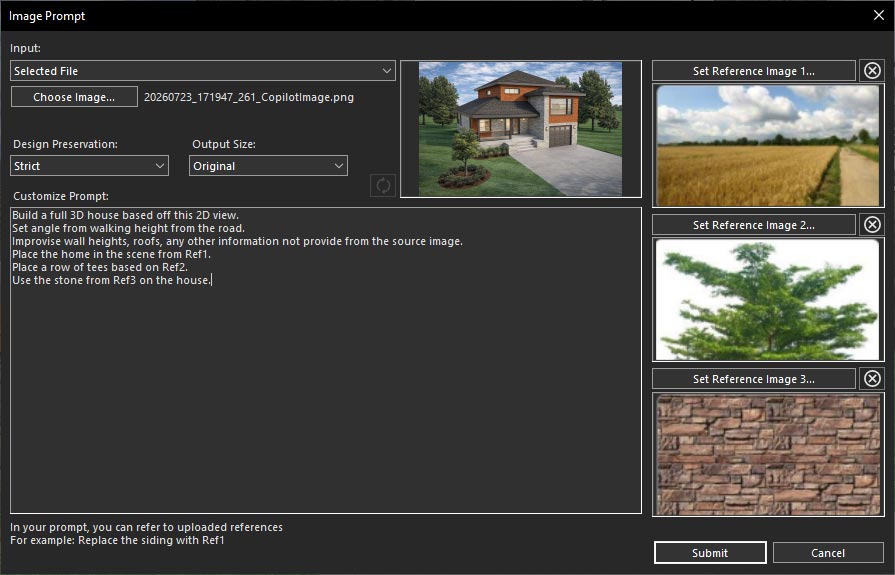
Enter a prompt to generate a reference-guided rendering
After entering the prompt, click Submit. Copilot will process your request within a few seconds and generate an AI-powered rendered result based on your instructions and selected reference images.
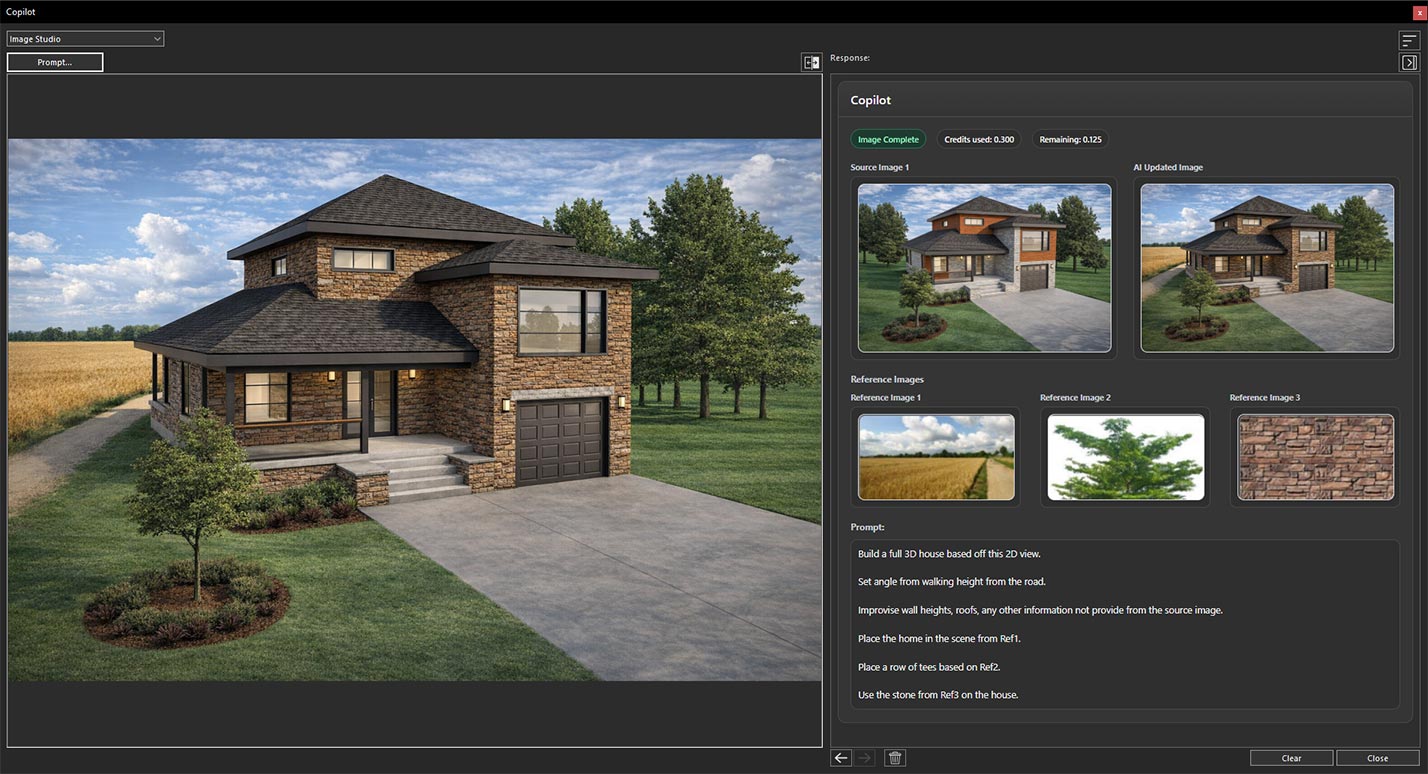
Generated rendering using reference images and custom instructions
Similarly, you can use one or two reference images to guide the rendering process. The number of reference images depends on the specific rendering requirements and the level of detail needed to achieve the desired result.
Conclusion
Reference Image support in Home Design Copilot bridges the gap between inspiration and visualization, making it easier to create designs that truly reflect your vision. By combining the power of AI with visual references, you gain greater creative control, achieve more accurate and consistent renderings, and explore design possibilities with confidence. Whether you’re refining a concept or presenting a final design, this feature helps transform ideas into stunning, photorealistic spaces with greater speed, precision, and creativity.
Copilot Render Showcase
Also check out our Copilot Render Showcase by clicking the banner below.

Disclaimer: The features described in this blog require the Home Design Copilot Add‑On. You can purchase the add‑on here: Home Design Copilot
Home Design Copilot Image Studio gives you precise control over how closely AI-generated images follow your original design through the Design Preservation feature. This setting determines how much of the source image or project layout is retained during image generation, allowing you to choose between preserving the existing design or giving the AI more creative freedom.
The Design Preservation drop-down menu offers four options: Strict, Relaxed, Redesign, and None. Each option applies a different level of design preservation, making it suitable for different design scenarios. Whether you want to maintain the exact layout of your project, introduce subtle improvements, completely reimagine the design, or generate a result without preserving the original structure, these options provide the flexibility to achieve your desired outcome.
In this article, we’ll explore each Design Preservation option in detail, explain how it affects AI image generation, and demonstrate when to use each setting to achieve the best results for your home design projects.
Step-by-Step Guide to Apply Design Preservation Options
To apply these options, first open a sample project that you want to use for rendering with reference images. Once the project is open, navigate to the 3D View and adjust the view to capture the area you want to transform.
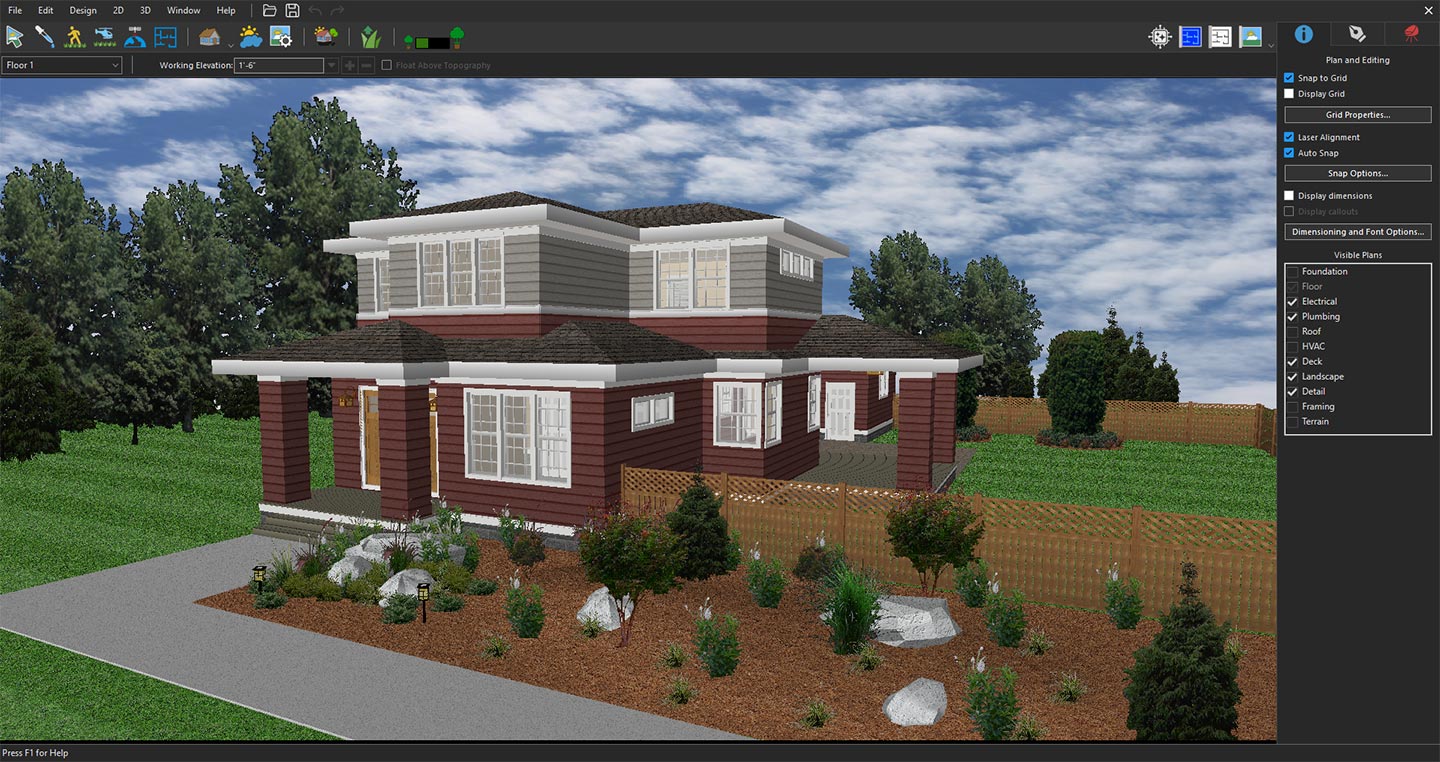
3D view prepared for reference rendering
Next, click the Copilot icon to open Copilot.
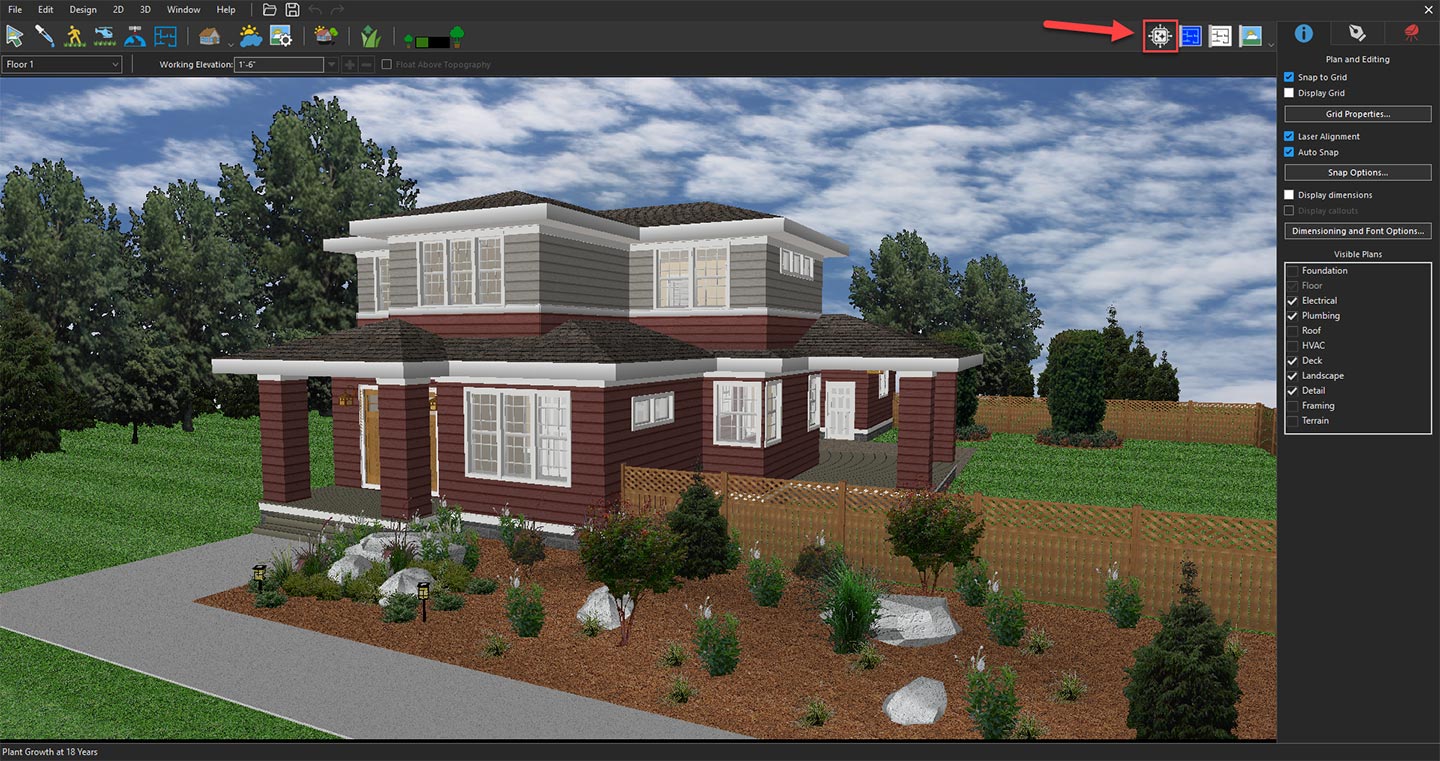
Opening Copilot to explore AI design features
From the available options, select Image Studio from the drop-down menu, and then click the Prompt button.
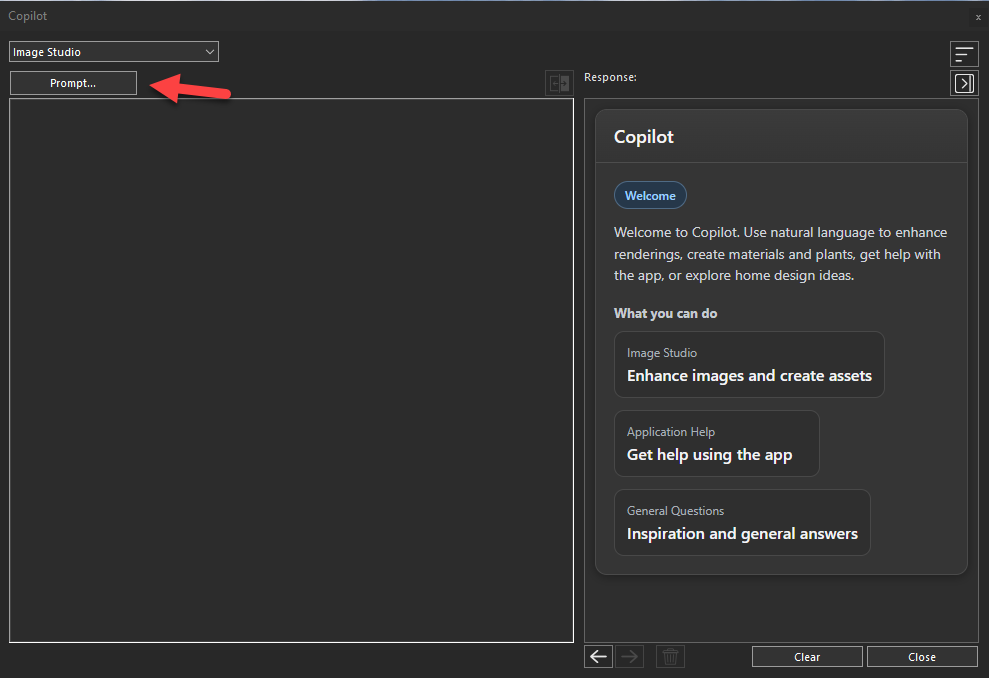
Clicking the Prompt button to access and explore the available Design Preservation options in Image Studio
In the next window, expand the Input drop-down menu and select the Current 3D view.
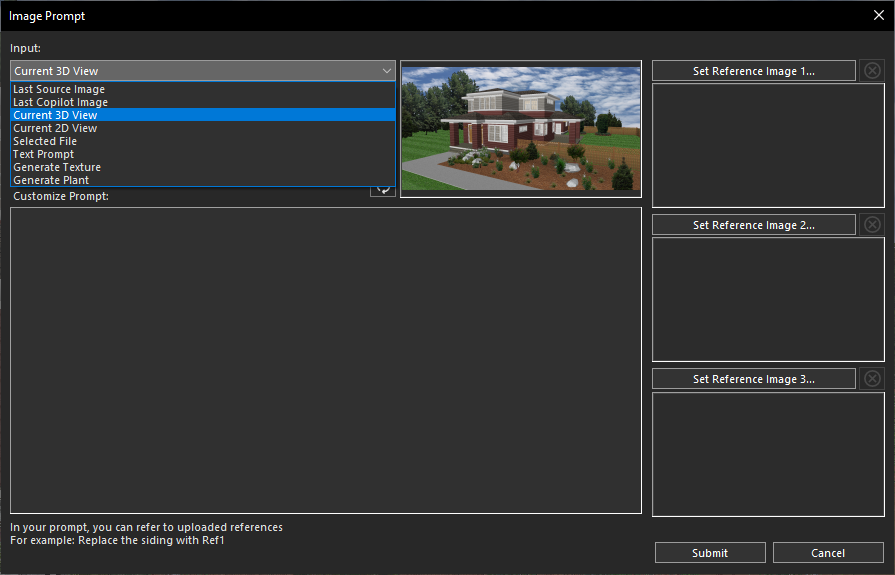
Selecting the Current 3D View option from the Input drop-down menu
In the same window, you’ll find all the available Design Preservation Options by opening the Design Preservation drop-down menu. The available options include Strict, Relaxed, Redesign and None.
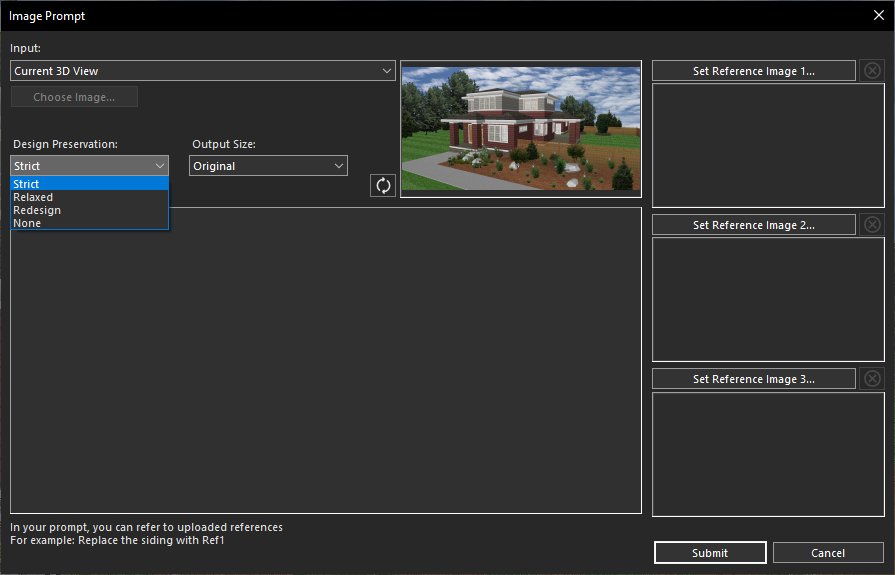
Opening the Design Preservation drop-down menu to view the available preservation options
Each Design Preservation option offers a different level of control over how closely the AI-generated image follows the original design. In the following sections, we’ll explore each option in detail, explaining how it influences the final result, when it should be used, and how it differs from the other settings so you can choose the most appropriate level of design preservation for your project.
Strict
The Strict option preserves the original design as closely as possible, ensuring that the overall layout, structure, and key design elements remain unchanged. The AI focuses primarily on enhancing the visual quality by applying improved materials, lighting, textures, and realistic rendering while maintaining the original design intent. To use this option, first enter a descriptive prompt in the Customize Prompt field.
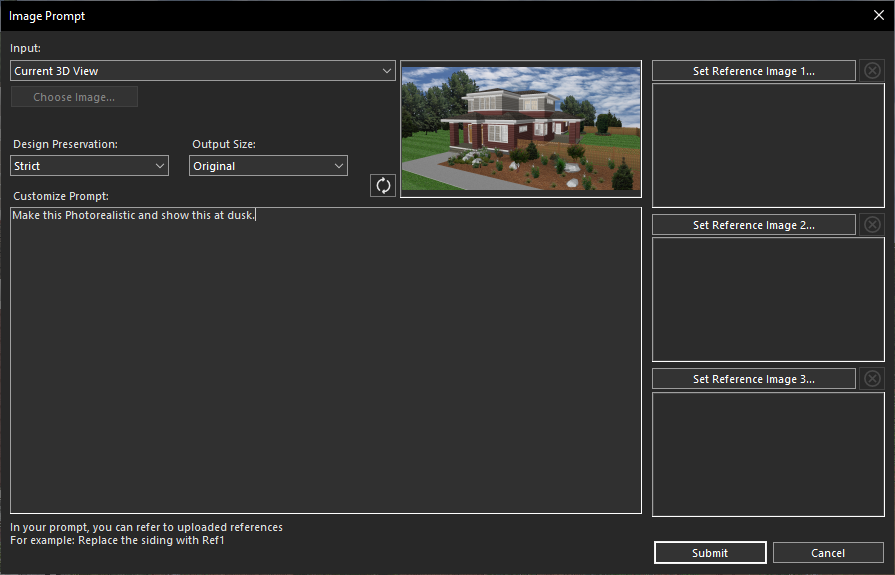
Providing a text prompt to generate an AI-enhanced image
Then select Strict from the Design Preservation drop-down menu.
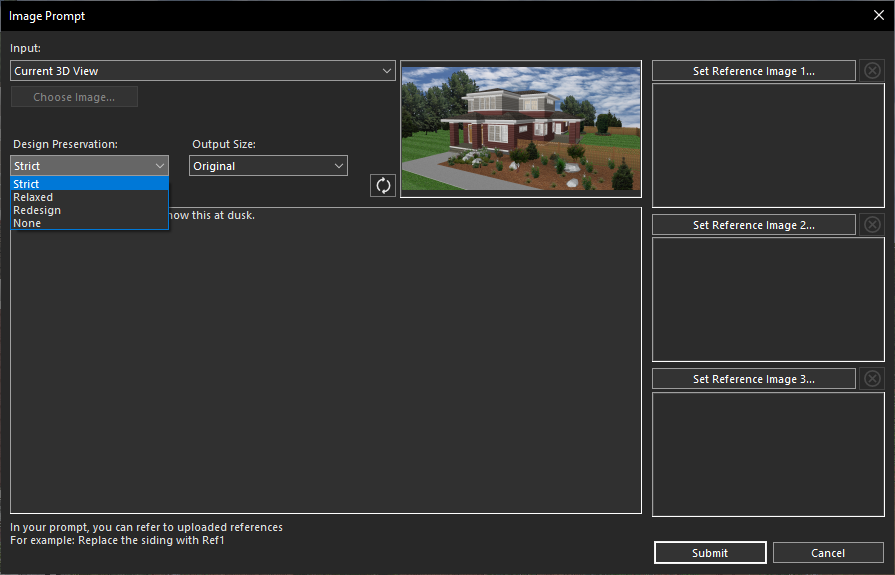
Selecting the Strict option from the Design Preservation drop-down menu
After this click the Submit button to generate the AI-enhanced result based on your selected design preservation setting. So, after clicking on Submit, and within a few seconds, Copilot will generate a high-quality rendered image based on your prompt.
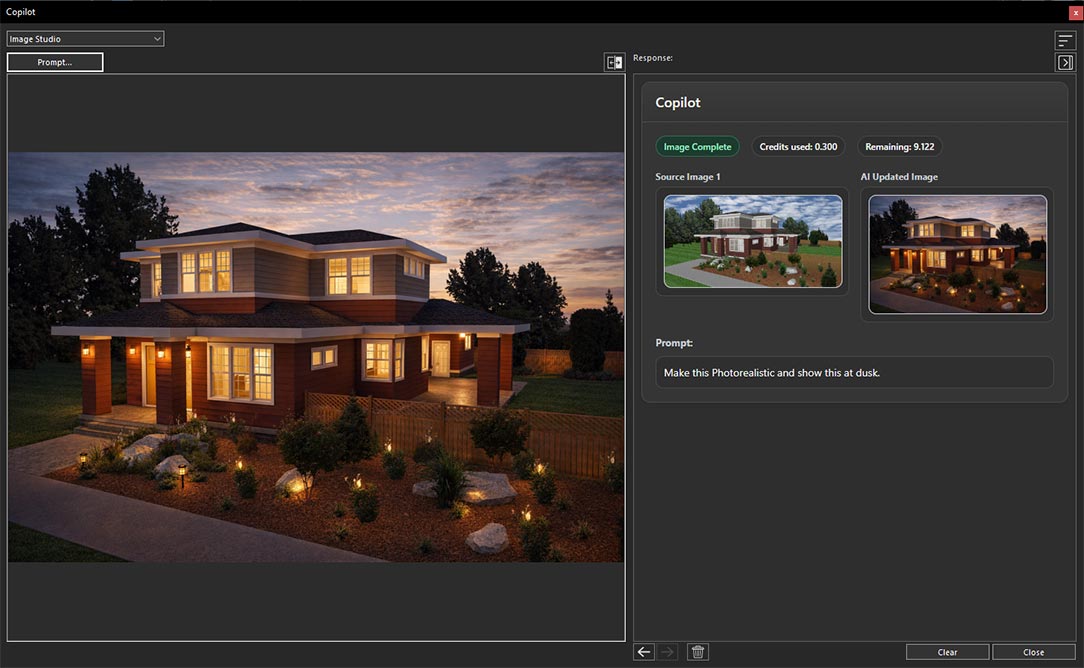
AI-generated image created from the provided text prompt
Relaxed
The Relaxed option retains the core layout and major design features but gives the AI more flexibility to introduce moderate stylistic enhancements. It may refine architectural details, materials, colors, furnishings, or landscaping to create a more polished and visually appealing result while still staying true to the original design. To apply this option, first click on the Prompt button again.
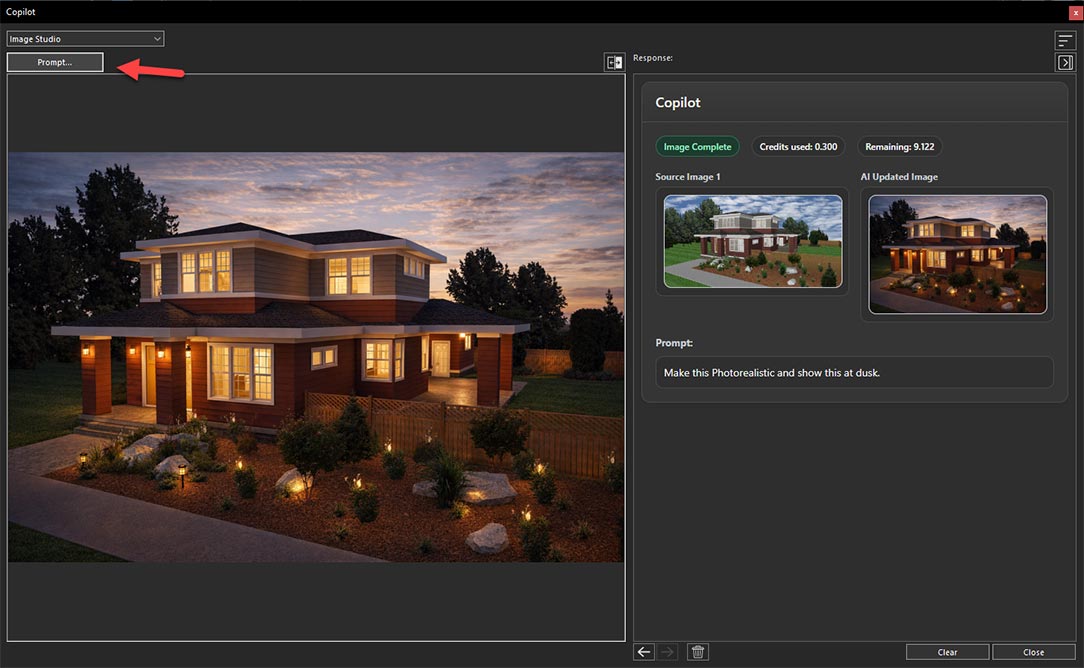
Clicking the Prompt button to apply the next Design Preservation option
And enter the same prompt in the Customize Prompt field that was used previously to ensure a clear and consistent comparison of the generated results.
Entering the same text prompt to ensure a fair comparison of the Design Preservation options
Then select Relaxed from the Design Preservation drop-down menu.
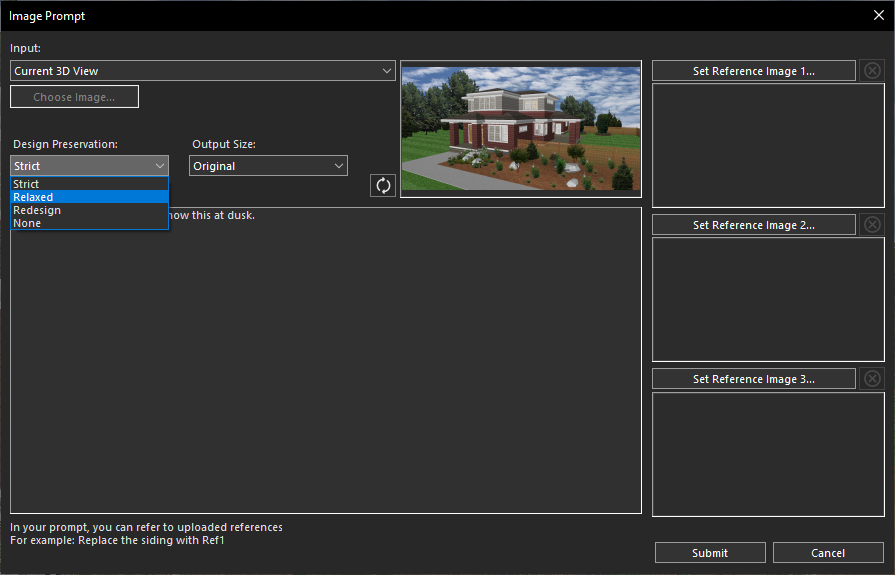
Selecting the Relaxed option from the Design Preservation drop-down menu
And finally, click the Submit button to generate the image. So, after clicking on Submit, and within a few seconds, Copilot will generate a high-quality rendered image based on your prompt.
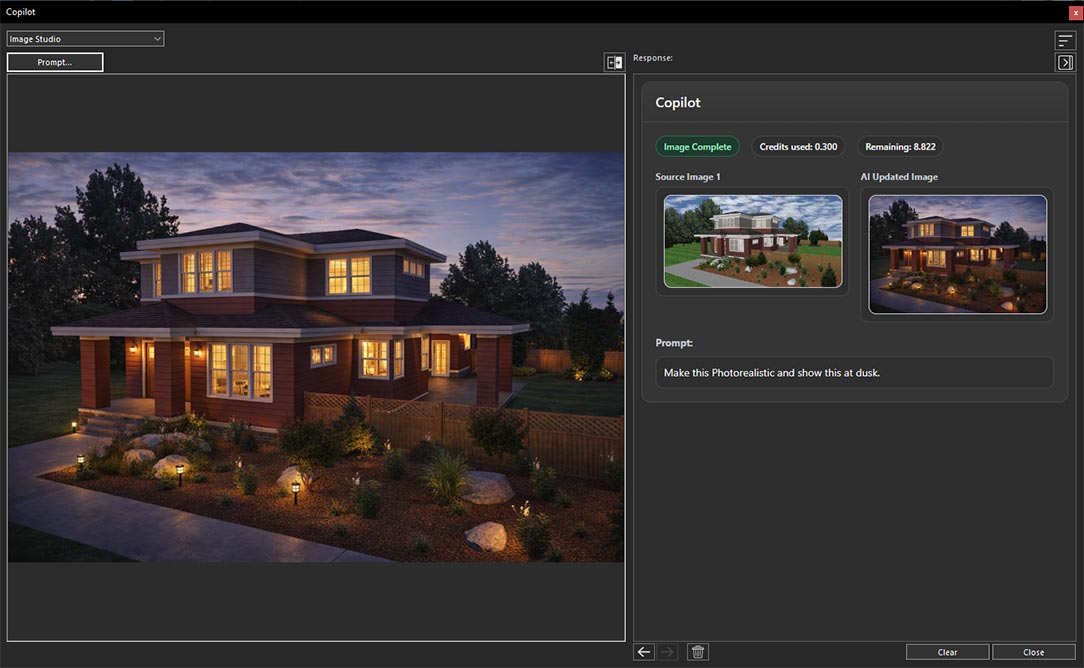
AI-generated image created from the provided text prompt
Redesign
The Redesign option uses the original image as a reference rather than a strict blueprint, allowing the AI to significantly transform the design. It can modify the architectural style, exterior details, materials, and overall appearance to produce a fresh interpretation while preserving only the general concept of the original project. To apply this option, first click on the Prompt button again.
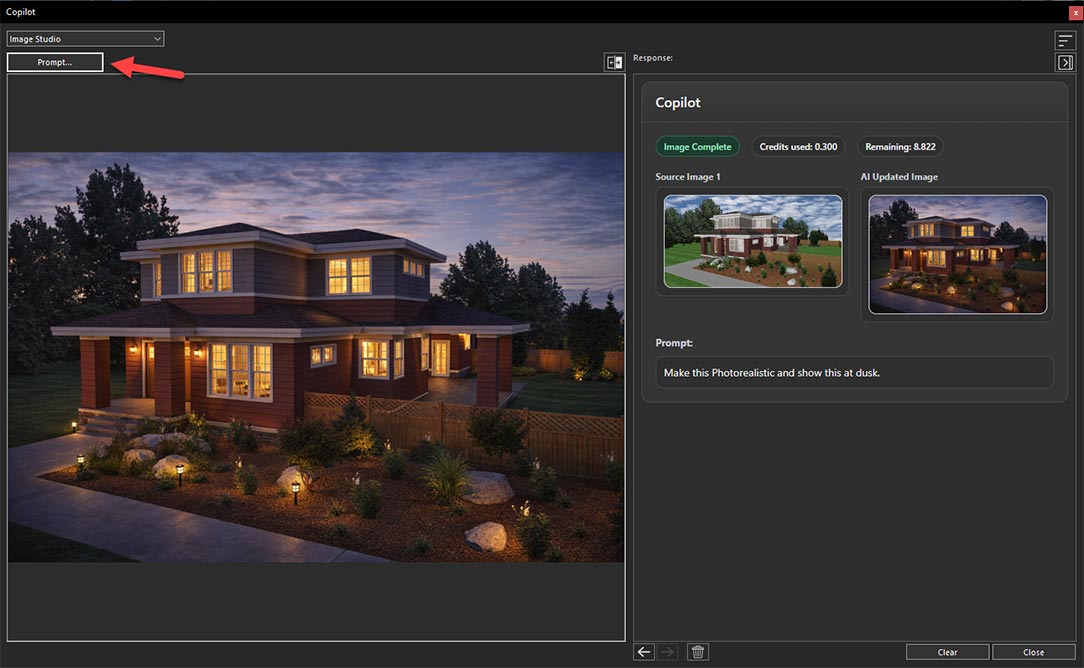
Clicking the Prompt button to apply the next Design Preservation option
And enter the same prompt in the Customize Prompt field that was used previously to ensure a clear and consistent comparison of the generated results.
Entering the same text prompt to ensure a fair comparison of the Design Preservation options
Then select Redesign from the Design Preservation drop-down menu.
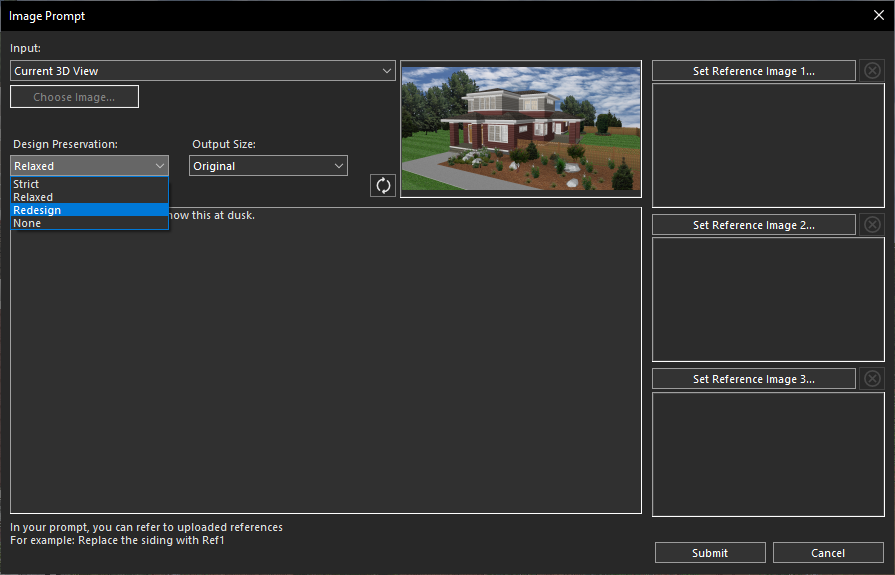
Selecting the Redesign option from the Design Preservation drop-down menu
And finally, click the Submit button to generate the image. So, after clicking on Submit, and within a few seconds, Copilot will generate a high-quality rendered image based on your prompt.
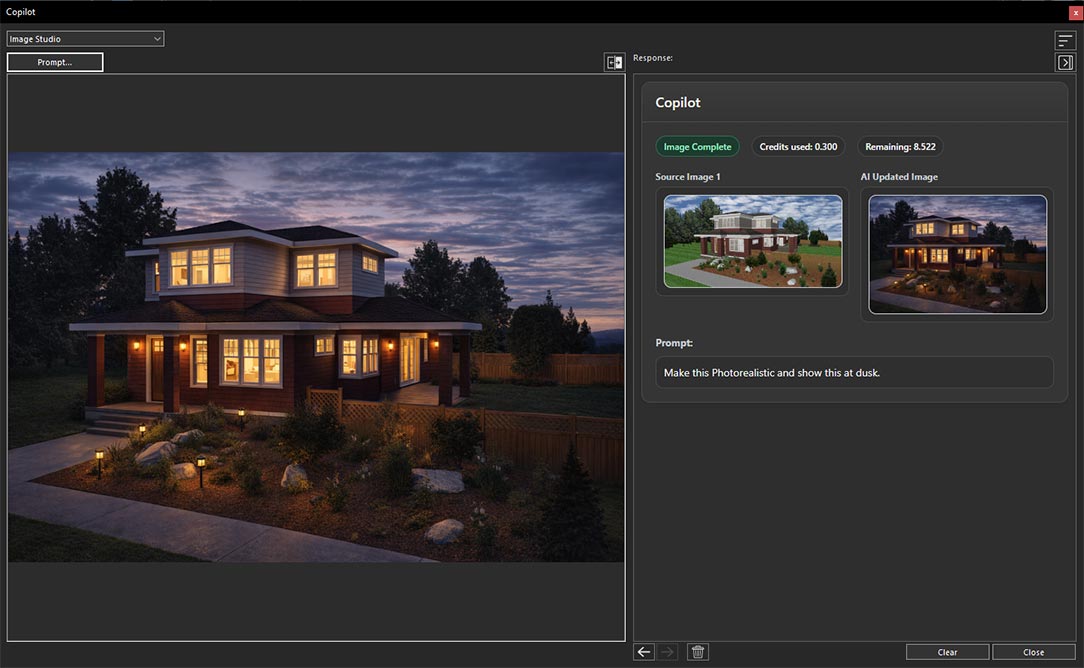
AI-generated image created from the provided text prompt
None
The None option disables design preservation entirely, giving the AI complete creative freedom. Instead of following the original design, the generated result is based primarily on the provided text prompt and other selected inputs, making it ideal for creating entirely new concepts and exploring different design ideas. To use this option, first click on the Prompt button again.
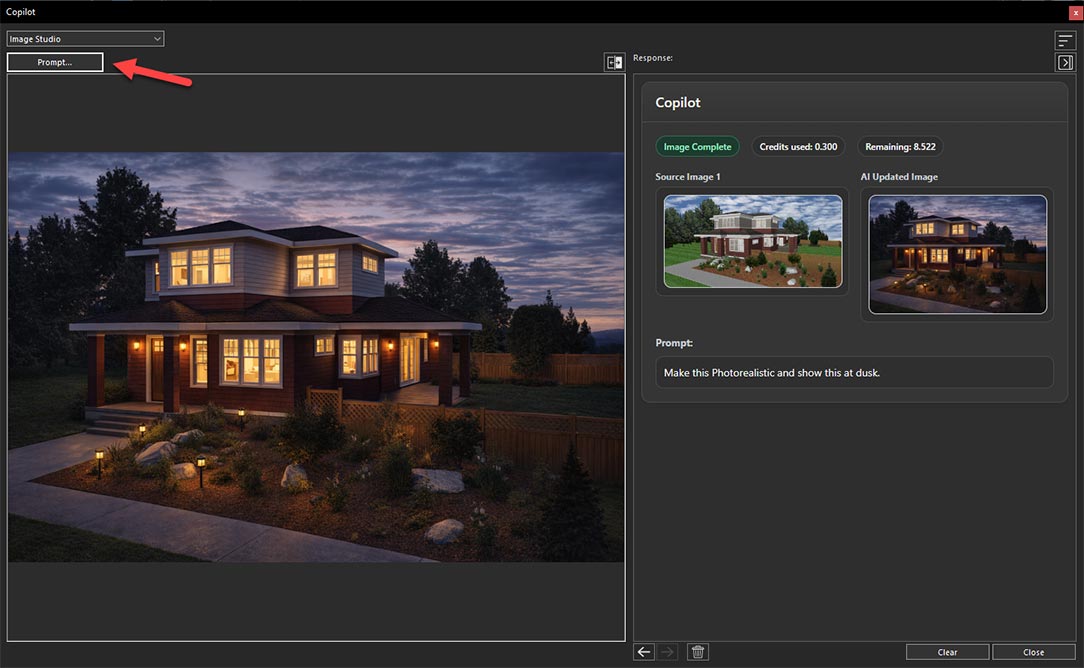
Clicking the Prompt button to apply the next Design Preservation option
And enter the same prompt in the Customize Prompt field that was used previously to ensure a clear and consistent comparison of the generated results.
Entering the same text prompt to ensure a fair comparison of the Design Preservation options
Then select None from the Design Preservation drop-down menu.
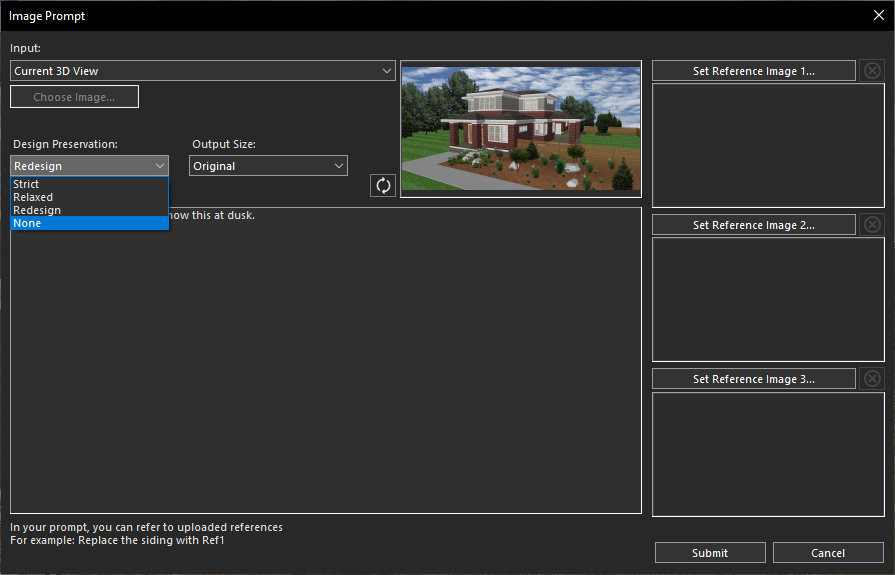
Selecting the None option from the Design Preservation drop-down menu
And finally, click the Submit button to generate the image. So, after clicking on Submit, and within a few seconds, Copilot will generate a high-quality rendered image based on your prompt.
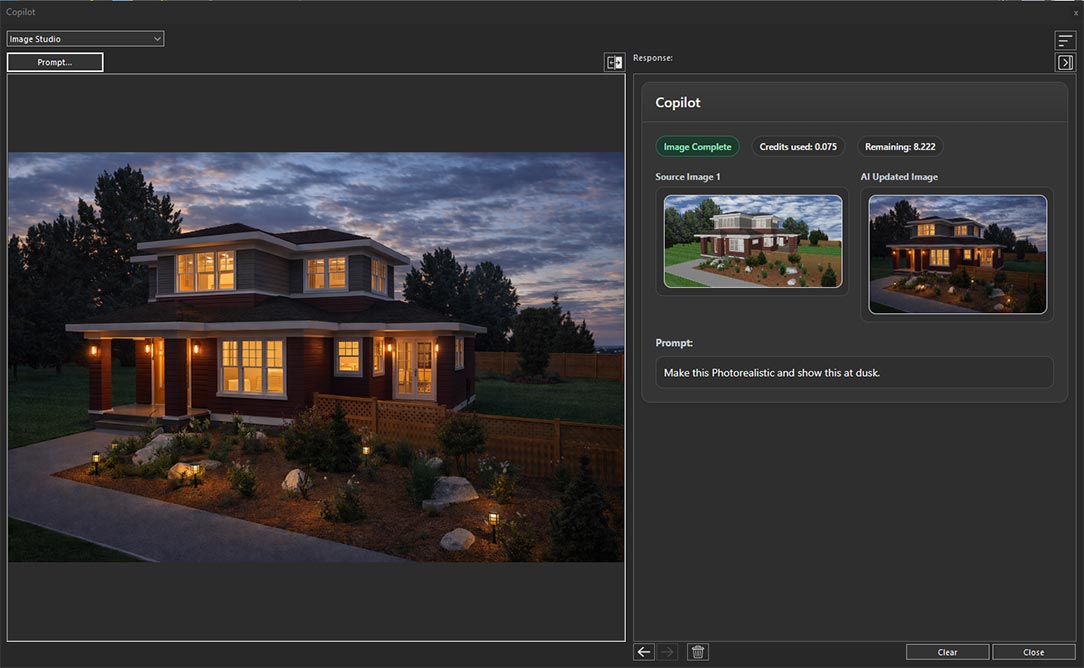
AI-generated image created from the provided text prompt
Conclusion
The Design Preservation options in Home Design Copilot Image Studio provide the flexibility to control how closely AI-generated images adhere to your original design. Whether you want to preserve the existing layout with minimal changes, allow moderate creative enhancements, significantly redesign the project, or generate a completely new concept, each option is tailored to support a different design objective.
By understanding the purpose and behavior of the Strict, Relaxed, Redesign, and None settings, you can choose the most appropriate level of design preservation for your workflow. Experimenting with these options will help you strike the perfect balance between maintaining your original vision and leveraging the AI’s creative capabilities to produce realistic, high-quality design visualizations.
Copilot Render Showcase
Also check out our Copilot Render Showcase by clicking the banner below.
Disclaimer: The features described in this blog require the Home Design Copilot Add‑On. You can purchase the add‑on here: Home Design Copilot
Home Design Help in Copilot is a powerful assistance feature designed to help users get quick guidance and support while working on their home design projects. Integrated directly within the Home Design Copilot environment, this feature provides users with an easy way to find information, understand different design tools, and get answers to common questions without interrupting their workflow. It acts as a helpful companion that assists users throughout different stages of the design process, from exploring application features to improving their overall project experience.
With Home Design Help, users can access valuable information and guidance related to Home Design functionalities, making it easier to learn and utilize the application effectively. Whether a user needs assistance understanding a specific feature, wants to explore available design options, or requires help with completing a task, the feature provides relevant responses to support their needs. This reduces the time spent searching for information and allows users to focus more on creating and refining their designs.
By bringing helpful resources and AI-powered assistance directly into the application, Home Design Help enhances usability and makes the design process more efficient. It is especially beneficial for both new and experienced users by providing a convenient way to discover features, solve problems, and make better use of the tools available in Home Design.
Step-by-Step Guide to Using Home Design Help Feature
Begin by opening an existing home design project or load one of the sample projects included with the application. Once the project is open, click the Copilot icon on the toolbar to launch the Copilot window.
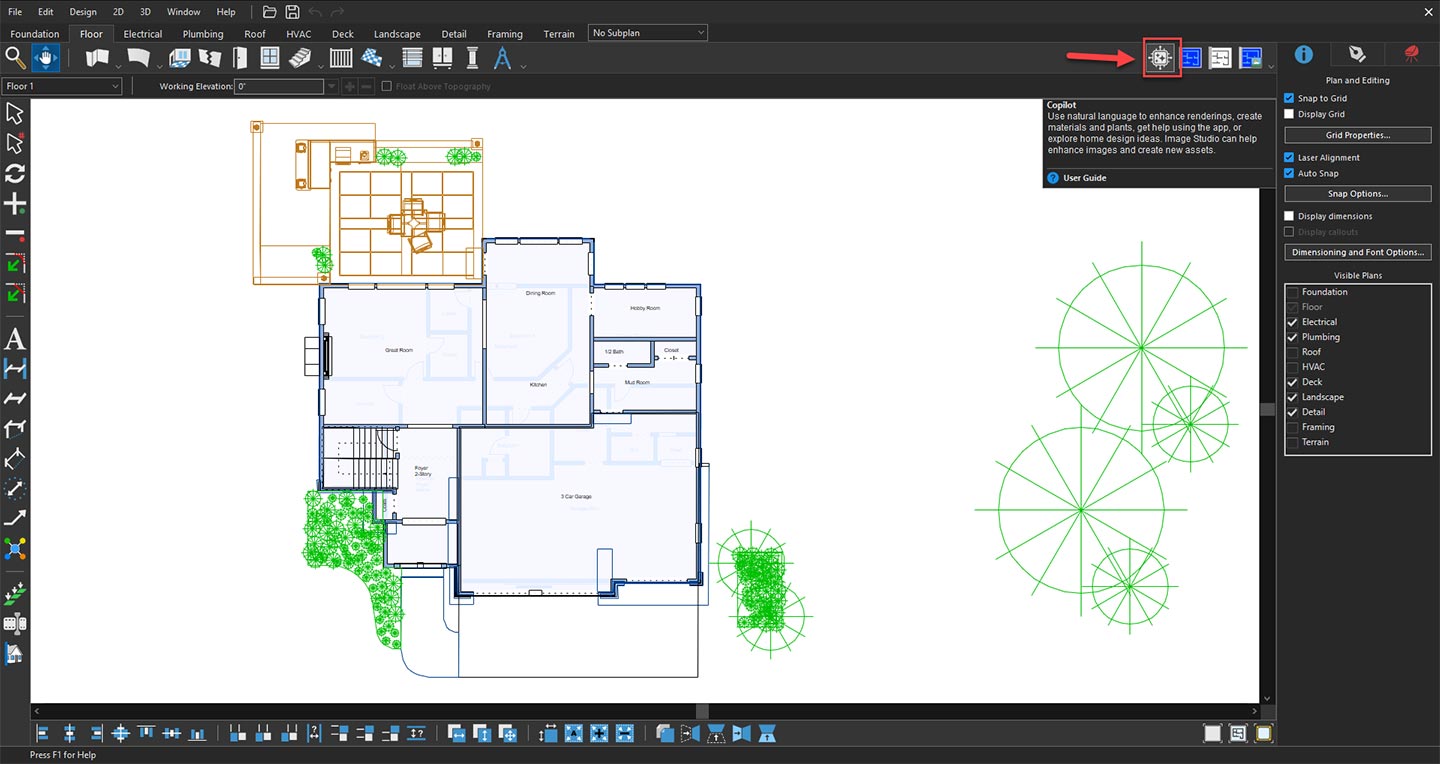
Opening Copilot to explore AI design features
Once the Copilot window is open, select Home Design Help from the available options in the drop-down menu. This feature provides users with dedicated support and guidance for their home design projects by helping them understand application tools, explore design-related options, and find useful information. Home Design Help makes it easier to get assistance while working on a project by providing relevant responses and recommendations to improve the overall design workflow.
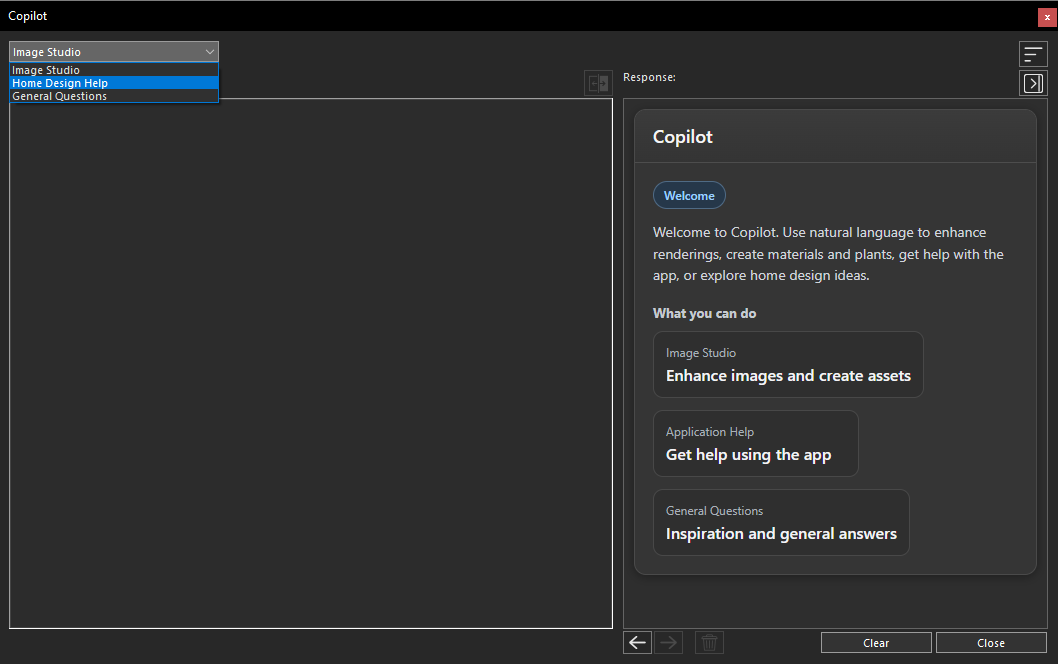
Selecting Home Design Help from the Copilot dropdown menu
After selecting Home Design Help, the relevant Copilot interface will appear, allowing you to request assistance related to your home design projects. In the Prompt field, you can enter your questions, describe the design-related information you need, or ask for guidance about specific features and workflows. Providing a clear and detailed prompt helps Copilot better understand your requirements and generate more accurate and useful responses.
With Home Design Help, you can get assistance on a variety of home design topics, including understanding design tools, exploring interior and exterior design concepts, improving room layouts, selecting suitable materials and colors, planning furniture arrangements, learning about architectural styles, and getting recommendations for enhancing your overall home design experience. This feature helps you quickly find relevant information and make better design decisions while working within Home Design.
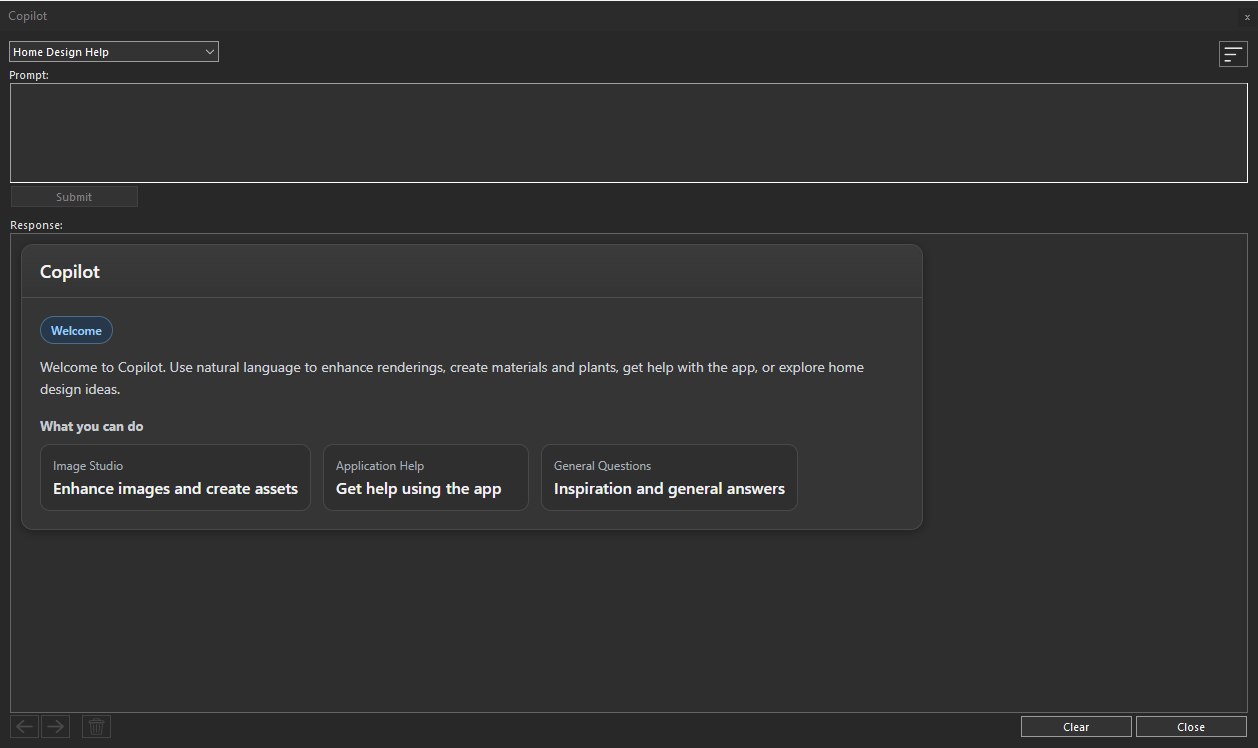
Home Design Help panel ready for user prompts
Once your prompt is complete, click the Submit button to send your request
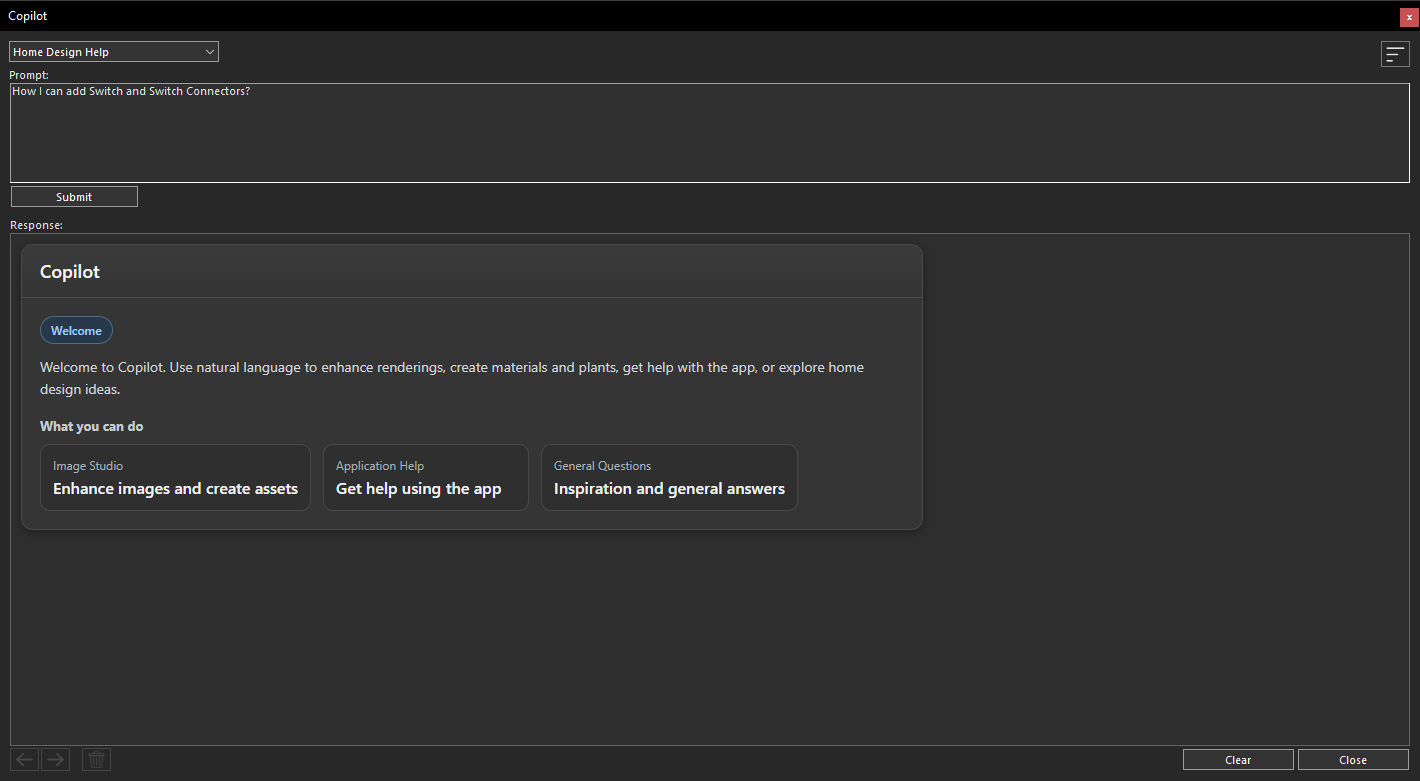
Submitting a query through the Home Design Help prompt area
The Home Design Help Copilot will analyze your request and generate a response within a few seconds. The AI provides clear, informative, and context-aware answers based on the question you submitted, helping you make better design decisions without leaving your project.
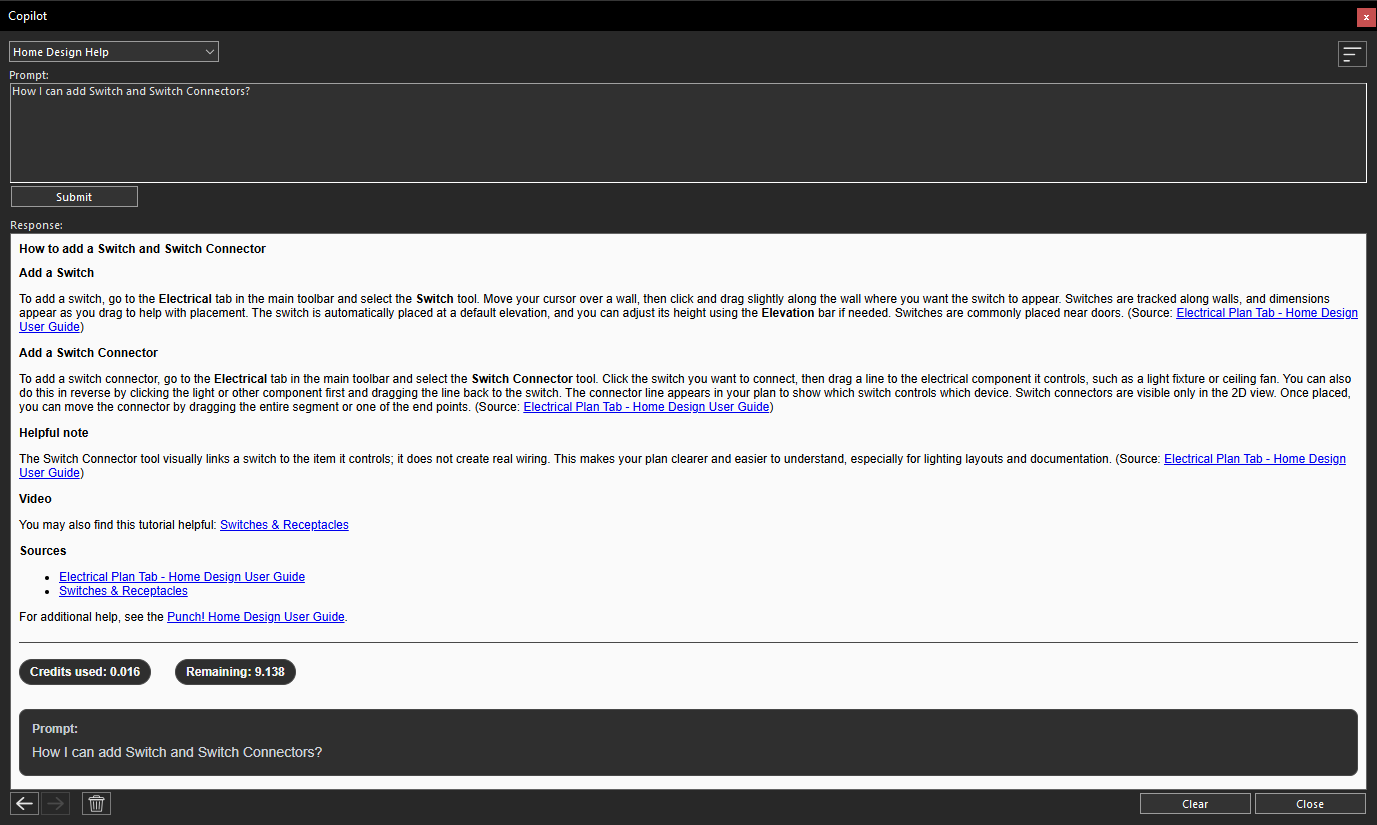
Copilot generated response based on the submitted prompt
Continue Exploring with Additional Home Design Help Queries
There is no limit to the number of questions you can ask in Home Design Help. You can continue interacting with Copilot by submitting additional prompts to explore different design possibilities, get further assistance, clarify information, or receive more guidance related to your project. This interactive approach allows you to refine your ideas, explore various design solutions, and make informed decisions throughout your home design process.
By using Home Design Help in Copilot, you can quickly access useful information, understand available design features, discover creative ideas, and get the support you need to enhance your home design projects. This helps you save time, improve your workflow, and confidently move forward with your design decisions.
Conclusion
Home Design Help in Copilot provides an efficient and convenient way to access guidance and support while working on your home design projects. By offering quick responses, helpful information, and design-related assistance, this feature helps you better understand available tools, explore creative possibilities, and improve your overall workflow.
Whether you need help learning features, exploring design ideas, or finding solutions during the design process, Home Design Help acts as a valuable companion within Home Design. By using this AI-powered assistance, you can save time, make better design decisions, and create your projects with greater confidence and ease.
Copilot Render Showcase
Also check out our Copilot Render Showcase by clicking the banner below.
Disclaimer: The features described in this blog require the Home Design Copilot Add‑On. You can purchase the add‑on here: Home Design Copilot
Designing a home often begins with questions. Whether you’re planning a new house, renovating a room, choosing materials, or exploring different architectural styles, finding reliable guidance can take time. Home Design General Question Copilot serves as an intelligent assistant that helps answer a wide range of home design questions quickly and clearly.
From space planning and interior design ideas to exterior improvements, color selection, furniture placement, lighting, and building materials, the Copilot provides practical insights to support every stage of your design journey. Instead of spending hours searching through multiple resources, you can ask questions in natural language and receive helpful, easy-to-understand responses tailored to your project.
In this blog, we’ll explore how Home Design General Question Copilot can simplify the design process, improve decision-making, and help homeowners and designers turn ideas into well-planned, functional, and visually appealing living spaces.
Home Design General Question Copilot: Step-by-Step Guide
Begin by opening an existing home design project or load one of the sample projects included with the application. Once the project is open, click the Copilot icon on the toolbar to launch the Copilot window.
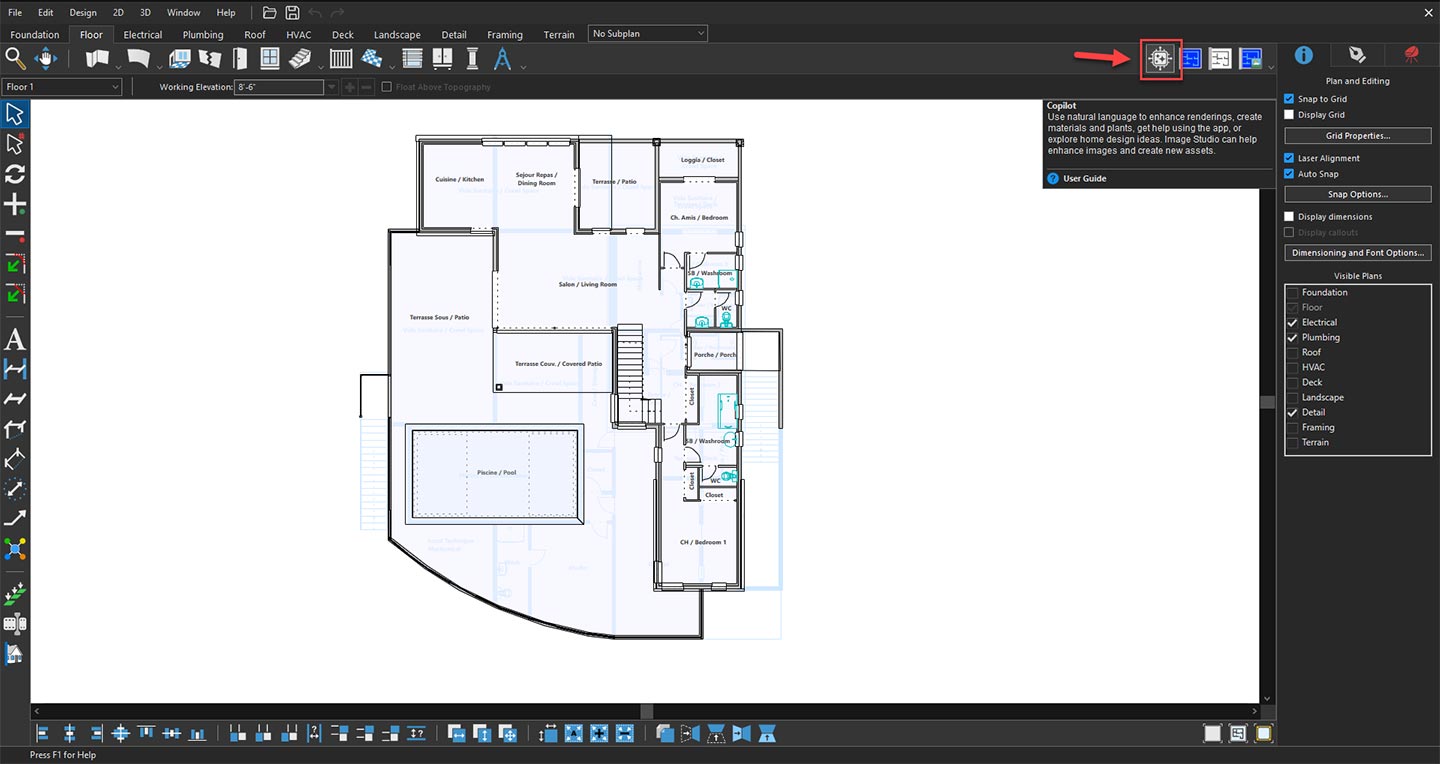
Opening Copilot to explore AI design features
When the Copilot window appears, click the drop-down menu and select General Questions. This mode is specifically designed to answer a wide range of home design questions, provide recommendations, and offer helpful guidance throughout your design process.
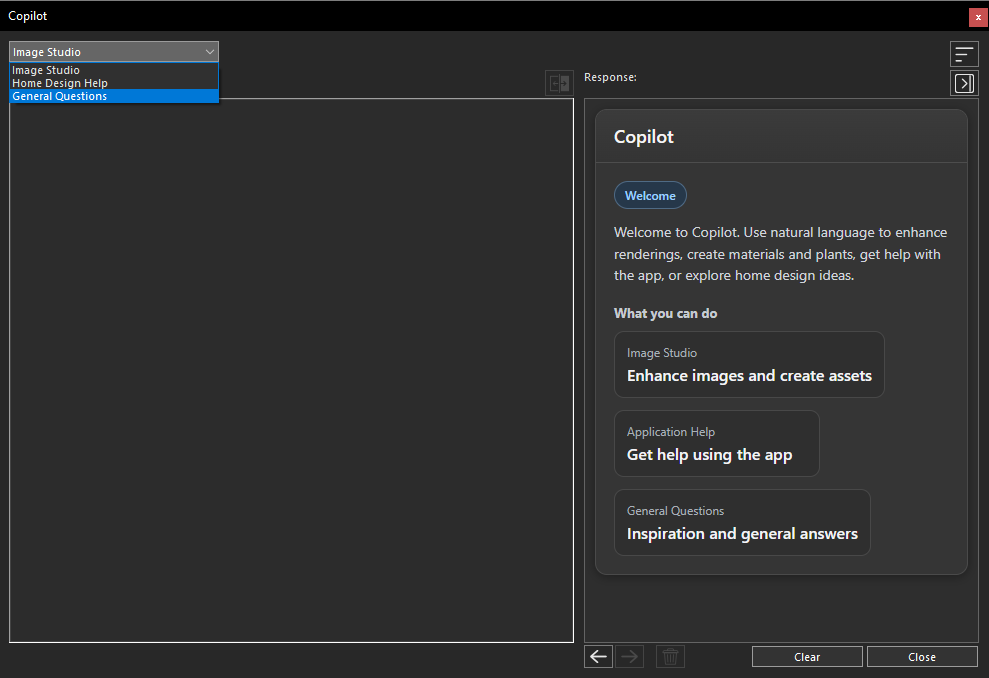
Selecting General Questions from the Copilot dropdown menu
After selecting General Questions, the corresponding Copilot interface will appear. In the Prompt field, type your question or describe the information you need. The more detailed and specific your prompt is, the more accurate and relevant the response will be.
For example, you can ask about:
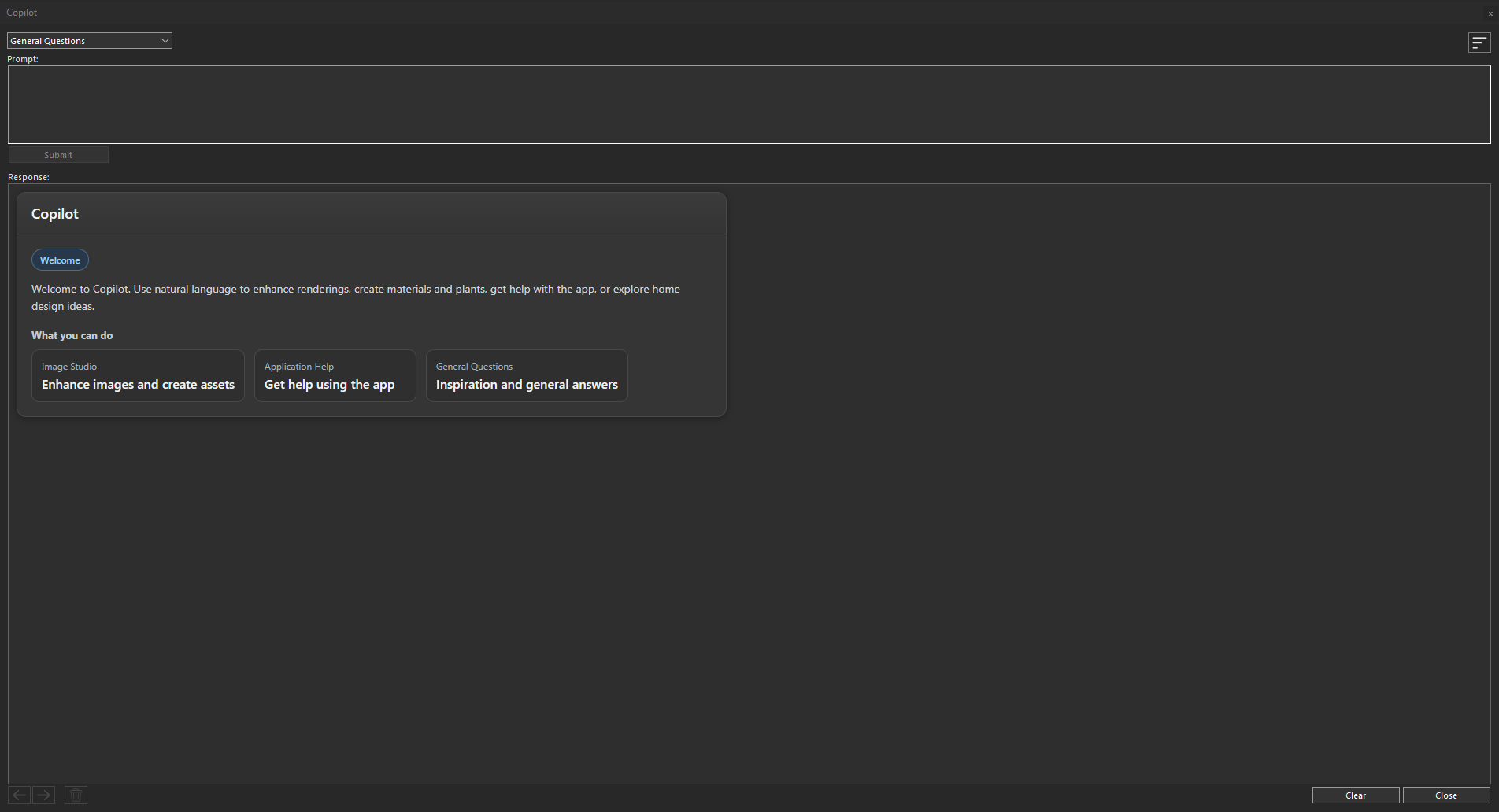
General Questions panel ready for user prompts
Once your prompt is complete, click the Submit button to send your request
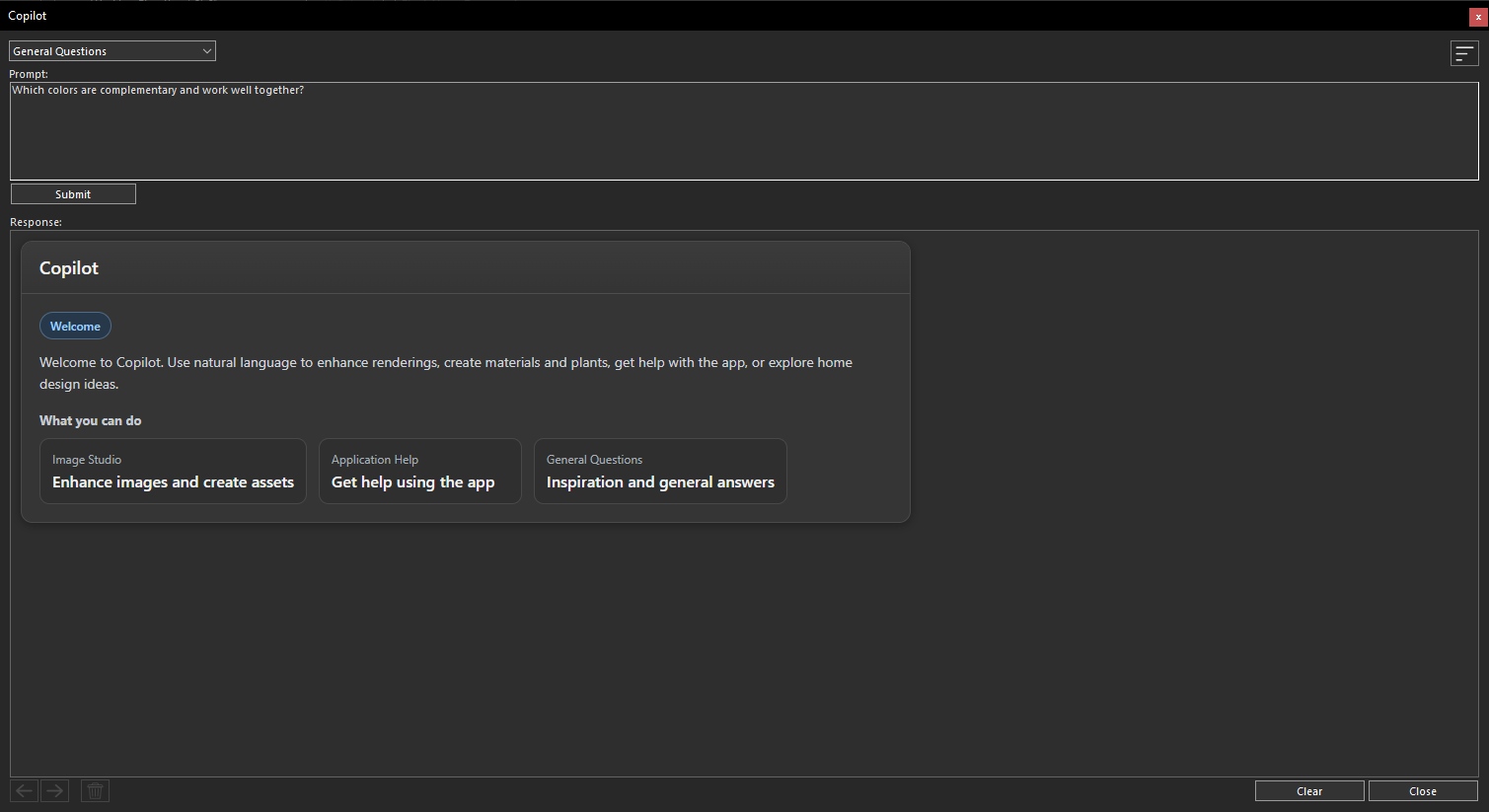
Submitting a query through the General Questions prompt area
The Home Design General Question Copilot will analyze your request and generate a response within a few seconds. The AI provides clear, informative, and context-aware answers based on the question you submitted, helping you make better design decisions without leaving your project.
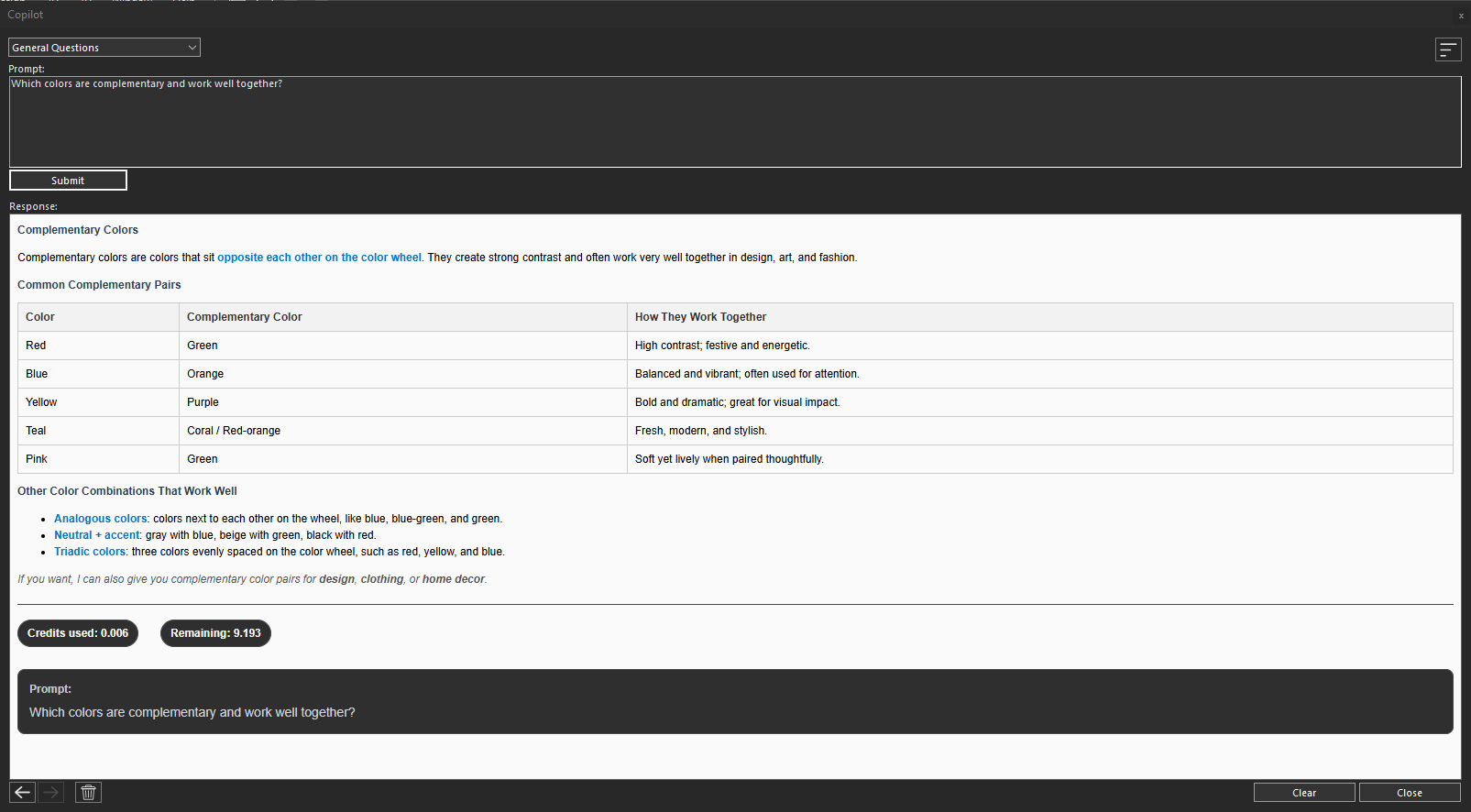
Copilot generated response based on the submitted prompt
Continue Exploring with Additional Questions
There is no limit to asking follow-up questions. You can continue interacting with the Copilot by submitting additional prompts to explore new ideas, clarify recommendations, or gather more information about your project. This conversational approach makes it easy to refine your design, compare different options, and receive expert guidance whenever you need it.
By using the Home Design General Question Copilot, you can quickly find answers, discover design inspiration, and confidently move forward with your home design project while saving valuable time and effort.
Conclusion
The Home Design General Question Copilot makes it easier than ever to find reliable answers and professional guidance without leaving your design workspace. By simply asking questions in natural language, you can receive instant recommendations on layouts, materials, design concepts, architectural styles, and many other home design topics.
Whether you’re a homeowner exploring new ideas or a design professional looking for quick insights, the General Question Copilot helps streamline the design process, improve decision-making, and save valuable time. Simply enter your question, review the AI-generated response, and continue the conversation to refine your ideas and bring your vision to life with confidence.
Copilot Render Showcase
Also check out our Copilot Render Showcase by clicking the banner below.
Founded in 1983, IMSI is a leader in feature-rich, yet affordable, general-purpose CAD (Computer Aided Design) and home design desktop software, and a pioneer in mobile solutions for the AEC (Architectural, Engineering, and Construction) industry.